



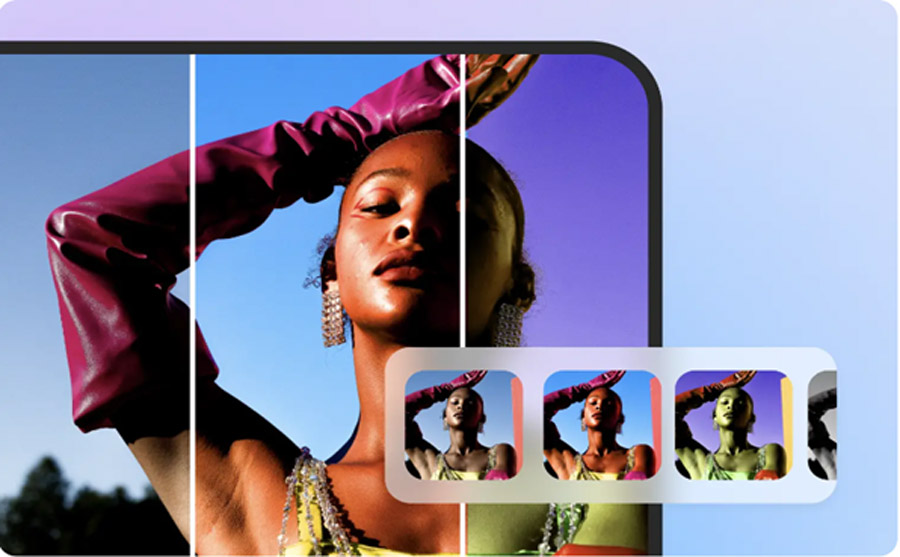
CapCut is known for video editing, but its web-based tools also support photo adjustments, graphic layouts, and AI-assisted image creation. Its online photo editor can help users prepare profile pictures, social media graphics, simple promotional visuals, and images for personal projects without installing dedicated desktop software.
The platform also offers an avatar maker that can turn a photograph or description into a stylized digital character. These features are related, but they do not always appear in the same editing screen. Understanding what each tool does, where it is useful, and what its limitations are makes it easier to choose an appropriate workflow.
What Can You Do With CapCut's Online Photo Editor?
CapCut's online photo editor combines familiar image adjustments with design tools and AI-assisted functions. The available options include cropping, resizing, filters, text effects, background removal, and image enhancement. Some tasks can be completed in a standard editing canvas; others open a dedicated tool.
For someone making a profile picture or an illustration for a web article, that range may be sufficient. A photographer who needs precise colour management, extensive retouching, or specialised print preparation may still require more advanced software.

Crop, Resize, and Adjust an Image
Cropping removes unwanted areas or changes the composition. Resizing changes the pixel dimensions or the size of a design layout. These are different operations: cutting an image into a square does not automatically improve its sharpness.
Before editing, decide where the picture will be used. A profile image may need a square frame, while a website banner usually needs a wider shape. Keep the important subject away from edges that could disappear when the image is displayed on different devices.
CapCut also documents colour and lighting adjustments. Changes to brightness, contrast, warmth, and saturation can improve a dull-looking photograph. Start with small corrections and compare them with the original. Heavy adjustments may erase shadow detail, distort skin tones, or make colours appear unnatural.
Remove or Replace Backgrounds
CapCut includes an AI background remover intended to separate a subject from its surroundings. This can help when preparing a profile photograph, placing a product against a plain background, or combining a subject with a different design.
Background removal is not always exact. Hair, transparent objects, and complicated edges can produce visible mistakes. Check the outline against both light and dark backgrounds before using the result.
Object-removal and inpainting tools address a related but different task: removing a distraction and filling the space it occupied. A clean-looking result does not prove that the reconstructed area is faithful to the original scene. Avoid presenting altered documentary or news photographs as unedited evidence.
Add Text, Templates, and Design Elements
Templates, filters, and text tools can reduce the work involved in preparing posters, cards, and social graphics. They are most useful when the intended dimensions and message are clear before editing begins.
Keep text short, maintain sufficient contrast, and avoid placing important details over busy areas. For publication, check spelling and names manually. A visually appealing template will not compensate for incorrect information or difficult-to-read text.
How to Edit a Photo in CapCut Online
The exact layout can vary by account, device, and region, but the basic process is straightforward:
-
Open CapCut's official online photo editor and sign in if prompted.
-
Start a new image project or select the relevant image-editing tool.
-
Upload a photograph you have permission to use. Keep an untouched copy on your device.
-
Crop and resize the image for its intended destination before adding decorative elements.
-
Adjust colour or apply background and enhancement tools only where they improve the image.
-
Preview the design at its expected display size, then export it using an available format and quality setting.
After downloading, open the saved file separately. Check its pixel dimensions, image quality, any visible artefacts, and whether text remains readable. The editor preview alone cannot confirm how a file will appear in another application.
If an option described in a tutorial is missing, look for its equivalent in the current interface rather than assuming every CapCut product has an identical set of controls.
CapCut's Avatar Maker: Turning Photos Into Digital Characters
An avatar is a visual representation used for a profile, fictional character, or digital identity. CapCut offers an AI avatar maker that can create stylized images from reference photos and user instructions. Its official guidance describes options such as hairstyles, clothing, facial details, and different illustration styles.
An AI-generated avatar is not the same as a carefully edited portrait. A model can interpret or change features, including aspects the user did not ask it to alter. Results may look convincing while differing from the reference.
How to Create and Refine an Avatar
Begin with a clear photograph that you own or have permission to upload. A well-lit image with an unobstructed face generally provides a more useful starting reference than a heavily filtered or compressed copy.
Open CapCut's avatar-making or AI-design workflow and follow the options available in your account. Upload the image if the selected mode supports photo references. Describe the look you want in plain language: for example, a simple illustrated portrait with a neutral background and a blue shirt.
Review the generated version before asking for changes. Adjust one or two elements at a time, such as the background, outfit, or illustration style. This makes it easier to identify which instruction produced a useful change.
Save the final avatar in a format suited to its intended use. A static profile picture and an animated talking avatar serve different purposes; CapCut also lists video-avatar features, but these should not be confused with standard photo editing.
Where Avatars Are Useful—and Where Care Is Needed
Avatars can help users create a consistent profile image, represent fictional characters, or illustrate a personal project without publishing an ordinary headshot. The practical benefit is control over visual style rather than a promise of perfect likeness.
Do not upload another person's face without appropriate permission. An AI avatar should also not be presented as a real photograph of someone or used to impersonate another person. For professional or educational settings, a clear distinction between illustration and authentic photography helps avoid confusion.
Image Upscaling: Increasing Photo Size Without Confusing Quality
CapCut's image upscaler is intended to enlarge an existing image. Its official guidance describes 2x and 4x enlargement choices. Upscaling increases pixel dimensions, but more pixels do not automatically restore detail that was missing from the source.
For example, if a small photograph looks blurred because of poor focus, enlarging it may make the blur more visible or introduce estimated textures. AI enhancement can sometimes make edges look clearer, but it cannot guarantee an accurate reconstruction.
Use the largest original file available rather than a screenshot or compressed thumbnail. Try the smaller enlargement first, compare important details, and check the downloaded dimensions. Faces, writing, product labels, and repeated patterns deserve particular attention.
Also distinguish upscaling from resizing and canvas expansion. Resizing changes dimensions; cropping alters framing; expanding a canvas adds space around existing content. The right choice depends on whether the problem is image size, composition, or missing detail.
What to Expect From CapCut's Advanced Editing Tools
CapCut provides background tools, image enhancement, colour controls, and AI-assisted changes that extend beyond basic cropping. They are useful for routine edits, but not every advanced function should be treated as a precision instrument.
For portrait retouching, restrained adjustments usually preserve a more natural appearance. Excessive smoothing can remove texture, while generated replacements can change details that identify a person or object. Compare the result with the unedited photograph before sharing it.
The original description of CapCut as a fully non-destructive editor needs qualification. A project may let users revise elements, but this does not establish that every adjustment is reversible or that the original file can always be recovered. Keep the source photograph, save a separate edited version, and retain intermediate files for work that may need revision.
For images used as evidence, documentation, identification, or reporting, visual accuracy matters more than cosmetic improvement. Record significant edits where they could affect a viewer's understanding.
Three Practical Editing Workflows
Profile picture: Start with a clear portrait, crop it around the face, correct distracting lighting, and remove the background only if needed. Check that the picture remains recognisable when displayed as a small circle. Use an avatar instead if a stylized representation better fits the purpose.
Website or article graphic: Confirm the page's image dimensions and aspect ratio first. Crop to focus on the subject, avoid adding text that will be unreadable on mobile devices, and export a file that balances clarity with reasonable size. Review the final image within the actual page layout.
Simple announcement or poster: Choose a clean layout, use consistent type sizes, and keep the most important information prominent. Check names, dates, and contact details against the original source. If AI-generated imagery is included, inspect it for misleading objects, text, or details before publication.
These workflows have a common principle: choose tools to solve a specific problem, rather than adding effects because they are available.
Free Features, Privacy, and Usage Rights
CapCut offers a free plan with basic editing tools, alongside paid plans and premium AI features. The availability of individual tools, export options, and usage credits can vary. Check the current feature labels and account terms before starting a project that depends on a particular paid capability.
Privacy is another consideration. CapCut's privacy policy explains that the service may process uploaded images, generated content, and related information. Review the policy and applicable terms before uploading sensitive photographs, especially images belonging to other people.
Also confirm that you have rights to use the source image and any design assets. Access to a template or AI feature does not automatically establish unrestricted rights to every element in a finished design. Check licensing conditions if the work will be published or used commercially.
CapCut's terms include age-related requirements and parental or guardian consent provisions for younger users. Users should follow the conditions that apply to their location and account.
Is CapCut the Right Tool for Your Project?
CapCut's online photo editor is a reasonable option for basic corrections, simple layouts, background changes, and experimental avatars. Its browser-based workflow can be convenient for occasional edits and users who do not need specialist software.
It is less suitable as a substitute for workflows that require guaranteed colour accuracy, exact restoration of damaged photographs, or strict control over every pixel. Its AI tools can also introduce content that needs careful inspection.
The most reliable approach is to begin with the original, make only necessary changes, review the actual export, and keep enough source material to correct mistakes later. Used with those limits in mind, CapCut can support everyday photo editing without turning a straightforward task into a complicated one.



Comments 0
No comments yet. Be the first to start the conversation.