



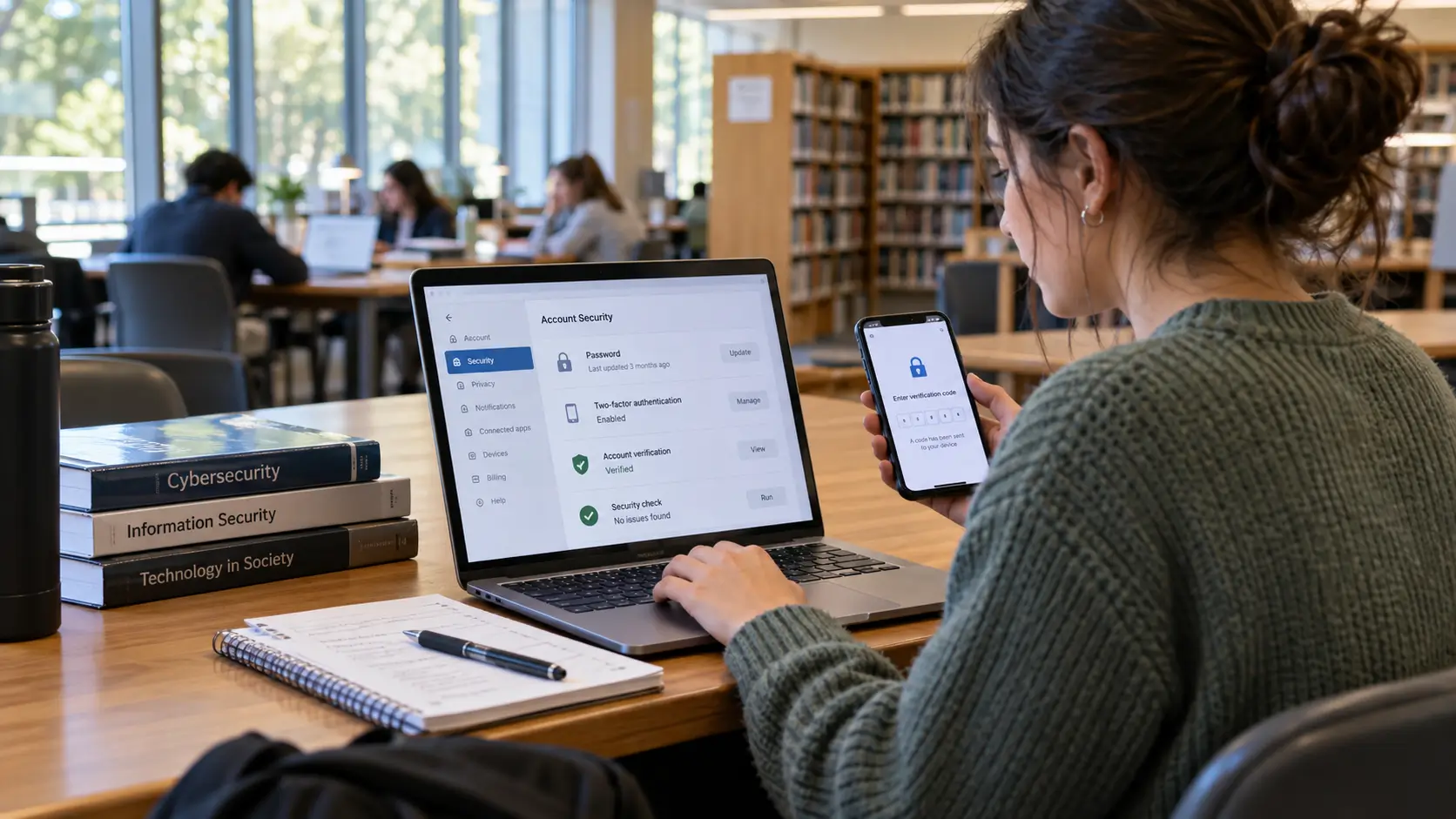
Cybersecurity for students means protecting school accounts, personal information, devices, and academic work from unauthorized access, deception, and loss. It involves everyday decisions, such as securing an email account, checking an unexpected login message, sharing a group assignment, or using a computer in the library.
Start with the email account used to recover your other accounts. Give important services different passwords, enable additional sign-in protection where available, keep devices updated, and maintain recoverable copies of schoolwork. When a message asks you to sign in or share information unexpectedly, verify it through an official channel rather than following its instructions.
These precautions matter because students often depend on connected services. A school email may provide access to a learning portal, while a personal email may receive password-reset links for several accounts. A phone may store authentication codes, class messages, and access to cloud documents.
The problem is not limited to someone stealing a password. Losing a laptop before an assignment deadline, leaving an account signed in on a shared computer, or granting the wrong person access to a document can also disrupt academic work.
Effective protection does not require students to purchase security software or understand advanced computer systems. Many useful safeguards are available through existing account and device settings. The challenge is knowing which safeguards matter, what they cannot prevent, and how to respond when something goes wrong.
Answer Summary: Students can improve cybersecurity by protecting their primary email and school accounts, using long, unique passwords with multifactor authentication or passkeys where supported, keeping devices locked and updated, and backing up important assignments. They should verify unexpected messages independently, check who can access shared files, and understand the limits of public Wi-Fi security. If an account or device is compromised, the next action depends on what information was exposed and who manages the affected system.
Key Takeaways:
-
Secure the email account used for password recovery.
-
Use long, unique passwords and additional sign-in protection.
-
Verify unexpected requests through established official channels.
-
Keep phones and computers updated, locked, and protected.
-
Maintain recoverable backups of important academic files.
-
Review document-sharing permissions and sign out of shared computers.
-
Report suspected account compromise through the appropriate provider or institution.
What Should Students Protect First?
Students should begin with the accounts and files whose loss would have the greatest practical consequences.
For one student, that may be a university email account connected to academic services. For another, it may be a personal phone containing school messages and authentication codes. A student completing a research project may be especially concerned about losing access to documents that cannot easily be recreated.
The first task is to identify these dependencies.
Why your recovery email deserves attention
An email account often controls access to other services because password-reset messages are delivered there.
The US Federal Trade Commission (FTC) explains that someone who gains access to an email account may obtain password-reset links for other connected accounts. That can allow the original compromise to affect additional services.
Consider a student whose personal email is connected to a cloud storage account, several educational platforms, and social media.
If that email becomes compromised, changing the password on one educational platform may not address the wider problem. The recovery email itself needs to be secured.
Check that your main email account has a unique password, additional sign-in protection where supported, and recovery information that you can access.
For institution-managed email, follow the school's account-security requirements. Some settings may be controlled by the institution rather than individual students.
Identify your important accounts and files
Think about the services you would struggle to use if access disappeared unexpectedly.
These may include:
-
School or university email and learning portals.
-
Personal email used for account recovery.
-
Cloud storage containing assignments and research.
-
Examination-related accounts and educational services.
-
Devices holding authentication codes or essential documents.
The priority depends on how each service is used.
A social media account containing ordinary conversations may have different consequences from a cloud account holding the sole copy of a final assignment. However, if several accounts share a password or recovery address, they may also share security risks.
A practical starting point is to ask which account could expose other services, which files would be difficult to replace, and which access problems would interrupt study.
Three useful changes to make first
If you have limited time, concentrate on these actions:
-
Secure your primary email with a strong, unique password and additional authentication where available.
-
Check whether your phone or computer is receiving security updates and has an appropriate screen lock.
-
Confirm that essential coursework exists in a recoverable location beyond its original working copy.
These steps address account access, device protection, and loss of academic work. They are a practical starting order, not a guarantee against every security incident.
How Can Students Recognize Phishing and Fake Messages?
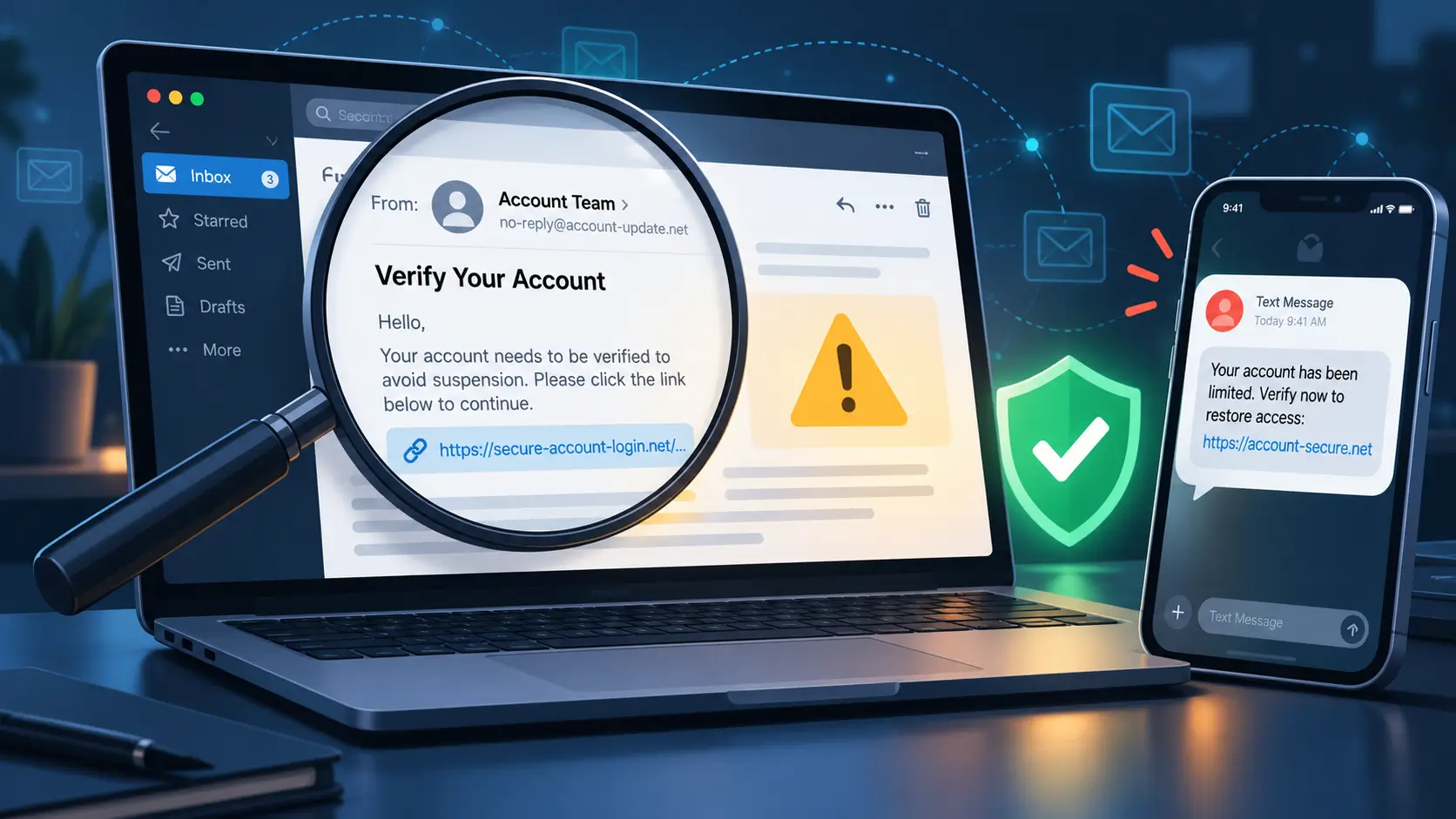
Phishing is a form of deception in which someone attempts to obtain sensitive information or persuade a person to take an unsafe action through a misleading message.
It commonly involves email or text messages, but similar deception can appear through social platforms, group chats, and other communication services.
A phishing message may imitate a familiar institution or organization. Its purpose may be to obtain a password, collect personal information, direct someone to a fraudulent website, or persuade them to open harmful content.
The signs that matter more than appearance
Imagine receiving a message claiming that your school account will be suspended unless you confirm your password that evening.
The message displays the school's name and logo. Its writing is professional, and the link appears to lead to a student login page.
None of these details establishes that the message is genuine.
The FTC explains that phishing messages often imitate trusted organizations and use account problems, unusual activity, or requests for information as reasons to make recipients act.
An unexpected message deserves closer examination when it asks you to:
-
Enter a password through a supplied link.
-
Share a one-time verification code.
-
Open an unfamiliar attachment.
-
Confirm personal information that the sender should not need.
-
Make an immediate payment or account change.
Poor spelling or an unfamiliar sender address may provide clues, but polished writing does not establish authenticity.
The request itself is more important than the quality of the message.
How to verify a suspicious school message
The safer approach is to verify the request without relying on the contact information or links supplied in the message.
If an email claims there is a problem with your learning account, open the institution's established website or application independently.
Look for a corresponding notice or contact the appropriate school office using information obtained from an official source.
If the request cannot be confirmed, avoid submitting credentials or personal information.
This approach is useful because a deceptive message can imitate the appearance of a legitimate one. The recipient needs independent evidence that the request came from the claimed organization.
The same principle applies to unexpected scholarship announcements, internship offers, and requests for academic documents.
Before sharing information or making a payment, verify the organization and the particular request. A familiar name, forwarded message, or repeated social media announcement is not sufficient confirmation.
Students seeking more detail can read about common cyber threats faced by college students.
QR codes and group-chat links also need checking
A quick response (QR) code can direct a phone to a website or another digital destination.
That convenience does not make the destination trustworthy.
The FTC has documented how deceptive QR codes can lead to fraudulent websites that imitate legitimate services and request sensitive information.
If a QR code unexpectedly opens a sign-in page, examine where it leads before entering information.
A code printed on a poster or shared in a student group should not be treated as authentic solely because it appears in a familiar setting.
Group-chat links require similar judgment. A message forwarded by a classmate may still contain an unverified destination.
When a link requests credentials, payment details, or personal information, use an established official route to confirm the request.
This verification habit is also useful when learning to check suspicious online claims and offers.
How Should Students Secure Their Online Accounts?
Account protection works better when students understand the difference between passwords, additional authentication, and recovery settings.
These safeguards serve different purposes.
A password helps establish who is signing in. Additional authentication provides another check. Recovery arrangements determine how access can be restored when an account becomes unavailable.
Use long, unique passwords
The FTC recommends aiming for passwords of at least 12 characters and identifies randomly generated passwords and passphrases as practical options.
Length alone is insufficient if the same password is used for several services.
Suppose a student uses one password for a school account, personal email, and a shopping website.
If that password is exposed through one service, the other accounts may face additional risk because the same credential works across them.
Using a different password for each important account limits this exposure.
A password manager can generate and store unique passwords, reducing the need to remember each one separately. Browser password-generation and storage features can also provide this function.
However, the account or device used to access saved passwords needs strong protection, and the student should understand how recovery works before depending on it.
Avoid saving personal passwords on publicly shared computers.
Students do not need to change every secure password according to an arbitrary calendar. A password should be changed when it has been compromised, may have been exposed, or must be updated under an applicable institutional policy.
Understand multifactor authentication
Multifactor authentication (MFA) requires more than one form of verification during sign-in.
Two-factor authentication (2FA) is a type of MFA that uses two authentication factors.
Depending on the service, this may involve a password together with a verification code, authenticator application, or security key.
The additional check reduces reliance on the password alone.
However, authentication methods do not provide identical protection.
The FTC describes text-message and email verification codes as less secure options than methods such as authenticator applications or security keys, where those alternatives are available.
For students, the practical guidance is to select an appropriate stronger option when supported, while recognizing that a permitted additional authentication method can still provide protection beyond a password alone.
Authentication prompts also require attention.
If an unexpected message asks for a verification code, do not share it. An unsolicited request to approve a sign-in should be investigated rather than accepted automatically.
How are passkeys different from passwords?
A passkey is a digital sign-in credential that uses cryptographic authentication rather than requiring the user to enter a conventional password.
When correctly supported and configured, passkeys can resist certain phishing attacks because authentication is tied to the legitimate service.
The US National Institute of Standards and Technology (NIST) identifies properly designed synchronized authenticators, including FIDO passkeys, as capable of providing phishing-resistant authentication.
The practical difference is important.
A student may be deceived into typing a password into a convincing imitation of a school login page. A correctly functioning passkey system is designed to resist that form of credential theft.
However, a passkey does not confirm that every message is genuine. It does not prevent someone from voluntarily disclosing personal information or approving an unrelated fraudulent request.
Availability also varies between services and institution-managed accounts.
Before adopting a passkey, understand how access can be restored if the device holding or accessing the credential is lost or replaced.
Check recovery settings before losing access
Recovery arrangements deserve attention while an account is working normally.
Review the email address, phone number, and other recovery methods supported by the service.
If backup codes or alternative authentication methods are provided, follow the service's guidance for protecting them.
Consider whether recovery depends entirely on a phone that may be lost or become unavailable.
For a school-managed account, the institution may control recovery procedures or require help from its IT team.
The FTC advises users responding to suspected account compromise to review recovery information, active sessions, and unfamiliar account changes.
Recovery is therefore part of account protection, not merely a task to consider after losing a password.
How Can Students Protect Devices and Academic Work?
A secure account does not automatically protect a device from loss, prevent accidental deletion, or ensure that an assignment remains available before a deadline.
Students need to protect both access to information and the information itself.
Keep devices locked and updated
Phones can contain email accounts, verification messages, personal photographs, and access to school platforms.
Laptops may contain coursework, research files, saved credentials, and access to cloud storage.
A screen lock helps prevent unauthorized physical access when a device is unattended.
Software updates can also address security weaknesses identified after an operating system or application was released.
The FTC recommends keeping phone operating systems and applications updated, using a screen lock, maintaining backups, and enabling supported device-location or locking features before a loss occurs.
Apply these principles to personal computers where the relevant features are available.
Install applications through legitimate distribution channels, and avoid unexpected installers or software attachments whose origin cannot be verified.
On institution-owned devices, follow approved technology policies. Students may not have permission to modify managed settings or install independent security software.
Back up assignments before they become difficult to replace
Consider a student preparing a major assignment on a laptop.
The work may involve several weeks of writing, calculations, references, and revisions. If the laptop stops working shortly before submission, the immediate problem is whether another usable copy exists.
A backup is a separate recoverable copy of information.
The UK's National Cyber Security Centre (NCSC) explains that backups can help restore information after device failure, loss, or other disruption. Its guidance describes both online storage and external storage devices.
Although the NCSC publication addresses organizations, the underlying principle is relevant to academic documents.
Students can use approved cloud storage, an appropriate external storage device, or another permitted backup arrangement.
The important consideration is whether the additional copy remains available when the original cannot be accessed.
Cloud synchronization is not the same as a recoverable backup
Synchronization allows changes to files to appear across connected locations.
This is useful for working across devices, but it does not necessarily provide a separate historical copy.
If a file is deleted or incorrectly changed and that action synchronizes across connected devices, the student may need version history, a deleted-file recovery feature, or another backup to restore it.
Before relying on a storage service, check whether its recovery features are available and suitable for the files involved.
Students should know:
-
Where the additional copy is stored.
-
Whether it remains accessible if the main device or account is unavailable.
-
Whether a deleted or earlier version can be recovered.
-
Whether the necessary files have actually been included.
For essential coursework, checking that a backup can be restored is more useful than assuming a backup exists because a storage application is installed.
Institutional policies may restrict where research information, student records, or other sensitive material can be stored. Those rules take priority over personal convenience.
Review access before sharing group assignments
Collaborative documents help students work together, but sharing settings determine who can view or change the material.
Before sending a document link, check whether access is restricted to selected participants or available more widely.
Also consider whether collaborators need editing permission.
A student receiving a reading list may need viewing access. A group member contributing to a shared assignment may need permission to edit.
Giving everyone editing access may create unnecessary opportunities for accidental changes.
Documents containing personal student information, assessment feedback, or restricted research material require closer attention.
Students should also consider whether collaborators can share the document with additional people.
The objective is to provide the access needed for the task without exposing information unnecessarily.
Protect accounts on family and shared computers
Students do not necessarily own or control every device they use.
A younger student may complete schoolwork on a family phone. A university student may access a learning portal through a computer lab.
The security choices available in these situations differ from those on personally owned equipment.
On a shared device, avoid saving passwords in a browser unless the device owner or institution has provided an appropriate, individually protected account arrangement.
Use separate user profiles when available and permitted.
When a shared session is finished, save your work to an approved location, close documents, and sign out of accounts.
Closing the browser window alone may not end every authenticated session.
Students who cannot manage device settings independently can ask a trusted adult, teacher, or institutional IT representative for help.
Is Public Wi-Fi Safe for Students?
Public Wi-Fi can be suitable for ordinary online activity, particularly when websites use properly encrypted connections.
The FTC explains that widespread website encryption has changed the risks associated with public networks. It states that connecting through public Wi-Fi is usually safe because most websites now encrypt information exchanged with visitors.
However, students still need to distinguish a secure connection from a trustworthy destination.
What HTTPS protects—and what it does not
HTTPS is a web communication protocol that uses encryption to protect information exchanged between a browser and a website.
It helps prevent others on the network from reading the protected contents of that connection.
But HTTPS does not establish that the website belongs to the organization it claims to represent.
A fraudulent sign-in page can also use an encrypted connection.
For example, if a student follows a deceptive message to an imitation university portal, HTTPS does not prevent the website operator from receiving information entered into that page.
The FTC explicitly warns that fraudulent websites may use encryption to appear trustworthy.
Before entering credentials, confirm that the website is the genuine service through an established official route.
If the Wi-Fi network itself has an unfamiliar name, check with the school, library, or venue before connecting.
Students wanting a more detailed explanation can read about using public Wi-Fi safely as a student.
Does a student need a VPN?
A virtual private network (VPN) creates an encrypted connection between a device and the VPN service.
It can serve particular privacy or institutional access purposes.
However, a VPN does not establish the authenticity of every website visited. It cannot prevent someone from entering a password into a fraudulent page.
A VPN also does not replace software updates, account protection, or responsible handling of downloaded files.
For ordinary browsing on correctly encrypted websites, purchasing a VPN is not a necessary starting requirement for basic student cybersecurity.
Some schools and universities provide managed VPN services for accessing internal academic systems. Students should follow institutional instructions where these services are required.
Before leaving a library or computer-lab computer
Shared computers require attention because another person may use the same device later.
When an institution permits personal account access on shared computers, follow its session and sign-out procedures.
Before leaving, make sure the necessary files are saved to an approved location, documents containing personal information are closed, and accounts are signed out.
Avoid leaving downloaded personal files behind when institutional policy permits their removal.
If you are uncertain whether an account remained signed in, examine its available security-session controls from a trusted device.
These actions address risks that a secure Wi-Fi connection alone cannot prevent.
What Should Students Do When Something Goes Wrong?
A cybersecurity response should begin by identifying what happened.
Receiving a suspicious message, entering a password into a fraudulent website, downloading an unfamiliar program, and losing a phone require different responses.
Treating these events as identical can distract from the problem that needs attention.
|
What happened? |
Immediate response |
Next action or support |
|---|---|---|
|
Unexpected message requesting credentials |
Avoid responding through the message; verify independently |
Report through the school or service's established channel |
|
Password entered on a suspicious website |
Open the genuine service independently and change the affected password |
Review reused passwords, account sessions, authentication, and recovery settings |
|
Unexpected verification code or sign-in request |
Do not share the code or approve an unfamiliar request |
Check account activity through the legitimate service |
|
Unfamiliar software downloaded or installed |
Stop interacting with the file and seek trusted device-security guidance |
Contact institutional IT if the device or system is school-managed |
|
Email or social account appears compromised |
Follow the provider's official recovery process if access is lost |
Review sessions, recovery details, forwarding rules, and unusual messages |
|
Phone or laptop is missing |
Use available official device-location or locking features |
Notify school IT for managed devices and assess access to accounts and files |
|
Important assignment is missing |
Check version history, deleted-file recovery, and available backups |
Contact the appropriate teacher or institution if the loss affects submission |
|
Sensitive personal or payment information disclosed |
Contact the relevant provider or organization through a verified channel |
Seek appropriate local assistance; procedures depend on the circumstances and country |
The FTC's phishing and account-recovery guidance supports distinguishing between suspicious messages, disclosed information, and unauthorized account activity.
If you entered a password on a suspicious page
Use the genuine website or application to change the affected password.
If the same password was used on other accounts, change it there as well.
Where supported, review active sign-in sessions and unfamiliar devices. Check whether recovery information or account settings have changed without your knowledge.
If the affected account belongs to a school, notify its IT or security support service through an established contact method.
Changing a password addresses credential exposure, but it does not automatically establish that every associated account or device is secure.
The appropriate additional checks depend on the incident.
If you clicked a suspicious link or downloaded a file
The distinction between opening a webpage and installing software matters.
If you opened a page but did not submit credentials, provide information, grant permissions, or install anything, that is different from an incident in which information was disclosed or software executed.
When harmful software may have been downloaded or installed, the FTC recommends updating trusted security software and using it to scan for problems.
Students should follow device-provider guidance and avoid experimenting with unfamiliar repair tools.
On a school-managed computer, contact institutional IT rather than changing managed security settings independently.
When reporting the problem, explain what occurred: whether a link was opened, whether information was entered, whether a file was downloaded, and whether anything was installed.
Accurate details help the appropriate support staff decide what needs examination.
If someone accessed your email account
An unexpected password reset, unfamiliar login, changed recovery address, or messages sent without your knowledge may indicate unauthorized activity.
The FTC recommends changing the password when access remains available, signing out of active sessions, enabling additional authentication, reviewing recovery information, and checking for unfamiliar email-forwarding rules.
If the account is no longer accessible, follow the provider's official recovery procedure.
School accounts may require institutional assistance.
If a compromised email account is connected to other services, examine those accounts as well.
The objective is to identify whether unauthorized access has affected other information or services, rather than assuming the original email was the full extent of the incident.
If your phone or laptop is lost
A missing device creates two separate problems: possible exposure of information and interruption of access to essential files or accounts.
If official device-finding or remote-locking features were enabled, use the relevant provider's guidance.
Do not assume that every device can be located, locked, or remotely erased.
If a lost device is managed by a school, notify the institution promptly.
Next, determine which important accounts were accessible through the device and whether essential academic files remain available elsewhere.
If the lost device held the sole copy of an assignment, check approved storage locations and available backups before deciding the work is irretrievable.
Where a submission deadline is affected, contact the relevant teacher or academic office through the institution's established process.
For younger students, a trusted adult or school representative can help with lost devices, compromised accounts, or serious personal-information exposure.
When personal or payment information was exposed
The appropriate response depends on the information disclosed.
A compromised school password may require account recovery and institutional notification. Payment information may require contacting the relevant financial service through a verified channel.
Some incidents may also require reporting to an appropriate local authority or service provider.
There is no single reporting procedure that applies to every student worldwide.
The FTC's consumer guidance describes US procedures, while students in other countries need to follow the processes applicable to their location and circumstances.
Students should seek help from an appropriate trusted adult when they need assistance handling sensitive information or a payment-related problem.
Practical Cybersecurity Habits for Everyday Study
Cybersecurity becomes more manageable when protective actions are linked to the situations in which students encounter risk.
The useful habits are not necessarily the most complicated ones.
Before an academic term begins, check access to important accounts and confirm that recovery information is usable.
When preparing a major assignment, decide where the working document and its recoverable backup will be stored.
Before sharing a group project, check who has permission to view, edit, or redistribute the document.
When receiving an unexpected message about a deadline, payment, scholarship, or school account, verify the request through an established official source.
When using a shared computer, save work appropriately and sign out before leaving.
And when an unfamiliar login alert appears, check the account's actual security activity instead of responding through an unexpected message.
These habits address different risks. None provides complete protection by itself.
Students also have different levels of control over their accounts and devices. A university student using a personally owned laptop may be able to manage updates and authentication settings independently. A school student using managed equipment may need assistance or approval.
The appropriate response is to work within those constraints rather than bypass institutional controls.
For related guidance beyond the student setting, see Collegenp's article on everyday cybersecurity habits.
Conclusion
Cybersecurity basics for students concern the practical protection of learning accounts, personal information, devices, and academic work.
The first priority is to understand which accounts control access to other services and which files would be difficult to replace.
Long, unique passwords, additional authentication, updated devices, appropriate sharing permissions, and recoverable backups address different parts of that problem.
Students also need to recognize what security measures cannot do. HTTPS does not prove that a website is genuine. A VPN does not prevent phishing. A passkey does not validate every online request. Cloud synchronization does not necessarily provide an independently recoverable backup.
When something goes wrong, the response should match the incident and the responsible service or institution.
The practical objective is not to eliminate every online risk. It is to reduce avoidable exposure, preserve access to essential academic work, and make informed decisions when a message, device, or account requires attention.
References
1. Federal Trade Commission. Creating Strong Passwords and Other Ways To Protect Your Accounts. November 2024. Supports password length, password managers, recovery-email security, and authentication choices.
2. Federal Trade Commission. How To Recognize and Avoid Phishing Scams. September 2022. Supports recognizing deceptive requests, verifying messages independently, and responding to suspected phishing.
3. Federal Trade Commission. Email or Social Media Hacked? Here's What To Do. October 2024. Supports account recovery, session review, recovery-information checks, and identifying unauthorized account activity.
4. National Institute of Standards and Technology. Giving NIST SP 800-63B a Boost: Supplement for Incorporating Syncable Authenticators. April 2024. Supports the phishing-resistant authentication properties of properly designed passkeys.
5. Federal Trade Commission. How To Protect Your Phone From Hackers. July 2022. Supports screen locking, software updates, backups, and preparation for lost devices.
6. UK National Cyber Security Centre. Small Organisations Guide to Cyber Security: Backing Up Your Data. April 2026; reviewed July 2026. Supports recoverable backups, online and external storage, and checking restoration.
7. Federal Trade Commission. Are Public Wi-Fi Networks Safe? What You Need To Know. February 2023. Supports the distinction between encrypted connections and website authenticity.
8. Federal Trade Commission. Scammers Hide Harmful Links in QR Codes to Steal Your Information. December 2023. Supports QR-code phishing awareness and independent verification of unexpected destinations.





Comments 0
No comments yet. Be the first to start the conversation.