



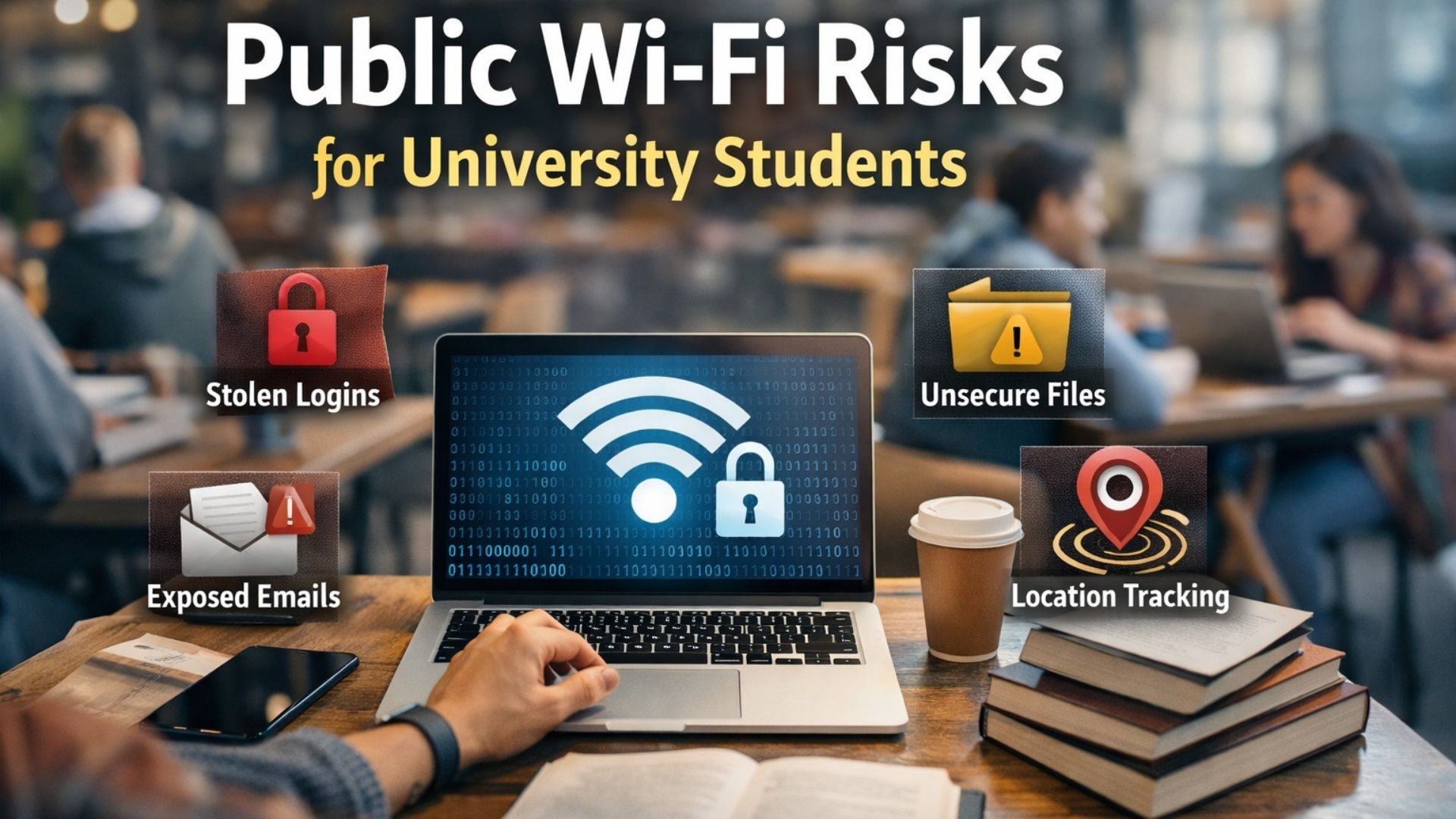
Students use the internet for study, communication, assignments, payments, class groups, and social life. The risk is not that public Wi-Fi or social media is unsafe in every situation. The risk comes from using them without checking the network, website, audience, and account settings.
Public Wi-Fi means a shared wireless network in places such as libraries, cafés, airports, hotels, campuses, and public transport areas. Social media safety means protecting privacy, account access, personal information, reputation, and other people’s consent while using online platforms.
These two topics belong together because students often use social media, email, school portals, cloud storage, payment apps, and messaging apps while connected to shared networks. A free connection can be useful, but it should not lead to careless sign-ins or rushed posts.
Answer Summary:
Public Wi-Fi can be suitable for low-risk browsing when the network is verified and the website uses HTTPS. Students should avoid sensitive account activity on uncertain connections. Social media is useful for learning and connection, but students should review privacy settings, avoid oversharing, protect accounts with strong login controls, and think before posting content that affects themselves or others.
Table of Content
- Why Students Need a Shared Digital Safety Habit
- Is Public Wi-Fi Safe for Students?
- How Students Can Use Public Wi-Fi More Safely
- Social Media Mistakes Students Should Avoid
- Safe Enough, Avoid, or Use Mobile Data
- Student Online Safety Checklist
- What To Do If Something Goes Wrong
- Final Advice
Key Takeaways:
-
Verify the public Wi-Fi name before joining.
-
Use HTTPS as a minimum website check.
-
Use mobile data for sensitive accounts when available.
-
Review social media privacy and tagging settings.
-
Avoid posting live location or private personal details.
-
Use unique passwords and multi-factor authentication.
-
Respond quickly if an account or post creates risk.
Why Students Need a Shared Digital Safety Habit
Students need one simple safety habit because online study and social life often happen at the same time. A student may connect to airport Wi-Fi, open a school email, answer a class message, upload a document, and post a photo within a short break.
That routine can create avoidable exposure. A fake network can copy a café or campus name. A scam message can look like it came from a classmate. A public post can reveal a student’s school, location, schedule, or personal relationships.
The safer habit is not fear. It is a short pause before connecting, clicking, signing in, or posting. The main goal is to decide what is low-risk, what needs caution, and what should wait for a trusted connection.
Students who want wider account and device guidance can also read Collegenp’s guide to cybersecurity basics for students and young professionals.
Is Public Wi-Fi Safe for Students?
Public Wi-Fi can be safe enough for basic browsing, but students should not treat every shared network as trustworthy. The safer answer depends on the network, the website, the task, and the account involved.
The FTC explains that most websites now use encryption, which makes public Wi-Fi safer for many everyday uses than older warnings suggested. It also advises users to look for HTTPS or a lock symbol in the browser address bar before trusting that the connection to a website is encrypted. Read the FTC guidance: Are Public Wi-Fi Networks Safe? What You Need To Know.
This does not remove risk. HTTPS protects the connection between your device and a website, but it does not prove the website is honest. A fake login page can still use HTTPS. Students should check the full website address before entering email, school, bank, or payment details.
Public Wi-Fi is lower risk for reading public articles, checking maps, streaming lectures, or viewing general announcements. It is higher risk for banking, payment approvals, identity documents, password resets, private records, scholarship uploads, and school systems with sensitive data.
How Students Can Use Public Wi-Fi More Safely
Students can reduce public Wi-Fi risk by checking the network, checking the website, limiting sensitive activity, and changing a few device settings. These actions are simple, but they prevent common mistakes.
Verify the Network Before Connecting
The first step is to confirm that the network is real. Public hotspot names are not unique, so someone can create a network name that resembles a library, café, airport, hotel, or campus network.
The Australian Cyber Security Centre advises users to check hotspot names through signage or staff, avoid automatic connection to public hotspots, prefer password-protected networks where available, and forget the network after use. Its guidance is here: Connecting to public Wi-Fi and hotspots.
Students should be careful with network names that use odd spelling, extra words, or no visible source. If a café says its network is “CafeGuest” and another option appears as “Free_CafeGuest_Login,” ask staff before connecting.
For a student-focused explanation of shared-network risk, see Collegenp’s guide on why public Wi-Fi is still a problem for students.
Check HTTPS and the Website Address
HTTPS is a minimum check before signing in or sending information. A lock symbol and HTTPS show that the connection between your device and the website is encrypted.
Students should still check the full address. A page may look like a school login screen while using a domain that does not belong to the school. If a browser shows a warning, the safer move is to stop, disconnect from the network, and use a trusted connection.
Apps are harder to inspect than websites because students may not see how the app connection is secured. For sensitive activity, a trusted network or mobile data is a better choice.
Use Mobile Data for Sensitive Tasks
Mobile data is often a safer choice for sensitive account activity when it is available. Students should consider it for online banking, payment approvals, scholarship documents, personal records, school portals, account recovery, and password changes.
This is not a rule against public Wi-Fi. It is a way to match the connection to the task. Reading a course announcement on verified library Wi-Fi is different from uploading an identity document through an unknown airport network.
Use a VPN as One Layer, Not a Shortcut
A virtual private network, or VPN, can add protection by encrypting traffic between your device and the VPN provider. It can help when students travel or work on shared networks often.
A VPN does not make a fake website safe. It does not fix reused passwords, suspicious links, or information entered into a scam page. Students should choose a VPN carefully if they use one, because a VPN provider can see some information about the connection. Avoid treating any tool as full protection.
Turn Off Auto-Connect, File Sharing, and Saved Logins
Auto-connect can cause a phone or laptop to join a public network without the student noticing. File sharing can expose features that are useful at home but risky in public.
Students should turn off auto-join for public networks, forget networks they no longer use, disable file sharing in public places, keep devices updated, and lock laptops or phones before stepping away.
On shared computers, do not save passwords, do not leave files behind, and sign out of every account.
Social Media Mistakes Students Should Avoid
Social media mistakes often begin as small choices that feel normal at the time. A student posts a location, accepts an unknown account, reuses a password, or shares a screenshot without thinking about who may see it later.
Oversharing Personal Details
Oversharing means posting information that makes a student easier to locate, impersonate, pressure, or scam. This includes a school name, daily route, birthday, phone number, home area, dorm area, class schedule, live location, family details, or identity documents.
Students do not need to hide every part of life online. They should limit details that help someone guess passwords, answer security questions, or create convincing messages.
A photo outside school after class may reveal more than intended if the location, uniform, badge, or timestamp is visible.
Ignoring Privacy and Tagging Settings
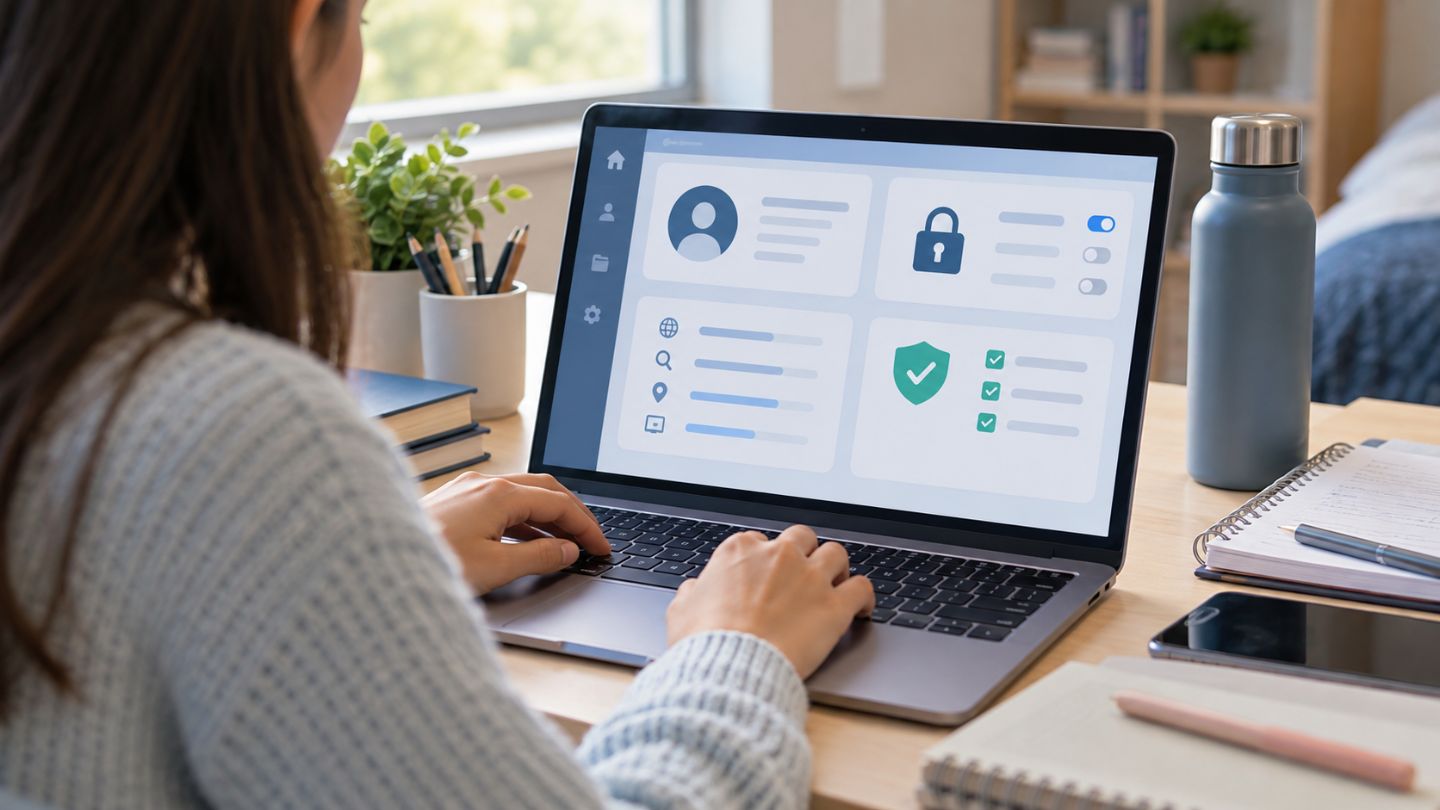
Privacy settings need regular review because platforms change features and visibility options. Students should check who can see posts, tag them, message them, find them by phone or email, view stories, and see activity.
The UK National Cyber Security Centre advises social media users to manage privacy and security settings so personal information is limited to the right audience. Its guidance is here: Social Media: how to use it safely.
Tagging settings matter because another person’s post can reveal a student’s face, school, location, friend group, or event. Asking before tagging someone is a small step that protects privacy and trust.
Accepting Unknown Accounts Too Quickly
Unknown friend or follower requests should be checked before acceptance. Some fake accounts use familiar names, school terms, club logos, scholarship language, gaming references, or event details to look trustworthy.
A safer habit is to verify through another channel. If an account claims to be a classmate, club officer, teacher, employer, or scholarship page, check the profile history, official page details, mutual contacts, and message quality before responding.
Posting in Anger or Without Consent
Posts made during anger, embarrassment, pressure, or joking can create problems after the moment passes. Screenshots, reposts, downloads, and private shares can keep content visible after deletion.
Students should avoid insults, threats, humiliating comments, private jokes about others, and posts that pressure someone. They should also ask before posting photos, videos, screenshots, or private messages involving other people.
Consent is a safety habit and a respect habit. Before sharing urgent claims, rumors, or edited images, students can use Collegenp’s guide on media literacy for students.
Reusing Passwords and Skipping Multi-Factor Authentication
Reusing the same password across email, school accounts, and social media can turn one exposed password into several account problems. Email is especially sensitive because it often controls password resets for other accounts.
Multi-factor authentication, or MFA, means using two or more forms of identity verification to access an account. The National Cybersecurity Alliance explains MFA and common options here: What is Multifactor Authentication?.
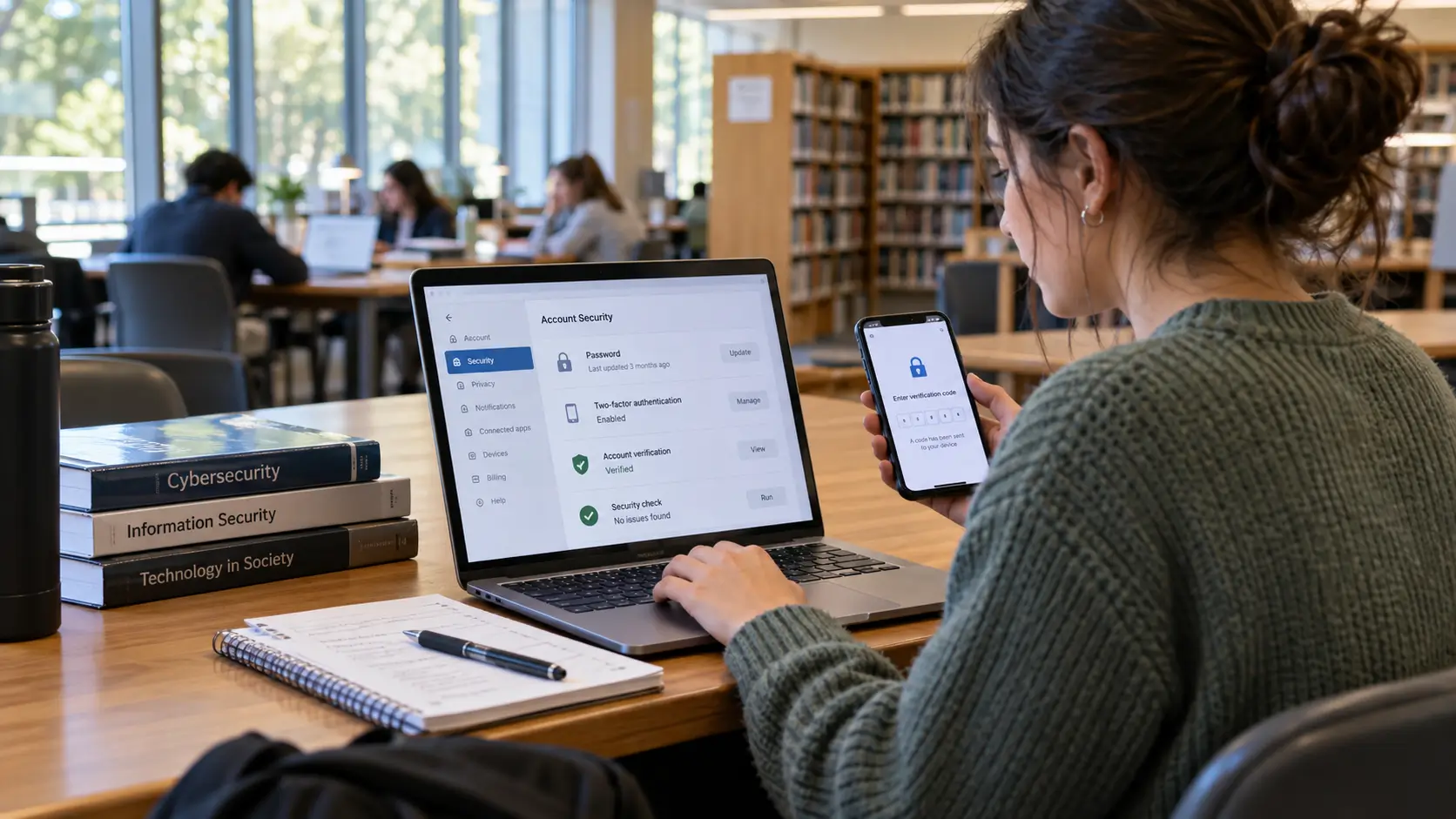
Students should use long, unique passwords or passphrases and enable MFA where available. Authenticator apps, passkeys, security keys, device approvals, and codes may be options depending on the platform. SMS codes are better than no extra step, but they are not the strongest MFA method.
Clicking Suspicious Links
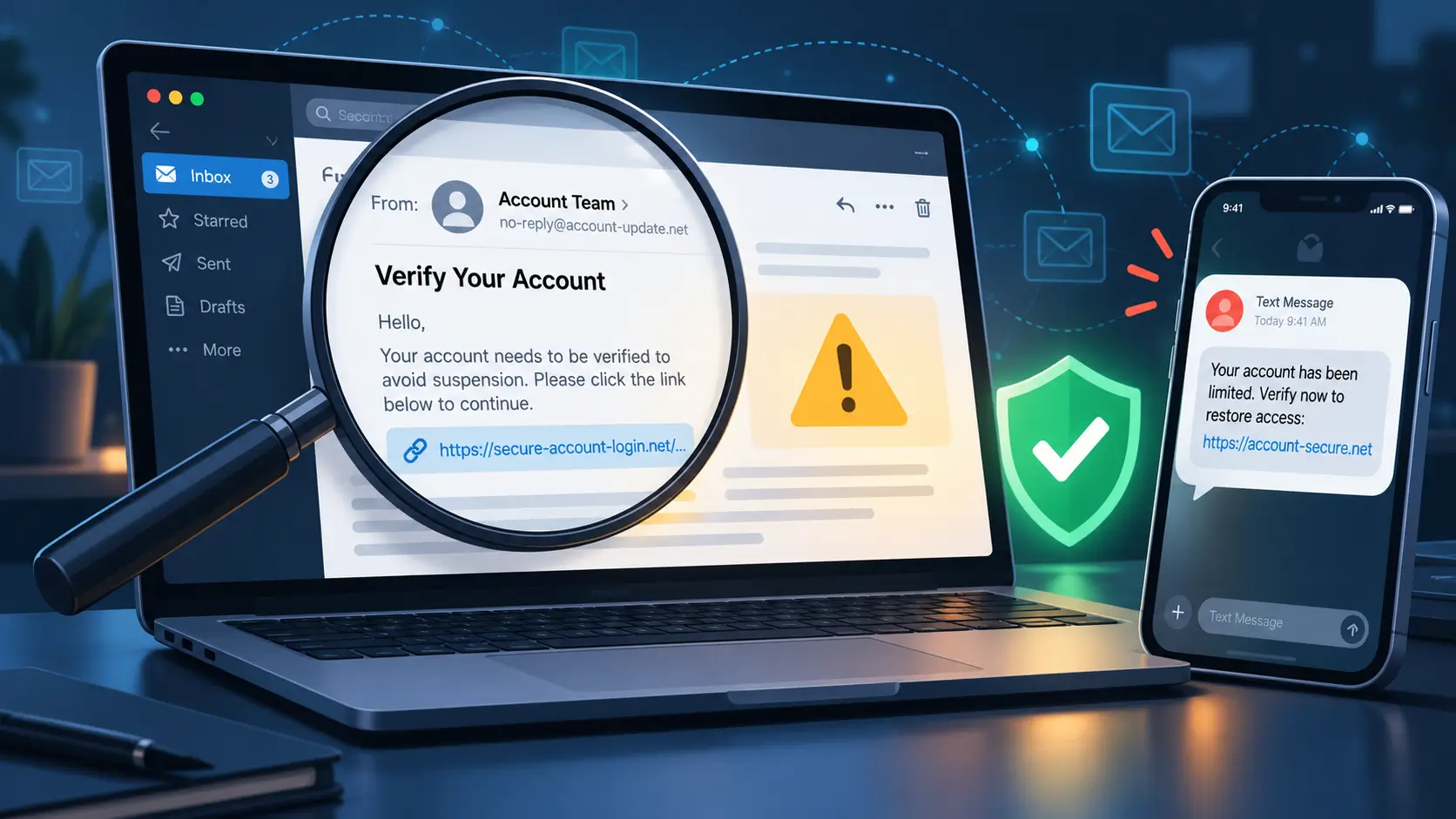
Suspicious links often use urgency, curiosity, fear, or reward. Examples include fake giveaways, account warnings, scholarship offers, delivery notices, “profile viewer” claims, and messages sent from compromised accounts.
Students should avoid entering passwords after clicking links in messages. A safer method is to open the official app or website directly, search for the page through a trusted source, or ask the person through another channel.
Forgetting Old Accounts and Digital Footprint
A digital footprint is the trail of data created by online activity. The eSafety Commissioner explains that a digital footprint can include old photos, comments on public posts, and other material people may find when searching for someone online. Read its guide: Digital footprint.
Students should search their name from time to time, review old accounts, remove outdated public posts where possible, and adjust privacy settings.
The goal is not to create a fake image. It is to reduce unnecessary exposure and make sure public information does not give the wrong impression. Students who want a deeper review process can use Collegenp’s guide to manage your digital footprint and online reputation.
Safe Enough, Avoid, or Use Mobile Data
A simple decision system helps students act quickly without guessing. Match the connection to the sensitivity of the task.
| Task | Safer choice |
|---|---|
| Reading public articles, maps, or general announcements | Public Wi-Fi may be acceptable if the network is verified and the site uses HTTPS |
| Streaming lectures or downloading public course material | Public Wi-Fi may be acceptable from a trusted source |
| Logging in to email or school accounts | Use caution; prefer MFA and a verified network |
| Banking, payments, private records, or identity documents | Use mobile data, a trusted private network, or a trusted hotspot |
| Password resets or account recovery | Use a trusted connection and device |
| Posting photos with location or other people visible | Pause, remove location details, and ask consent where needed |
This table is general guidance, not legal, financial, or school policy advice. Risk depends on the network, device settings, website, account protection, and local context.
Student Online Safety Checklist
A checklist helps students act before a problem appears. Use it before connecting, clicking, posting, or signing in.
For public Wi-Fi, confirm the network name, avoid auto-connect, prefer HTTPS sites, avoid sensitive tasks, use mobile data for high-risk accounts, consider a trusted VPN when appropriate, turn off file sharing, keep devices updated, lock your device, and forget the network after use.
For social media, review privacy settings, limit public personal details, turn off unnecessary location sharing, ask before tagging others, use unique passwords, enable MFA, verify unfamiliar accounts, avoid suspicious links, review connected apps, clean up old accounts, and search your name periodically.
For school and shared devices, do not save passwords, sign out fully, delete downloaded files, avoid leaving devices unattended, and ask the school or campus IT team for help when something looks wrong.
What To Do If Something Goes Wrong
A calm response can reduce harm. If you think you joined a risky Wi-Fi network, disconnect, forget the network, stop signing in to accounts, and move to a trusted connection. If you entered a password, change it from a trusted device and enable MFA if available.
If you clicked a suspicious social media link, close the page, stop entering information, change the affected password, review account activity, remove unknown connected apps, and warn contacts if strange messages were sent from your account.
If someone posts about you without permission, ask them to remove it when safe. If the post involves impersonation, private information, threats, harassment, or serious harm, report it to the platform and ask a trusted adult, school staff member, counselor, or local support service for help.
Local reporting options differ by country, so serious cases should be handled through trusted local channels.
Final Advice
The safest students online are not the ones who avoid Wi-Fi or social media. They are the ones who pause before high-risk actions.
Use public Wi-Fi for low-risk tasks when the network and website are verified. Use trusted connections for sensitive accounts. Use social media for learning and connection, but review privacy settings, protect accounts, respect consent, and manage your digital footprint.
A useful habit is to ask three questions: What am I connecting to? What am I sharing? Who can see this later? Those questions take seconds and can prevent account problems, privacy exposure, embarrassment, and avoidable stress.




Comments 0
No comments yet. Be the first to start the conversation.