



10 Essential Cyber Security Habits for Safer Accounts and Devices
Cyber security rarely fails because people lack knowledge. It fails because daily life is busy: passwords get reused, updates get delayed, and messages that look urgent slip through. The goal is not to become a security expert. It is to build a small set of habits that block the most common ways attackers reach regular users.
These habits focus on four real-world risks:
-
Account takeover from reused or exposed passwords
-
Impersonation scams that pressure you into clicking, signing in, or sending information
-
Devices running outdated software with known weaknesses
-
Data loss when a device is lost, damaged, or hit by malware
CISA’s “Secure Our World” program highlights a simple core: strong passwords, multi-factor authentication, phishing awareness, and software updates. Those four steps cover a large share of everyday risk, and the remaining habits in this guide support recovery, resilience, and early detection.
This guide is general information, not legal or financial advice. If you are dealing with a bank account, payment card, or identity issue, follow your institution’s official support process.
Table of Content
- 10 Essential Cyber Security Habits for Safer Accounts and Devices
- Explain: What “cyber security habits” means in daily life
- Inform: The 10 essential habits
- 1) Use a password manager and make passwords unique
- 2) Turn on MFA and move toward passkeys where available
- 3) Keep devices, browsers, and apps updated
- 4) Verify unexpected messages before you act
- 5) Strengthen account recovery and sign-in options
- 6) Back up important data and practice a restore
- 7) Lock and protect devices (screen lock, encryption, tracking)
- 8) Review app permissions and third-party connections
- 9) Use safer Wi-Fi habits at home and in public
- 10) Monitor sign-in activity and set alerts
- Practical Insight: A routine that keeps these habits active
- Outcomes and limitations
- Conclusion
- FAQs
- Reference for Further Reading
Explain: What “cyber security habits” means in daily life
A cyber security habit is a repeatable action that lowers risk without requiring constant attention. A one-time “security clean-up” helps, yet habits matter more because threats arrive every week: a new scam, a new data leak, a new update that fixes a vulnerability.
Think of your personal security like a layered system:
-
One layer keeps attackers out (unique passwords, MFA/passkeys).
-
One layer reduces exposure (updates, safer networks, fewer risky connections).
-
One layer helps you recover (backups, recovery settings).
-
One layer helps you notice problems early (alerts, sign-in history).
The rest of this article turns those layers into ten practical routines.
Inform: The 10 essential habits
1) Use a password manager and make passwords unique
What to do
Use one password manager so each account gets a long, random, unique password.
Why it matters
If you reuse a password, one breach can spread across many accounts. CISA recommends long, unique passwords and points users to password managers to generate and store them.
NIST’s digital identity guidance also emphasizes longer passwords and stronger screening practices (such as checking against known-compromised passwords) rather than frequent forced changes.
How to start
-
Set up the manager, then protect it with a strong master password and MFA (where offered).
-
Update passwords in this order: primary email → banking/payment → social media → school/work → shopping and entertainment.
-
Turn on breach or compromised-password alerts if your manager supports them.
Common mistakes
-
Keeping passwords in notes, screenshots, or chat threads.
-
Reusing one “strong” password on many sites.
-
Skipping email security, even though email resets many other accounts.
2) Turn on MFA and move toward passkeys where available
What to do
Enable multi-factor authentication (MFA) on important accounts. Where the site offers passkeys, consider switching.
Why it matters
MFA reduces the chance that a stolen password leads to a takeover. CISA recommends turning on MFA as a key consumer protection step.
Passkeys are designed to resist phishing because there is no password to type into a fake site, and the login is tied to the real service.
A practical priority order
-
Passkeys (when supported)
-
Authenticator app or approval prompts
-
SMS codes (helpful when stronger options are not offered)
How to start
-
Turn on MFA for your email first.
-
Do the accounts that can spend money or affect your reputation next (payments, messaging, social platforms).
-
Store backup codes in a safe place, separate from the device you use daily.
Common mistakes
-
Leaving MFA off on email.
-
Using SMS codes without updating your mobile account security (ask your carrier about stronger protections).
-
Losing recovery codes and getting locked out later.
3) Keep devices, browsers, and apps updated
What to do
Use auto-updates where possible, then check manually on a routine.
Why it matters
Updates often patch known security issues. CISA’s consumer guidance emphasizes keeping software updated as a core protection step.
How to start
-
Turn on automatic updates for your operating system, browser, and key apps.
-
Pick one weekly time slot to check: phone OS updates, browser updates, and app updates.
-
Replace unsupported devices that no longer receive security updates, when that becomes feasible.
Common mistakes
-
Updating apps but not the operating system.
-
Forgetting your router: home Wi-Fi equipment also needs updates (see habit 9).
4) Verify unexpected messages before you act
What to do
Treat surprise emails, texts, DMs, and calls as untrusted until you verify them through a second channel.
Why it matters
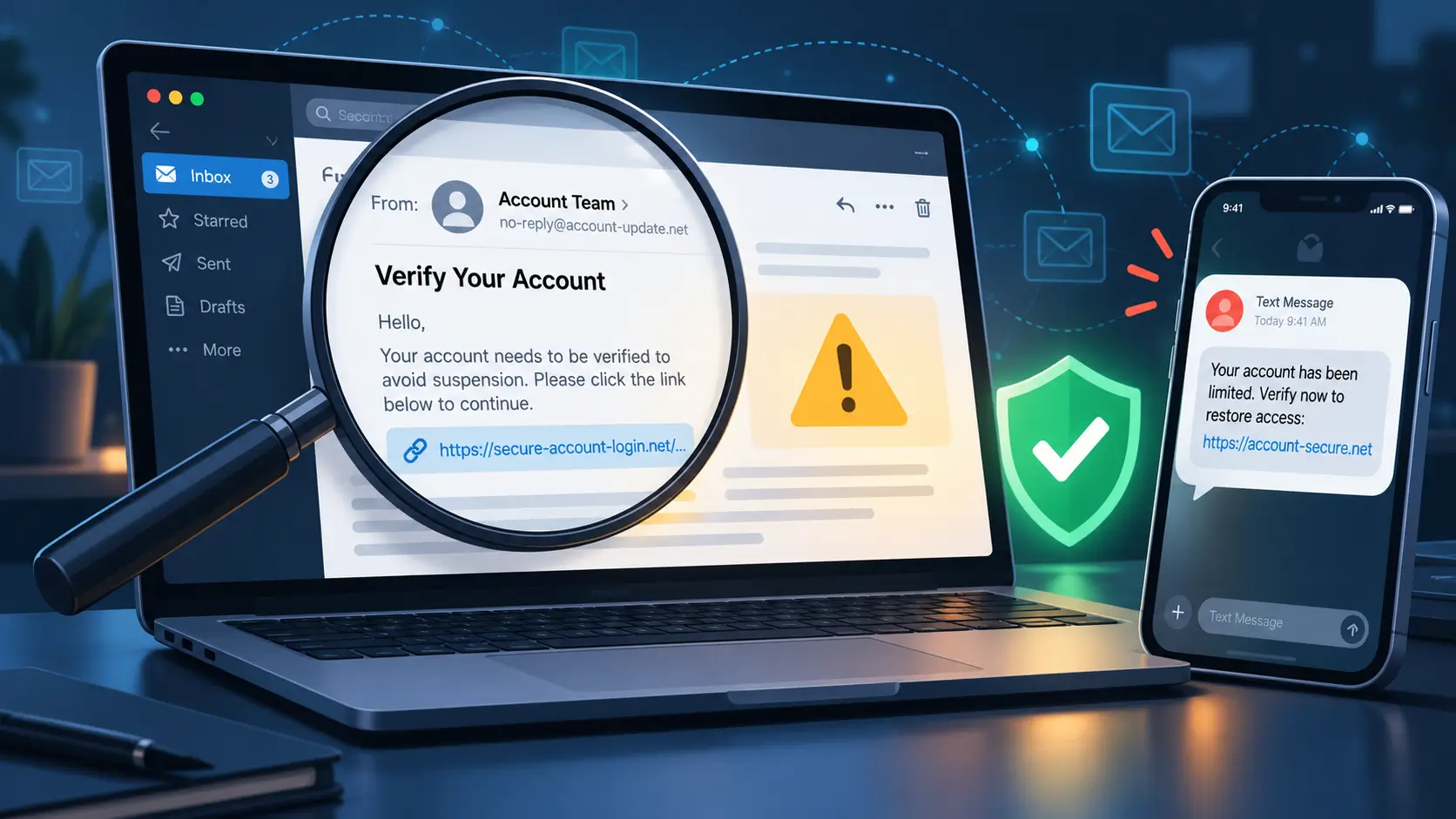
Phishing messages often impersonate schools, delivery services, banks, support teams, or friends. CISA describes phishing as attempts to trick you into opening harmful links or sharing information, and it promotes recognizing and reporting suspicious messages.
A fast verification checklist
-
Slow down when the message creates urgency or fear.
-
Do not use links or phone numbers in the message. Open the app yourself or type the official site address from a trusted source.
-
Check the sender carefully (small spelling changes, odd domains, or unusual handles).
-
When money or credentials are involved, confirm by calling a known official number or asking the person through a separate chat you already use.
Common mistakes
-
Entering a password after clicking a link in an unexpected message.
-
Assuming a familiar logo proves authenticity.
-
Replying “STOP” or engaging with suspicious messages that confirm your number is active (use platform reporting tools instead).
5) Strengthen account recovery and sign-in options
What to do
Set recovery email, recovery phone, and backup sign-in options on your core accounts. Review them regularly.
Why it matters
Recovery settings decide who can reset your password. If an attacker changes your recovery email or adds a new trusted method, they can lock you out. Apple advises reviewing account details and changing passwords if you suspect compromise.
Microsoft also explains what to do after an unusual sign-in and points users toward changing passwords and reviewing security steps.
How to start
-
Use a recovery email you control and protect with MFA.
-
Add a recovery phone number if the platform supports it, then protect your mobile account with carrier security features when available.
-
Review “trusted devices” and remove any you do not recognize.
Common mistakes
-
Using a recovery email address you rarely check.
-
Sharing recovery codes in chat or storing them in the same device notes app.
6) Back up important data and practice a restore
What to do
Back up files you cannot replace (photos, school work, key documents). Then test restoring a file.
Why it matters
Backups protect you from lost devices, accidental deletion, and many types of malware. CISA’s ransomware guidance stresses maintaining offline backups and testing backup procedures.
A simple backup approach
-
Keep one backup in a cloud account that is protected with MFA.
-
Keep one separate backup offline (external drive) for your most important files if possible.
-
Once a month, restore a small sample file to confirm the backup works.
Common mistakes
-
Backing up without testing a restore.
-
Storing the only backup on the same device that could be lost or encrypted by malware.
7) Lock and protect devices (screen lock, encryption, tracking)
What to do
Use a strong screen lock, enable encryption (often on by default on modern devices), and turn on device tracking features.
Why it matters
If someone can unlock your phone or laptop, they often gain access to email, saved passwords, photos, and messaging. NSA mobile device guidance highlights using strong lock screens and safe device practices.
How to start
-
Use a passcode or PIN that is not easy to guess; avoid birthdays and simple patterns.
-
Set auto-lock to a short interval.
-
Enable “find my device” features and confirm you can locate the device from another screen.
Common mistakes
-
Turning off screen lock for convenience.
-
Leaving lock-screen notifications visible for sensitive apps (many phones let you hide message previews).
8) Review app permissions and third-party connections
What to do
Audit which apps have access to your accounts and remove those you no longer use.
Why it matters
Some apps and services use third-party connections that can retain access even after you stop using the app. Google explains how to review and remove third-party access to your account.
How to start
-
Review third-party connections in your main account settings (email and social accounts first).
-
Remove access for apps you do not recognize or no longer use.
-
Limit permissions: many apps ask for more access than they need.
Common mistakes
-
Clicking “Sign in with…” on random sites without reviewing what access is granted.
-
Keeping old quiz, filter, or coupon apps connected long after you stop using them.
9) Use safer Wi-Fi habits at home and in public
What to do
At home, secure your router. In public, limit sensitive actions and confirm encryption.
Why it matters
The FTC advises steps for safer public Wi-Fi use, including using encrypted sites (look for HTTPS) and avoiding risky activity on open networks.
Public Wi-Fi habits that help
-
Use HTTPS sites for logins and personal information.
-
Avoid logging into financial accounts on unknown hotspots when you have safer options.
-
Turn off auto-join for open Wi-Fi networks.
-
Log out of accounts on shared or public computers.
Home Wi-Fi basics
-
Change the default router password.
-
Use strong Wi-Fi encryption settings available on your router.
-
Update router firmware when updates are available.
Common mistakes
-
Using lookalike hotspot names without confirming the venue’s official network name.
-
Keeping router firmware untouched for years.
10) Monitor sign-in activity and set alerts
What to do
Review account activity logs and enable sign-in alerts for key accounts.
Why it matters
Spotting a suspicious login early can limit damage. Microsoft explains that its Recent activity page shows when and where an account was used and includes details such as access method.
For work or school accounts, Microsoft also describes reviewing sign-ins and acting when an entry looks unfamiliar.
How to start
-
Turn on security alerts for email and social accounts.
-
Once a week, check “recent sign-ins” for one or two critical accounts.
-
If you see a login you do not recognize, change the password, revoke sessions, and review recovery options.
Common mistakes
-
Ignoring repeated sign-in alerts.
-
Assuming a single suspicious login is harmless.
Practical Insight: A routine that keeps these habits active
You do not need to do all ten habits at once. Use a short ramp-up plan, then keep a light routine.
Start in 30 minutes
-
Turn on MFA for your primary email and your main social account.
-
Install a password manager and change the email password to a unique one.
-
Enable auto-updates on your phone and browser.
-
Turn on sign-in alerts for your email account.
Weekly (10 minutes)
-
Update phone OS, browser, and apps.
-
Scan recent sign-ins for one key account.
-
Clear out one suspicious message thread and report phishing where your platform supports it.
Monthly (20–30 minutes)
-
Confirm recovery email/phone and trusted devices look correct.
-
Review third-party connections and remove old access.
-
Restore one file from backup to confirm it works.
-
Check your router admin page for firmware updates.
For students and families
-
Prioritize the school email account that connects to learning platforms and password resets.
-
If devices are shared at home, use separate user profiles and keep screen locks enabled.
-
Agree on a simple family rule: no password sharing in group chats, even when someone is “locked out.”
Outcomes and limitations
What these habits reduce
These habits reduce the risk of:
-
Account takeover from reused or exposed passwords (unique passwords + MFA)
-
Phishing-driven credential theft (verification habit + passkeys where supported)
-
Exploits tied to unpatched software (updates)
-
Data loss from malware or device loss (backups + device protection)
What they do not cover
No checklist covers every threat. These habits do not guarantee protection against:
-
High-effort targeted attacks against a specific person
-
Physical coercion or forced device unlock
-
Fraud that happens outside your accounts (such as identity misuse using offline data)
When to escalate
Seek official support when:
-
You lose access to your email account or recovery methods
-
You see repeated suspicious sign-ins or unauthorized changes to security settings
-
A financial account shows unauthorized transactions (contact the institution using a verified number)
Conclusion
Cyber security works best as a small set of repeatable behaviors. If you want the highest impact with the least effort, start with three steps: a password manager with unique passwords, MFA (or passkeys when offered), and regular updates. From there, add recovery settings, backups, safer Wi-Fi habits, and routine monitoring. Taken together, these habits reduce common risks without demanding constant attention.
FAQs
What are the most important cyber security habits for beginners?
Start with unique passwords stored in a password manager, enable MFA on email and key accounts, and keep devices updated.
Are passkeys better than passwords?
Passkeys are designed to resist phishing and remove the risk of password reuse, since there is no password to type or reuse across sites.
How often should I change my passwords?
Rather than frequent routine changes, focus on long, unique passwords and change them when you suspect compromise, when a service reports an incident, or when your password manager flags exposure. NIST guidance supports stronger password practices and screening approaches as part of modern authentication management.
Is public Wi-Fi safe for logging in?
The FTC advises using encrypted sites (HTTPS) and being cautious with sensitive activity on public hotspots. When in doubt, use your mobile data connection or a trusted network.
What should I check first if I receive a suspicious login alert?
Change the password for that account, sign out other sessions if the service provides the option, review recent activity, and confirm recovery options and trusted devices.
Reference for Further Reading
-
Cybersecurity and Infrastructure Security Agency (CISA). Use Strong Passwords. CISA.gov.
-
CISA. Turn On Multi-Factor Authentication (MFA). CISA.gov.
-
CISA. Recognize and Report Phishing. CISA.gov.
-
CISA. Update Software. CISA.gov.
-
CISA. #StopRansomware Guide. CISA.gov.
-
National Institute of Standards and Technology (NIST). Special Publication 800-63B: Digital Identity Guidelines (Authentication). NIST.
-
NIST. Special Publication 800-63B-4 (Authentication and Lifecycle Management revision). NIST.
-
FIDO Alliance. Passkeys (overview and FAQ). FIDOAlliance.org.
-
Federal Trade Commission (FTC). Are Public Wi-Fi Networks Safe? What You Need To Know. Consumer.FTC.gov.
-
FTC. Public Wi-Fi Networks: Security Tips (media resource). FTC.gov.
-
National Security Agency (NSA). Mobile Device Best Practices. Media.Defense.gov.
-
Google Account Help. Manage connections between your Google Account and third-party services. Support.Google.com.
-
Microsoft Support. What is the Recent activity page? Support.Microsoft.com.
-
Microsoft Support. View your work or school account sign-in activity (My Sign-ins). Support.Microsoft.com.
-
Apple Support. If you think your Apple Account has been compromised. Support.Apple.com.
-
Microsoft Support. What happens if there’s an unusual sign-in to your account. Support.Microsoft.com.
-
CISA. Cybersecurity Basics: Social Media Tip Sheet (PDF). CISA.gov.




Comments 0
No comments yet. Be the first to start the conversation.