



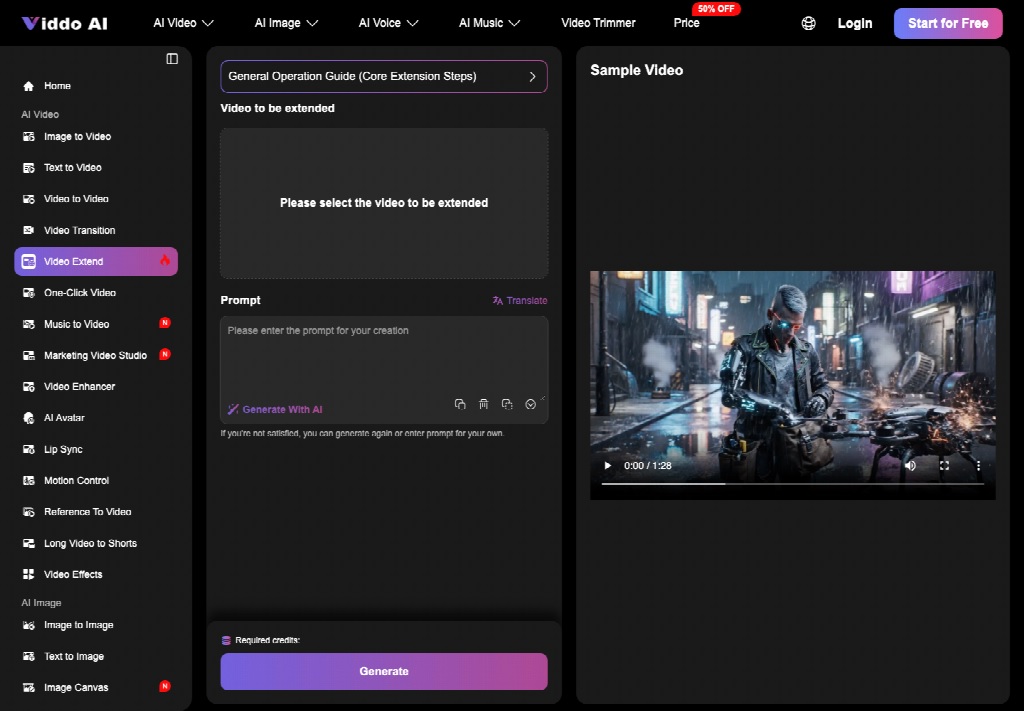
Course pages often explain a process with one diagram and a caption that does the real teaching. The diagram is correct. The caption is long. A student on a phone still has to guess which arrow moves first. viddo image to video can turn that same diagram into a short clip, but only if the motion points at one part you already drew and does not invent a second label.
This is a teaching problem, not a trailer problem. You already have the figure: an admission flow, a lab setup, a course map. The clip should make one relationship easier to see. Viddo AI does that from the image-to-video panel: upload the figure, name it in the prompt with an @ mark, describe one motion, set ratio and length, then Generate. If the word you meant to teach becomes unreadable, the clip fails even when the motion looks smooth.
Set The Lesson Goal Before Any Clip
Write one sentence a student should be able to repeat after the clip. "The application moves from form to document check to offer." That sentence is the whole job. If you cannot say it without the diagram, you are not ready to animate. A clip will not discover the curriculum for you.
Pick the still that already carries that sentence. A crowded poster with six equal boxes is a bad source, because the motion has no place to land. A figure with one path, one highlight, or one arrow is a better source. You are not decorating the page. You are pointing.
Also decide where the clip will sit. A lesson page can hold a short horizontal figure. A phone notice often wants a vertical frame. Choosing late means you will crop the words off the diagram after the fact. The panel asks for aspect ratio before you generate. Use that moment. Do not hope a later crop will save a label.
Prepare The Diagram And One Motion Note
Prepare two things and nothing else. The diagram file, exported so the words are large enough to read at the size students will see. And one motion note, written as a teacher would say it aloud: which part moves, which part stays, and what must not change.
-
Export the diagram at the size you will actually show, not a tiny thumbnail.
-
Keep the teaching word large. If you cannot read it on your phone, the clip will not save it.
-
Write one motion only. A second motion belongs in a second clip.
-
List the words that must survive. Those words are the pass rule.
Do not spend this time collecting a folder of similar diagrams "in case the model wants references." Extra images help only when you will name them. A dump of unlabeled files makes the prompt vague. Vague prompts are how a course map grows a box you never drew.
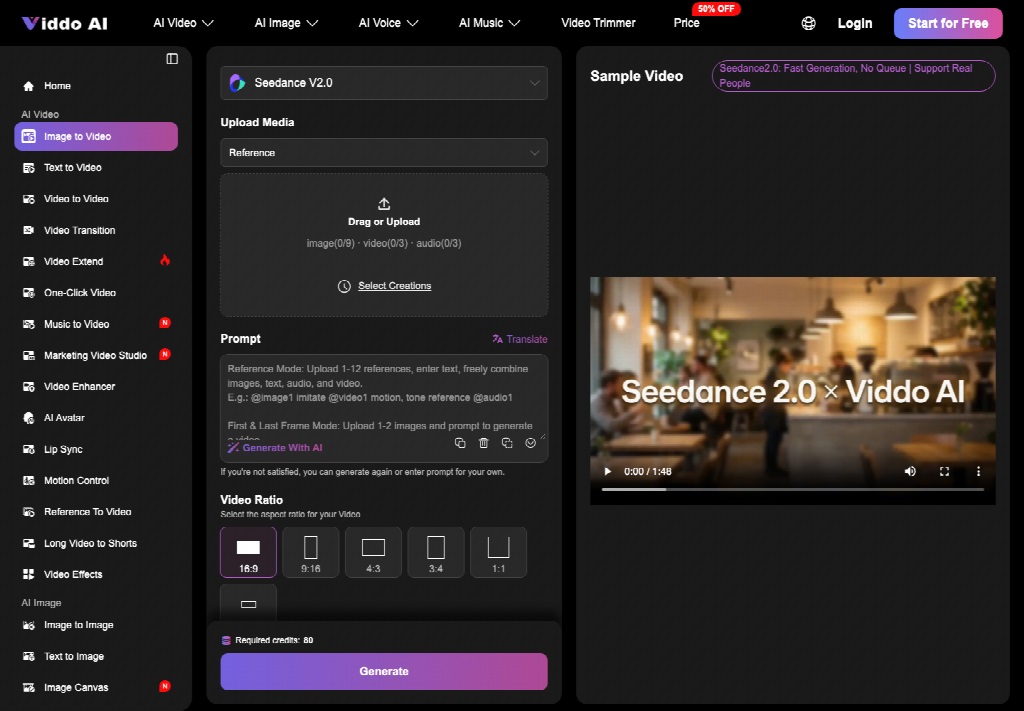
Build The Clip From The Panel Steps
The panel path on Viddo AI is short. Select a model. Upload the image or images. Write the prompt. Set resolution, ratio, and duration. Click Generate. Videos take a few minutes, so build the prompt before you sit and wait. You can upload more than one image and point at each one in the prompt with @. That is the control that keeps a teaching clip tied to your figure instead of to a generic classroom scene.
Upload The Diagram And Name It With At
Upload the diagram first. If you have a second image, a clean icon or a photo of the same board, upload it only if the lesson needs it. In the prompt, refer to the diagram with @ and the asset name the panel gives you. Write the motion against that name. "Move along the arrow in @diagram from the form box to the document box. Do not add a new box." A prompt that never names the upload is a prompt that can wander.
Write The Motion As One Teaching Point
Say what moves and what stays. Let the arrow follow the path you drew. Leave the labels where they are. Leave the colors alone. No narrator, no stock students, no extra title card, unless those things are already in the figure. One teaching point means one change a student can point at. If your note needs the word "then" twice, you are writing two clips.
Set Length And Ratio For The Lesson Page
Match the frame to the page. A wide diagram usually wants 16:9 so the words are not sliced off. A phone story wants 9:16 only if the diagram was drawn for that shape. Duration should cover the one motion and then stop. A long hold after the point is how viewers drift and how you start asking for extra scenes you do not need. Set video length in the panel before Generate, not after you have fallen in love with a take that is the wrong shape.
Generate And Read The Diagram Again
When the clip is back, do not watch it like a film. Read it like a worksheet. Pause where the arrow should arrive. Read the box labels. If a word is wrong, the take is unusable. Generate again from the same uploads with a shorter motion line. The panel lets you generate again or type your own prompt if you are not satisfied. Use the same diagram. Do not swap in a prettier figure that teaches a different path.
Mistakes That Hide The Label On A Diagram
Most failed teaching clips are not "low quality" in a vague sense. They hide the word the lesson was about. A push-in looks serious and makes the type too soft to read. A style change repaints the boxes. A second image, referenced badly, replaces your arrow with a generic pointer. Each of those is a wrong file for a course page, because the student cannot check the step against the caption.
|
What you see |
What it means |
What to do |
|
The box word changes spelling |
The clip invented a step |
Reject it and shorten the motion |
|
A new box appears |
The path is no longer yours |
Name @diagram again and ban new boxes |
|
The arrow moves but the label smears |
The push-in is too close |
Ask for a smaller move and keep the wide frame |
|
People walk into the figure |
The prompt left the diagram |
Delete crowd words and regenerate |
The table is a review habit, not a style guide. You do not need a score. You need a yes or no on the teaching word. If the word fails, the motion does not matter. Rework here is cheaper than a thread with the course owner about a step that was never in the syllabus.
Motion That Covers The Word You Teach
Watch the moment the arrow arrives. That is when a highlight, a zoom, or a shadow often covers the label. If you cannot read the word at that second, students cannot either. Ask for the highlight to sit beside the word, not on it. This is the same check you would make on a slide before a class. The tool does not know which word is the exam word. You do.
A photo to video pass is justified only when that check can pass. A course page still needs the usual review: the diagram must be one you have the right to show. The generator does not clear copyright on a textbook figure you scanned.
When The Still Should Stay On The Page
Leave the diagram as a still when the words are already small, when the figure has many equal branches, or when the lesson is a definition rather than a movement. Viddo AI will still generate something. That something will not become a clearer lesson just because it moves. A static figure with a numbered caption can be the better teaching file.
Ship the clip when a student can follow one path without the caption open, and the labels still match the figure you uploaded. If they cannot, put the still back on the page and keep the motion note for a cleaner diagram. Viddo AI does not replace that decision. The time you save is the review you do not have to reopen.






Comments 0
No comments yet. Be the first to start the conversation.