



Technology Tools for Teaching and Learning: A Practical Guide
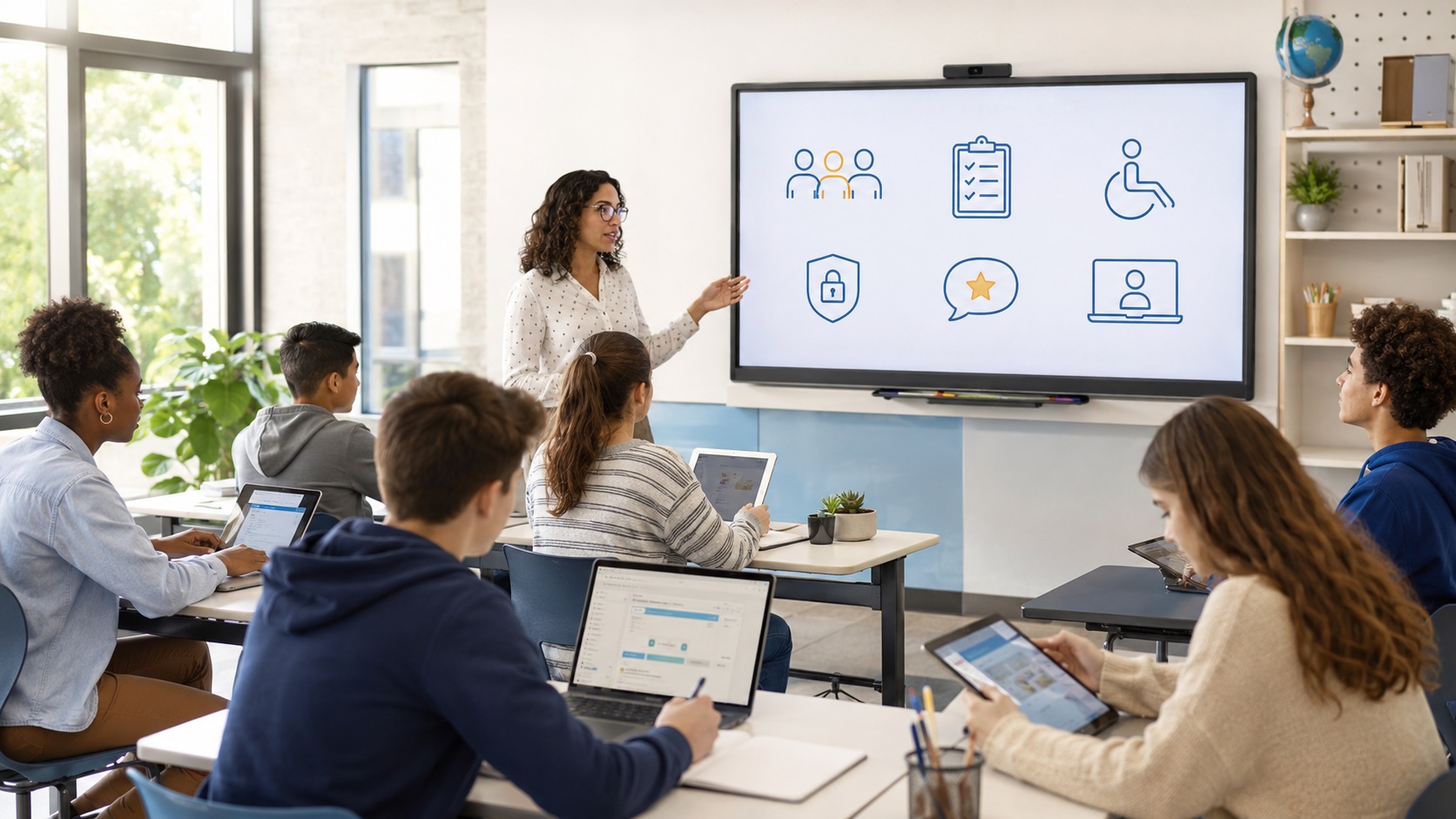
Technology tools for teaching and learning are useful when they help teachers explain ideas, students practise skills, learners access content, or schools give clearer feedback. They are less useful when they are added only because they are new, popular, or visually impressive.
A sound approach begins with the learning problem. A teacher may need a tool for practice, assessment, collaboration, accessibility, feedback, or course organization. Each purpose points to a different kind of tool. A quiz platform is not the same as a learning management system. A digital whiteboard is not the same as an assistive technology tool. A video app is not the same as a feedback system.
Research and policy sources support this cautious approach. UNESCO’s 2023 Global Education Monitoring Report says appropriate use of technology can offer education solutions in access, equity and inclusion, quality, technology advancement, and system management, while also warning that some proposed solutions may be harmful. OECD’s 2025 review states that access to technology alone does not guarantee educational gain.
Summary
Technology tools for teaching and learning should be selected by purpose, access, privacy, accessibility, teacher capacity, and evidence of learning value. Useful tools can support practice, feedback, collaboration, inclusion, and course organization. Poorly chosen tools can increase workload, distract students, exclude learners with weak internet access, or create privacy risks. A stronger decision starts with a learning goal and ends with review of actual classroom results.
Table of Content
- Technology Tools for Teaching and Learning: A Practical Guide
- What Are Technology Tools for Teaching and Learning?
- Main Types of Technology Tools in Education
- How to Choose the Right Tool
- Benefits of Technology Tools
- Limits and Risks
- Low-Bandwidth and Shared-Device Settings
- AI Tools in Teaching and Learning
- Practical Classroom Examples
- Tool Selection Checklist
- Conclusion
Key Takeaways
-
Start with the learning goal before choosing a tool.
-
A tool is useful when it improves access, practice, feedback, collaboration, or assessment.
-
Student privacy and accessibility should be checked before classroom use.
-
Low-bandwidth options are essential in many learning settings.
-
AI tools need clear rules, source checking, and teacher oversight.
-
Tool adoption should be reviewed with evidence from student work and teacher experience.
What Are Technology Tools for Teaching and Learning?
Technology tools for teaching and learning are digital or physical resources that support instruction, study, practice, communication, assessment, or accessibility. They include learning platforms, classroom devices, online quizzes, shared documents, video tools, simulations, screen readers, captioning tools, and AI text assistants.
The term “technology” should not be limited to expensive software. A simple audio recording, offline document, calculator, projector, captioned video, or assistive input device can support learning when it matches a clear need.
A useful tool should answer at least one of these questions:
-
Does it help students understand the topic?
-
Does it help students practise more effectively?
-
Does it help teachers give clearer feedback?
-
Does it reduce a barrier to participation?
-
Does it help students create evidence of learning?
-
Does it help organize learning materials clearly?
If the answer is unclear, the tool may not be needed.
Main Types of Technology Tools in Education
Technology tools can be grouped by learning purpose. This is more useful than ranking tools by popularity, because a tool that works well in one class may be unsuitable in another.
Learning management systems
A learning management system, often called an LMS, helps teachers organize course materials, assignments, deadlines, grades, and feedback. It gives students one place to find lessons, submit work, and review teacher comments.
An LMS is useful when a course needs structure. It is less useful when teachers upload files without clear labels, instructions, or learning sequence. A weak LMS setup can confuse students rather than support them.
Communication and collaboration tools
Communication tools support teacher-student messages, online discussions, class announcements, parent communication, and live or recorded sessions. Collaboration tools support shared writing, peer review, project planning, and group discussion.
These tools work better when teachers set roles, deadlines, expectations, and assessment criteria. A shared document alone does not create meaningful collaboration. Students still need guidance on what to discuss, edit, question, and submit.
Assessment and feedback tools
Assessment tools include quizzes, polls, rubrics, portfolios, exit tickets, peer-review tools, and feedback platforms. They can help teachers check understanding during learning rather than only at the end.
The Education Endowment Foundation advises schools to consider digital technology in relation to learning aims, including improved practice, feedback, and assessment.
A useful assessment tool should do more than record a score. It should help the student understand what to improve or help the teacher decide what to teach next.
Content creation tools
Content creation tools allow students and teachers to make presentations, videos, audio recordings, diagrams, posters, infographics, animations, and digital portfolios. They can help students explain ideas in different formats.
The risk is that design features can distract from subject understanding. A student presentation should be assessed for accuracy, reasoning, evidence, and communication, not only appearance.
Accessibility and assistive tools
Accessibility tools help remove barriers. Examples include captions, screen readers, text-to-speech, speech-to-text, keyboard navigation, adjustable text size, color contrast settings, translation support, and alternative input devices.
CAST released UDL Guidelines 3.0 in July 2024. CAST says the update emphasizes barriers rooted in bias and systems of exclusion.
Accessibility should be checked before a tool is used widely. A platform that does not work with captions, screen readers, or keyboard navigation may exclude students who need those supports.
Simulations and virtual labs
Simulations and virtual labs help students explore systems, variables, and processes that are hard to observe in a regular classroom. They can be useful in science, engineering, geography, economics, health education, and vocational training.
A simulation works better when students predict, test, observe, and explain. Without reflection, it can become passive clicking.
Teacher planning and professional learning tools
Teachers also use tools for lesson planning, resource sharing, professional learning, classroom observation, and assessment design. These tools should reduce confusion, not add extra platforms without a clear instructional benefit.
The World Bank notes that digital technologies can support existing education-system work, including teacher professional development, large-scale assessments, monitoring of learning, digital content, and structured lesson plans.
How to Choose the Right Tool
The right tool is the one that fits the learning goal, student access, teacher capacity, privacy requirements, and assessment purpose. Schools should avoid choosing tools only because they are popular or heavily promoted.
Start with the learning goal
A teacher should first define the learning problem:
-
Students need more practice.
-
Students need faster feedback.
-
Students need help reading difficult text.
-
Students need a way to collaborate.
-
Students need to show learning in more than one format.
-
Teachers need clearer evidence of student understanding.
The tool should be selected only after the problem is clear.
Check curriculum fit
A tool fits the curriculum when it supports the knowledge, skills, and assessment goals of the course. It should not force teachers to change the learning goal to match the software.
Useful questions include:
-
Does the tool support the syllabus or learning standard?
-
Does it help students practise the target skill?
-
Can teachers adapt the material to local examples?
-
Does it support the language level of the learners?
-
Does it provide evidence that teachers can interpret?
ISTE says its standards are about learning, not devices or tools. That principle is useful for schools choosing classroom technology.
Check access before assigning work
Access should be checked before students depend on a tool. Some learners share phones, rely on mobile data, or study in places with limited internet. A task that seems simple on a teacher’s laptop may be difficult on a small phone screen.
Teachers should check:
-
Does the tool work on a phone?
-
Does it require constant internet?
-
Can students download or print materials?
-
Are file sizes reasonable?
-
Can work be submitted in more than one way?
-
Is there an offline alternative?
Review privacy and data use
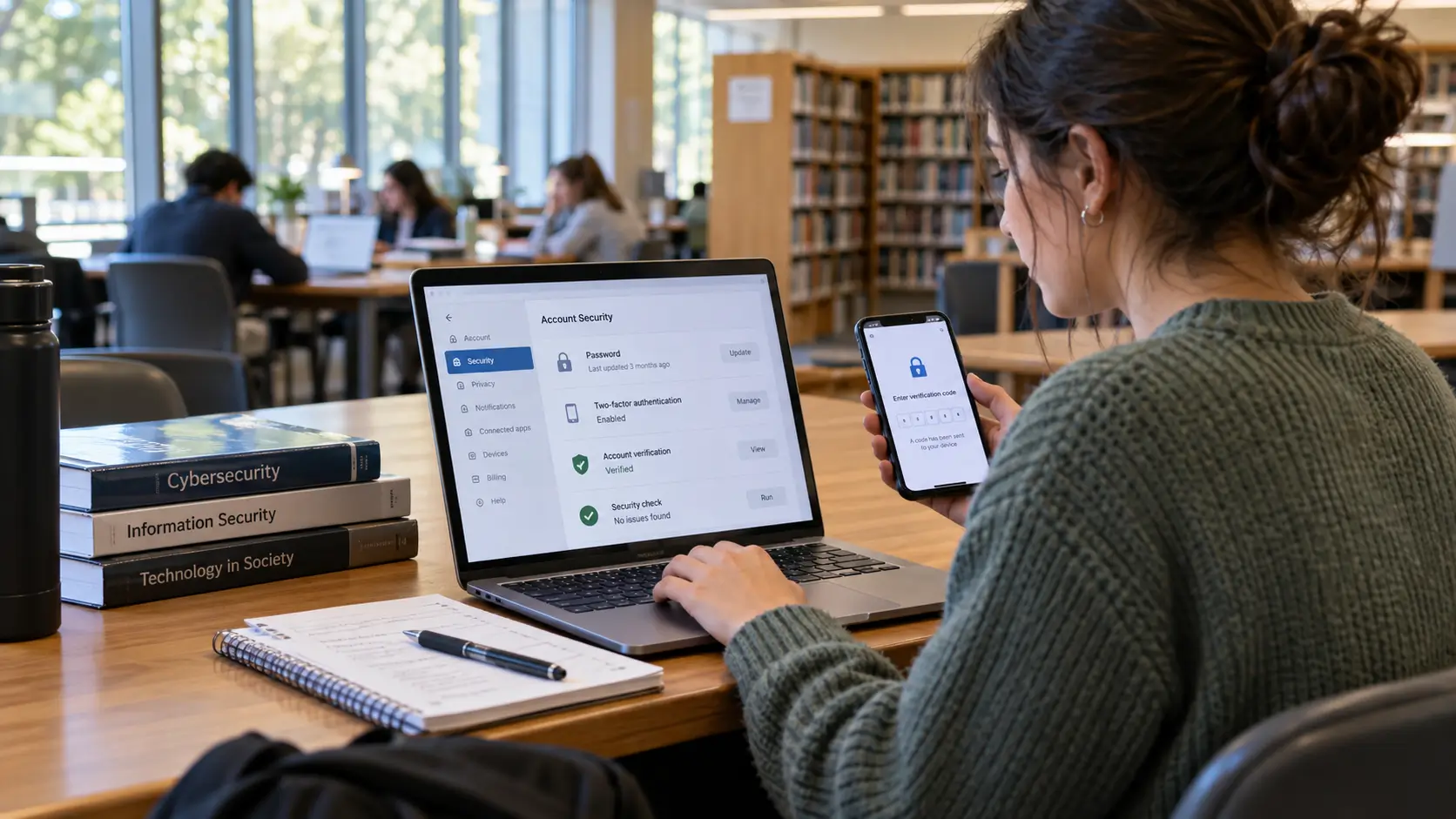
Student privacy is not a minor detail. Some tools collect names, emails, grades, messages, recordings, location data, device data, or learning behavior.
Schools should ask:
-
What student data does the tool collect?
-
Why is the data collected?
-
Who can access it?
-
Is the data shared with third parties?
-
How long is it stored?
-
Does the tool show ads or track behavior?
-
Does the tool follow local privacy and child-protection rules?
The U.S. Department of Education’s Student Privacy site explains that it administers and enforces federal student privacy laws such as FERPA and PPRA. This is U.S.-specific, but the basic principle applies broadly: schools should know how student information is collected and protected. CoSN also describes student data privacy as a school-system requirement that needs a planned privacy program and community trust.
Benefits of Technology Tools
Technology tools can support learning when they are matched to good teaching. They can improve access, practice, feedback, collaboration, organization, and student expression.
Better access to learning materials
Digital platforms can help students review lessons, download resources, revisit explanations, and catch up after absence. Recorded explanations, captions, transcripts, and readable documents can support students who need more time.
More practice and quicker feedback
Quiz tools, practice platforms, and digital exit tickets can help students check understanding. Teachers can also identify common errors sooner.
This benefit depends on quality. A tool that gives only a score is less useful than one that helps students understand mistakes or helps teachers adjust instruction.
More ways to show learning
Students can show understanding through writing, speaking, diagrams, video, audio, projects, portfolios, or presentations. This can support learners who struggle with one format but can explain well in another.
Better organization
A clear LMS or shared class folder can reduce confusion about deadlines, resources, and feedback. Organization is especially useful in blended and online learning.
Limits and Risks
Technology tools can create problems when they are poorly matched to learners, teachers, or local conditions. More tools do not automatically mean better learning.
Tool overload
Students may struggle when every teacher uses a different platform, login, format, or submission method. Teachers may also spend more time managing tools than reviewing learning.
Schools should limit the number of required platforms and create common routines for assignments, file names, deadlines, and feedback.
Distraction
Digital tools can distract students when notifications, design features, games, or unrelated browsing take attention away from the task. Teachers should design focused activities and avoid using screens when discussion, reading, writing, or hands-on work would be more suitable.
Weak evidence
Some tools make strong claims but provide limited independent evidence. OECD’s 2025 review describes benefits and challenges across digital tool categories and states that access to technology alone does not guarantee educational gain.
Schools should review student work, teacher feedback, and classroom results before expanding tool use.
Equity concerns
A digital task can widen gaps when students have unequal access to devices, internet, quiet study space, or digital skills. UNICEF’s 2025 report on children’s digital lives says lack of digital access can influence children’s digital skills development and may deepen inequalities.
Equity should be considered before assigning online work, not after students fail to complete it.
Low-Bandwidth and Shared-Device Settings
Low-bandwidth planning is essential for many learners. ITU estimated that 6 billion people, about three-quarters of the world’s population, were using the internet in 2025, while 2.2 billion people remained offline.
Teachers and schools can reduce barriers by choosing:
-
Downloadable notes.
-
Compressed files.
-
Audio instead of large video files when suitable.
-
Printable tasks.
-
Offline practice.
-
Flexible submission formats.
-
Shared-device schedules.
-
Short messages rather than long live sessions.
-
Clear weekly learning plans.
Low-bandwidth design can improve clarity, simplicity, and access planning.
AI Tools in Teaching and Learning
AI text tools can support teaching and learning when they are used with clear rules. They can help teachers draft practice questions, simplify explanations, create examples, or plan feedback prompts. Students can use them for revision questions, vocabulary practice, outline review, or feedback on clarity.
AI tools also create risks. UNESCO says rapid AI developments bring risks and challenges that have outpaced policy debates and regulatory frameworks. UNESCO also emphasizes human agency, critical thinking, and ethics in digital and AI competency frameworks.
Students should not treat AI output as automatically accurate. Teachers should set rules for when AI use is allowed, what must be cited or declared, and which tasks require independent work.
A safe classroom policy should answer:
-
Can students use AI for brainstorming?
-
Can they use it for grammar feedback?
-
Can they use it to draft answers?
-
Must they disclose use?
-
What information should they avoid entering?
-
How will teachers assess the student’s own thinking?
AI tools should support learning, not replace reading, reasoning, practice, or feedback from teachers.
Practical Classroom Examples
Example 1: Secondary science class
A teacher wants students to understand circuits. The learning goal is not “use a simulation.” The goal is to predict, test, and explain how changes in a circuit affect brightness.
A simulation can fit this goal if students record predictions, test variables, and explain results. It would be weak if students only clicked through the activity without reflection.
Example 2: University blended course
A lecturer uses an LMS for readings, weekly tasks, assignment submission, and feedback. The structure works because every week follows the same pattern: reading, class activity, discussion prompt, submission, and feedback.
The LMS is useful because it creates clarity. It would be less useful if it became a disorganized file storage space.
Example 3: Low-connectivity homework
A teacher knows that many students share phones and have limited data. Instead of assigning a long video, the teacher provides a short audio explanation, a compressed PDF, and a printable worksheet. Students can submit a photo of handwritten work.
The technology supports learning without assuming that every student has fast internet.
Example 4: Inclusive reading support
A class includes students who benefit from audio, larger text, and captions. The teacher chooses reading materials that work with screen readers, adds captions to videos, and allows students to respond through writing or recorded speech when appropriate.
The tool choice supports access and participation, not only convenience.
Tool Selection Checklist
Before choosing a technology tool for teaching and learning, use this checklist:
-
What learning problem does the tool solve?
-
Which students will benefit?
-
Which students may face barriers?
-
Does it work on available devices?
-
Does it require strong internet?
-
Is there an offline option?
-
Does it support accessibility needs?
-
What student data does it collect?
-
Does it fit school privacy rules?
-
How much teacher training is needed?
-
How will learning impact be reviewed?
-
What will be removed if this tool is added?
A tool that passes this checklist is more likely to support learning. A tool that fails several points should be revised, piloted carefully, or avoided.
Conclusion
Technology tools for teaching and learning should be chosen with discipline and care. The main question is not whether a tool is modern or popular. The main question is whether it helps students learn under real classroom conditions.
Stronger tools support clear goals: access, practice, feedback, collaboration, assessment, inclusion, and organization. Weaker tools add complexity without improving learning. Teachers and schools should begin with the learning problem, check access and privacy, test the tool on a small scale, and review evidence from student work before wider use.





Comments 0
No comments yet. Be the first to start the conversation.