



AI video tools are becoming part of digital learning, classroom presentations, online course materials, and student projects. This guide explains how insMind can help turn simple ideas, notes, and images into short videos without advanced editing skills.
Why AI Video Matters in Education
Education is no longer limited to written assignments and classroom lectures. Students now prepare digital presentations, explain concepts through short clips, submit multimedia projects, and share learning materials online. Teachers also need quick visuals for lessons, orientation content, course pages, and revision material.
This shift creates a practical challenge. Not every student has video editing experience. Not every teacher has time to record, cut, caption, and polish a clip for every topic. A browser-based AI video workflow can help when the goal is to make a clear, short, visual explanation instead of a full production.
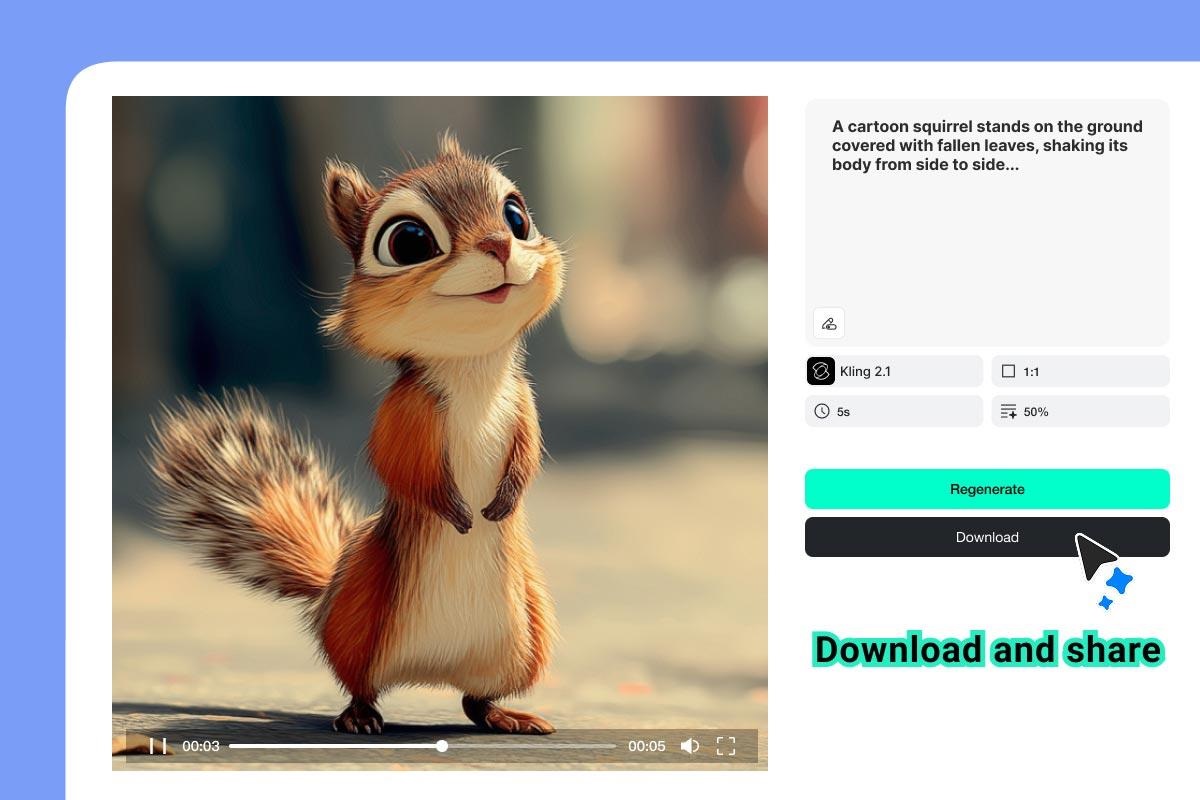
With the insMind AI video generator, users can start from a text prompt or an existing image, select available settings, preview the generated video, and download or export it for their project. AI video generators can be relevant when a learning activity requires a short visual element but does not require full video production.
Where insMind Fits for Students and Teachers
insMind is not a replacement for research, subject understanding, or teacher feedback. It is better understood as a visual production assistant. It can help users convert an idea into a short moving clip that supports a message, introduces a topic, or adds a visual element to a presentation.
| User | Possible Need | Possible Use of insMind |
|---|---|---|
| Students | Make a project intro, topic explainer, seminar opener, or club activity clip | Generate a short video from a prompt or animate an existing authorized image |
| Teachers | Create lesson visuals, course-page media, revision clips, or classroom prompts | Turn learning objectives into short motion visuals without using complex editing software |
| Education creators | Prepare short videos for learning channels, tutorials, or educational social content | Test different scenes, formats, and visual styles before preparing the final material |
How It Works: Create an Educational AI Video with insMind
The following process is designed for a realistic education scenario: a student or teacher wants to create a short video for a presentation, course page, or study explainer. The general workflow can be completed within insMind, although available models, controls, credits, and export options may vary.
Step 1: Open insMind and Add a Learning-Focused Prompt or Image
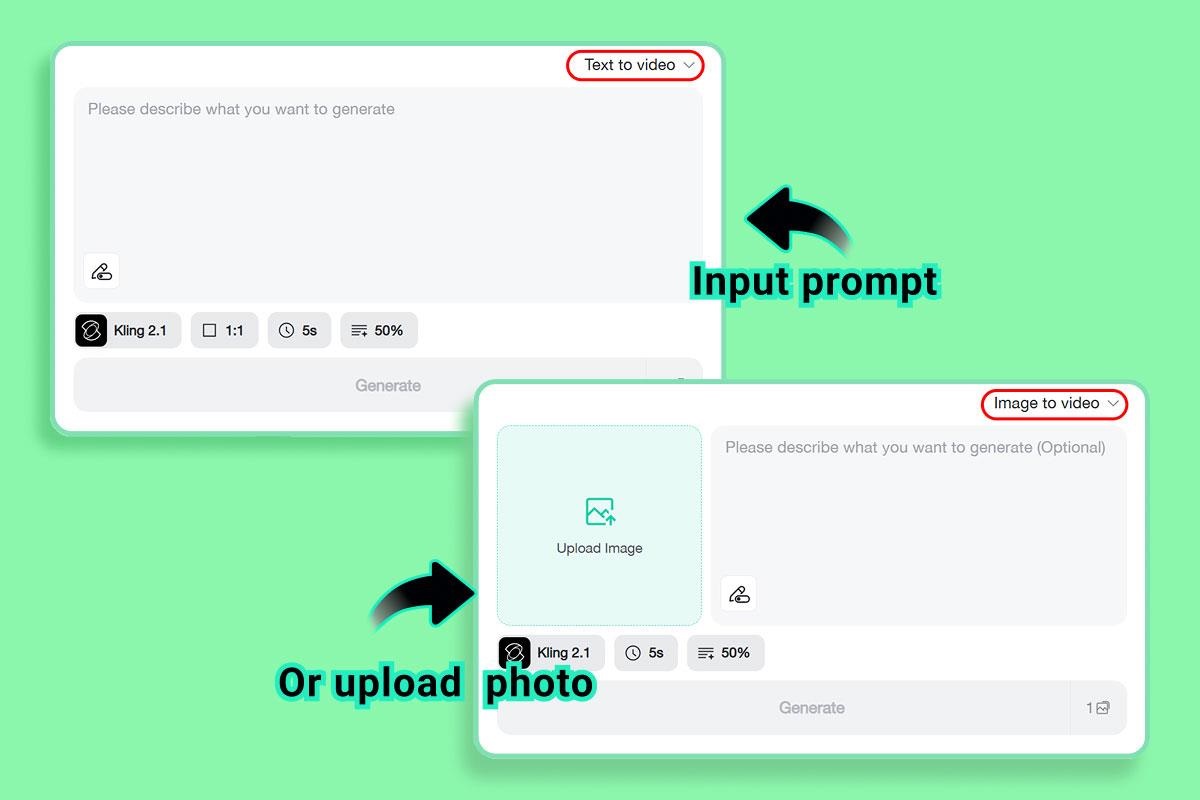
Start by opening the video generator in insMind. If you are creating a clip from an idea, write a prompt that includes the topic, audience, visual style, and motion. For example: "A clean classroom animation showing students discussing renewable energy, warm daylight, simple camera movement, educational presentation style."
If you already have a diagram, illustration, project graphic, presentation cover, or another image that you created or have permission to use, upload it first. Then add a short instruction such as "slow zoom in," "gentle camera pan," or "make this study poster feel more dynamic." This is useful when you want the main image to remain recognizable.
Avoid uploading confidential material, student records, personally identifying information, or photographs of other people unless you have appropriate permission and the use complies with your institution's privacy rules.
Step 2: Choose the Video Settings for Your Learning Platform
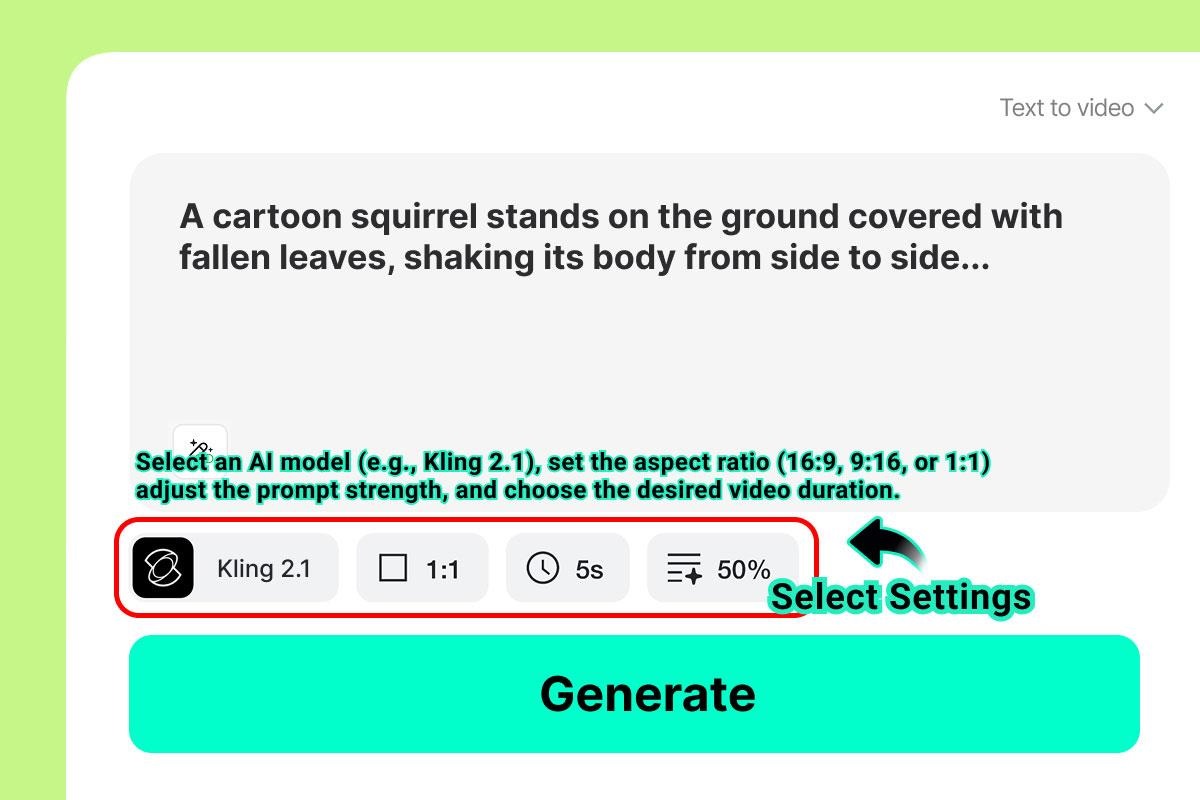
Next, review the settings available for the selected model. These may include the AI model, video length, aspect ratio, prompt controls, quality, or other output options. Available controls can vary by model or account plan.
Choose a horizontal format for classroom screens, PowerPoint slides, website pages, or YouTube-style explainers. Choose a vertical format for short learning posts, school social media updates, or mobile-first clips.
For educational work, avoid asking for too many actions in one short video. A simple camera movement, clear subject, and clean background usually make the result easier to understand. If the clip is for a formal presentation, choose a calm and readable style instead of a crowded visual scene.
Step 3: Generate and Review the Preview Carefully
Generate the video and review the resulting preview carefully. Watch it as a learner would. Check whether the topic is visually clear, whether the motion is distracting, and whether the output matches the assignment, lesson, or presentation goal.
For academic use, review the result with extra care. AI-generated visuals can support an explanation, but they should not introduce misleading details. If the scene looks too dramatic, too abstract, or unrelated to the topic, revise the prompt and generate another version.
Step 4: Download the Video and Add It to Your Project
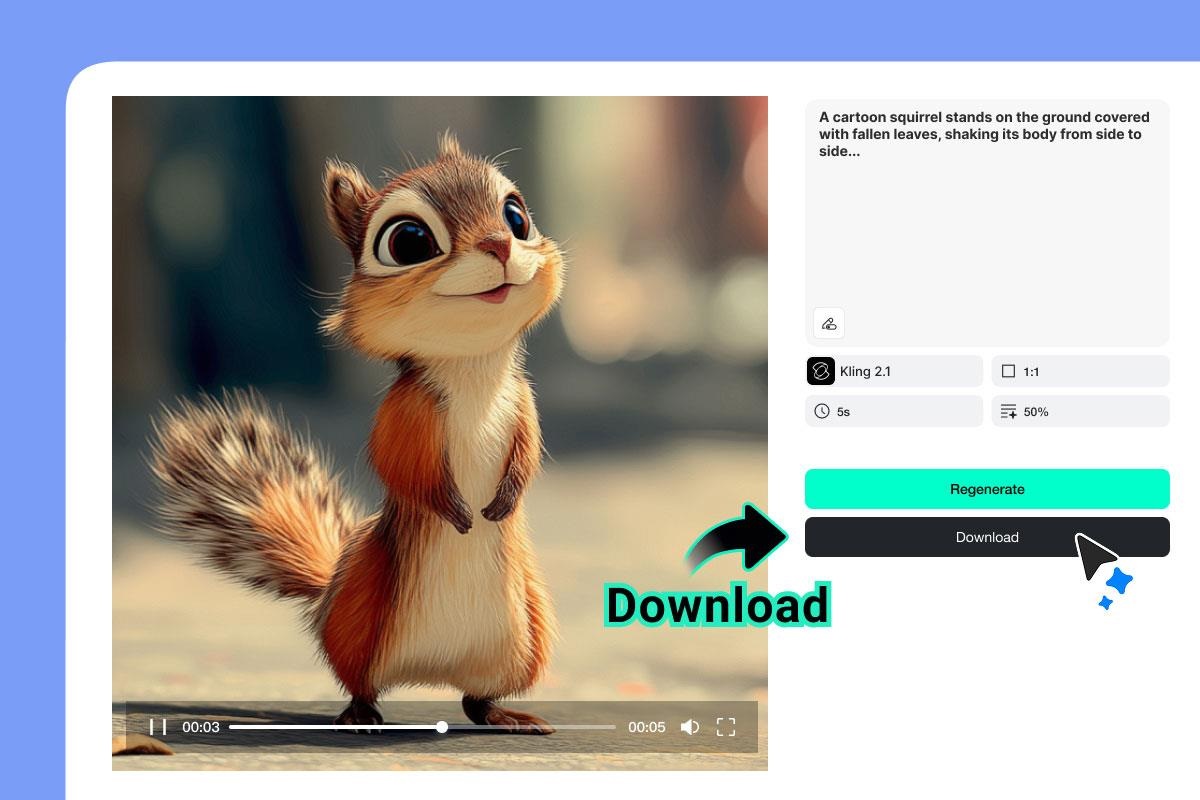
When the result is suitable, use the available download or export option. You can place the clip in a slide deck, learning management system, online course page, project submission, club announcement, study guide, or educational social post.
If you need multiple placements, create separate versions with appropriate aspect ratios instead of stretching one file across different formats.
Keep a note of the prompt and settings that produced a suitable result. This can help when creating a consistent series of clips for a course, student campaign, tutorial channel, or academic presentation set.
Practical Academic Use Cases
For the examples in this guide, the focus is on short visual assets that can support communication without taking over the learning process.
-
Presentation openers: Start a seminar or class presentation with a short visual introduction to the topic.
-
Project explainers: Create a simple motion clip for science, business, environment, health, or technology assignments.
-
Course page visuals: Add short clips to online lessons, module introductions, or learning announcements.
-
Student club promotion: Turn authorized event posters or campaign graphics into short videos for social media.
-
Career portfolio content: Include appropriately disclosed AI-assisted work in a portfolio when it is relevant to the project.
-
Revision support: Make visual reminders for key ideas, though factual explanation should still come from reliable study material.
Tips for Better Educational AI Videos
A clear prompt can give the generator more specific instructions. Mention the subject, setting, visual mood, camera movement, and purpose. For example, "A simple animation of a student preparing a scholarship application checklist, clean desk, soft daylight, slow camera pan, education explainer style" gives the tool more direction than "make a scholarship video."
Use clear images when the subject matters. If you upload a poster, diagram, illustration, or project graphic, make sure the main element is easy to see. For classroom use, prioritize readable visuals over cinematic complexity. A polished but confusing video is less useful than a simple clip that supports the lesson.
Responsible use note: AI-generated video should support a learning task rather than replace the student's own research, reasoning, or required work. Follow your school, college, or course rules on AI use and disclose AI-assisted media when required. Do not present generated scenes as authentic footage of real people or events. When uploading images, use material you have permission to use and avoid confidential, sensitive, or personally identifying information.
Disclaimer: This guide is for informational purposes only. insMind is an AI visual production assistant intended to supplement, not replace, primary research, academic effort, or original study. Users are responsible for adhering to their institution’s policies on AI tool usage, academic integrity, copyright laws, and privacy regulations regarding student data and media uploads. AI-generated visuals should not be presented as factual or authentic real-world footage.




A helpful, balanced overview — the reminder to keep clips short and readable for classroom use is spot on. For students or teachers who also want to turn a script, notes or a product idea into a short video or ad, Nereo (https://www.nereo.io/) is another AI tool worth trying alongside this workflow. Thanks for the responsible-use notes as well.