




Why Computer skills matter for grades and daily life
A lot of students spend more time fighting their devices than doing the work. The most common problems are simple: an assignment saved in the wrong place, a file that will not upload, a document that looks messy after submission, a group project that turns into “Which version is the latest?”, or a school account locked after a suspicious login.
Computer skills for students are not about becoming “techy.” They are the everyday habits that keep study tasks moving: finding files fast, writing clean documents, handling data in a spreadsheet, presenting ideas clearly, communicating well, working smoothly in groups, and keeping accounts safe.
These skills carry into internships and entry-level jobs too. Many employer surveys keep written communication and technology skills near the top of what they want from graduates. So, learning these basics supports both academic performance and career readiness.
A simple map of student digital skills
When “computer skills” feels like a big topic, it helps to group it into a few clear areas:
-
Information skills: searching, checking sources, saving notes
-
Communication: email, messages, clear sharing
-
Content creation: documents, spreadsheets, slides
-
Safety: privacy settings, passwords, account protection
-
Problem solving: fixing common issues, knowing what to try first
This article follows that map, with each section tied to real student tasks.
Device basics: operating system, settings, and shortcuts
Students often skip this step and pay for it later. Learn your device’s basics first, since every other skill depends on them.
Find settings fast
Learn where to change and check:
-
Wi-Fi and Bluetooth
-
Display scaling (helpful when text looks too small)
-
Storage space
-
Updates
-
Privacy permissions (camera, mic, location)
A simple habit helps: when something feels “broken,” check settings before assuming the device failed.
Keyboard control that saves time
Typing speed matters less than control. The biggest time savings come from everyday shortcuts and quick editing.
Start with:
-
Copy, paste, cut
-
Undo, redo
-
Find in page/document
-
Screenshot
-
Switch between apps and browser tabs
If you practice a few minutes a day, your work speed increases without changing your study time.
File management and backups
Folder system and file names
File management is one of the most practical computer skills every student should learn. It prevents missed deadlines and last-minute panic.
A simple folder setup:
-
School
-
2025–26
-
English
-
Science
-
Math
-
Projects
-
Certificates
-
-
A clean file naming rule:
-
Subject_Topic_Task_Date_V1 -
Example:
Science_WaterQuality_Report_2025-12-12_V1
This reduces three common student mistakes:
-
submitting the wrong version
-
losing files inside “Downloads”
-
wasting time searching during deadlines
Backups, sync, and version history
Students lose work in predictable ways: accidental deletion, device crash, syncing issues, or editing the wrong copy.
Use a two-layer habit:
-
Keep your main work in one clear folder system.
-
Keep a backup method (cloud sync or an external drive).
Learn version history in shared documents too. Version history is the “rewind button” for group work. It can save a project when someone deletes a section or pastes the wrong content.
Online research and source evaluation
Search tactics
Better search skills save time and improve the quality of your assignments.
Try these habits:
-
Add context words: location, year, “report,” “survey,” “policy,” “PDF”
-
Use exact phrases in quotes when you need a precise match
-
Use date filters when your topic changes fast
-
Prefer primary sources when possible (universities, government departments, major research bodies)
A strong research routine is less about opening many tabs and more about selecting a few reliable sources.
Quick credibility checks
Before you rely on a source, check:
-
Who wrote it (name, role, organization)
-
What evidence is provided (data, references, links to original documents)
-
When it was published or updated
-
Whether the page is trying to persuade you toward a product, service, or ideology
If you cannot find an author or a credible organization, treat the information as weak and look for better support.
Writing and formatting assignments

Use styles, headings, and references
Many students format documents by hand: bolding random lines, changing font sizes, pressing Enter many times for spacing. That often breaks when the document grows.
Learn to use:
-
Styles for headings and body text
-
Page breaks (not repeated Enter)
-
Page numbers and headers when required
-
Automatic reference tools if your class uses them
Styles make writing cleaner and editing faster. They keep spacing consistent and help your work look professional without extra effort.
Submit work without formatting surprises
A common student problem: “It looked fine on my laptop.”
Protect yourself with a quick submission routine:
-
Export to PDF when allowed, then check the PDF once
-
Check margins, headings, page numbers, and image placement
-
Use clear filenames before uploading
-
Keep a separate “Submitted” folder per subject
This routine reduces avoidable marks loss from formatting issues.
Spreadsheet basics for students
Spreadsheets are not only for business classes. Students use them for lab data, surveys, budgets for projects, attendance logs, reading trackers, and grade tracking.
Clean tables, sort, filter
Good spreadsheets start with clean structure:
-
One header row
-
One type of value per column
-
Consistent date format
-
Avoid merged cells in data tables
Then learn:
-
Sorting (highest to lowest, newest to oldest)
-
Filtering (show one category)
-
Freezing the header row
These small skills turn a messy sheet into something you can read and trust.
Core formulas students use most
Start with formulas that appear in many subjects:
-
SUM, AVERAGE
-
MIN, MAX
-
COUNT, COUNTA
-
IF (simple conditions)
If you learn only these, you can already build trackers, summarize results, and check patterns.
Mini exercise: a grade tracker
Create columns:
-
Subject
-
Total Marks
-
Marks Scored
-
Percentage
Then:
-
Percentage = Marks Scored / Total Marks
Sort by the lowest percentage to see where your study effort needs more attention. It is a simple way to turn grades into a clear plan.
Presentation skills for clear communication
Slides work best when they support your talk, not replace it. Many students paste paragraphs into slides and then read them out loud. That loses attention fast.
A clean slide approach:
-
One idea per slide
-
Short bullets, not paragraphs
-
One visual only when it supports the point
-
Speaker notes for what you will say
For online presentations:
-
Test your mic and screen share
-
Close extra tabs before sharing
-
Keep a PDF copy ready in case the presentation file fails to open
These habits reduce awkward delays and help your audience follow your message.
Email and collaboration for school and internships
Email structure that gets replies
Email still matters for formal communication with teachers, admins, scholarship offices, and internship coordinators. A clear email shows respect for the reader’s time.
A simple structure:
-
Subject line that says what the email is about
-
Greeting with name/title
-
One line of context
-
One clear request or question
-
Deadline only when it matters
-
Closing with full name and class/section
Common mistakes:
-
vague subjects like “Help”
-
long blocks of text
-
missing key details (course name, section, file link)
If your message is clear, the reply comes faster and with fewer follow-up questions.
Group work habits in shared documents
Group projects often fail from workflow issues, not effort. The fix is simple structure.
Use habits like:
-
Agree on one shared folder location
-
Set permissions carefully (view, comment, edit)
-
Use comments for questions and decisions
-
Use suggestion mode for edits when possible
-
Check version history when content changes suddenly
-
Keep filenames consistent for drafts
One extra habit helps a lot: assign one person to compile the final version, then use comments and suggestions for changes. It reduces “multiple finals” chaos.
Security and privacy basics
Student accounts are valuable targets. Many incidents happen through stolen passwords, repeated passwords across sites, or rushed clicks on fake messages. Basic security habits protect your schoolwork, personal data, and online identity.
Passphrases and password habits
A strong password is not always a strange mix of symbols. A long passphrase can be both memorable and hard to guess.
Good habits:
-
Use long passphrases for important accounts
-
Use different passwords for email and school portals
-
Change passwords after a breach alert or suspicious login
-
Store passwords safely (a reputable password manager can help, if you keep it protected)
Standards bodies such as NIST recommend longer passwords and support user-friendly approaches like allowing long passphrases.
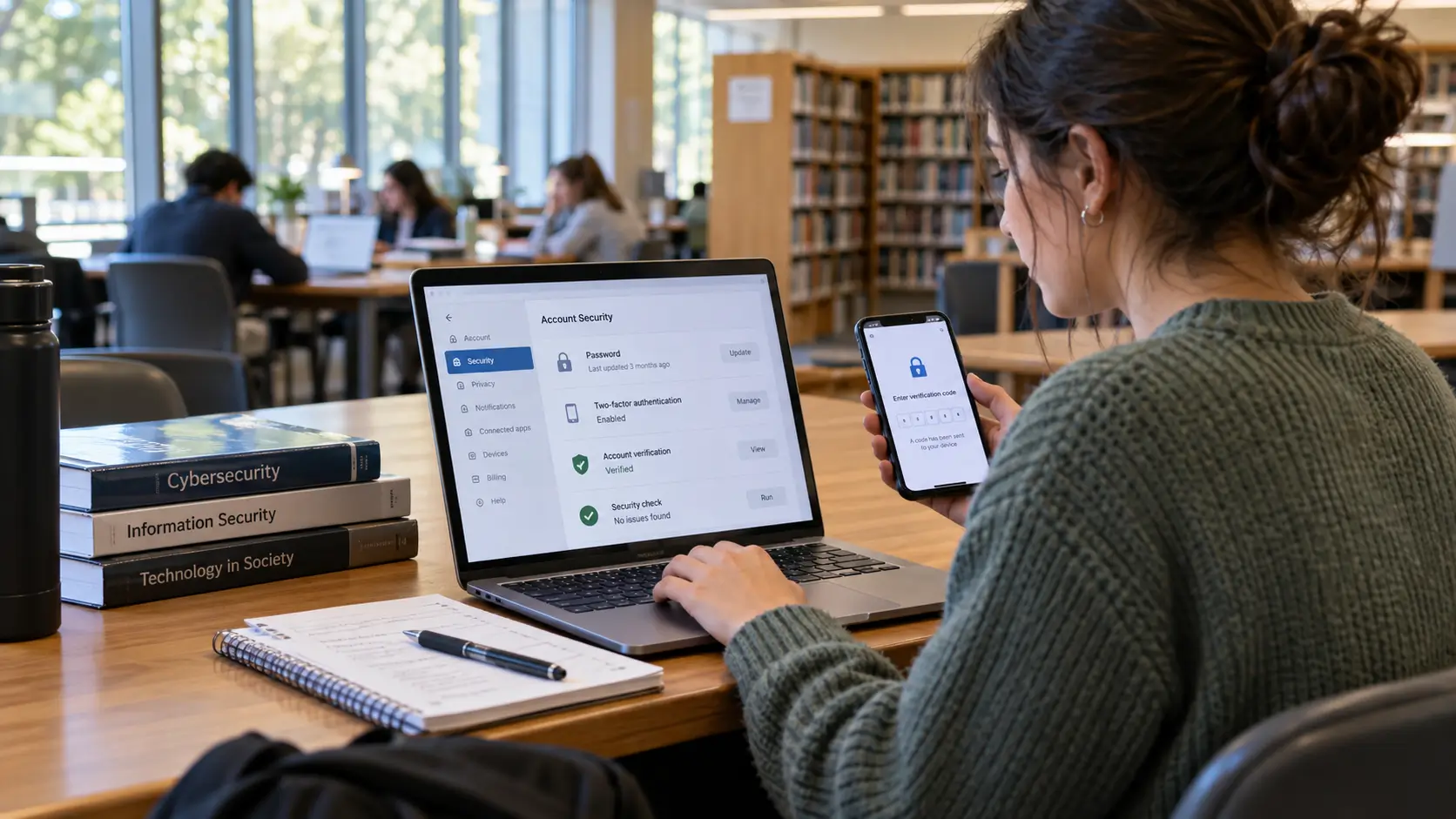
Multi-factor authentication and account recovery
Multi-factor authentication (MFA) adds an extra check at login. Many security agencies recommend MFA for accounts that matter, especially email and cloud storage.
Turn MFA on for:
-
email
-
school portal accounts
-
cloud storage
-
social accounts tied to your identity
Set account recovery details too:
-
recovery email (one you can access)
-
recovery phone number if available
-
backup codes saved in a safe place
These steps reduce the chance of losing access during exams or deadlines.
Phishing checks and safe browsing
Phishing messages often push urgency: “Account will close,” “Confirm now,” “Payment failed,” “Security warning.”
Safe habits:
-
Check the sender address, not only the display name
-
Avoid logging in from links in unexpected messages
-
Type the website address yourself when unsure
-
Verify unusual requests through another channel
This is less about fear and more about calm checking before clicking.
Troubleshooting habits that reduce panic
Troubleshooting is a skill. A simple method works well: observe the problem, try one change, then check the result.
Common student issues and first steps:
-
Wi-Fi connects yet internet fails: restart device, reconnect network, check airplane mode
-
Storage full: clear downloads, remove duplicates, move large media files
-
Upload fails: rename file, check file size, export to PDF, try another browser
-
App crashes: restart app, update app, reinstall if needed
Two habits help you get better support:
-
Take a screenshot of the error
-
Copy the exact error text into a search query with your device model
It turns “It doesn’t work” into a clear report someone can act on.
A 30-day practice plan
A plan keeps learning practical and measurable. This one fits into normal student life.
Week 1: device basics
-
Set up folders for school subjects
-
Rename old files using a clear rule
-
Practice shortcuts daily for five minutes
Week 2: documents
-
Write a two-page assignment using styles and headings
-
Add page numbers if required
-
Export to PDF and review formatting
Week 3: spreadsheets
-
Build a grade tracker
-
Use SUM and AVERAGE
-
Sort and filter a table
-
Make one simple chart
Week 4: communication and safety
-
Write three formal emails (teacher, club, internship inquiry)
-
Turn on MFA where available for key accounts
-
Review privacy permissions for your main apps
After 30 days, you should spend less time fixing avoidable problems and more time focusing on the subject content.
Conclusion
Essential computer skills every student should learn come down to practical routines: navigate your device confidently, organize files and backups, research sources with care, write clean documents, handle data in spreadsheets, present ideas clearly, communicate well by email, collaborate with structure, and protect accounts with strong sign-in habits. These skills improve study efficiency, reduce stress during deadlines, and support the way students work in college, internships, and early careers.
FAQs
1) What computer skills should a student learn first?
Start with file management, document formatting (styles and headings), basic spreadsheets, email writing, and account protection habits like MFA for email.
2) How can I stop losing assignments on my device?
Use one folder system per school year, name files with date and version, keep a backup method, and store submitted files in a separate folder.
3) Which spreadsheet skills help students most?
Clean tables, sorting and filtering, plus formulas like SUM, AVERAGE, COUNT, and IF. A grade tracker is a strong first project.
4) How do I check if an online source is reliable?
Look for a clear author and organization, check evidence and references, confirm the date, and compare key claims with primary sources when possible.
5) What is one strong step to protect student accounts?
Turn on multi-factor authentication for email and school portals where available, then set recovery options so you can regain access if needed.






Comments 0
No comments yet. Be the first to start the conversation.