



AI content production often involves several disconnected tools. A creator may generate an image in one platform, download it, upload it to a video generator, export the result, and then move it into another application for further editing.
That process can become inefficient when the same sequence must be repeated across many products, campaigns, videos, or social posts.
Pixomi AI Studio addresses part of this problem through a node-based visual canvas. Users can place text, image, video, and uploaded-asset nodes on one workspace, connect related stages, and keep generated assets inside the same project. This can reduce repeated downloading, re-uploading, and switching between image and video tools.
Pixomi AI was previously known as Banana Pro AI. Existing accounts, credits, subscriptions, generated works, and purchase records were retained during the brand change. Is Pixomi AI Workflow Studio?
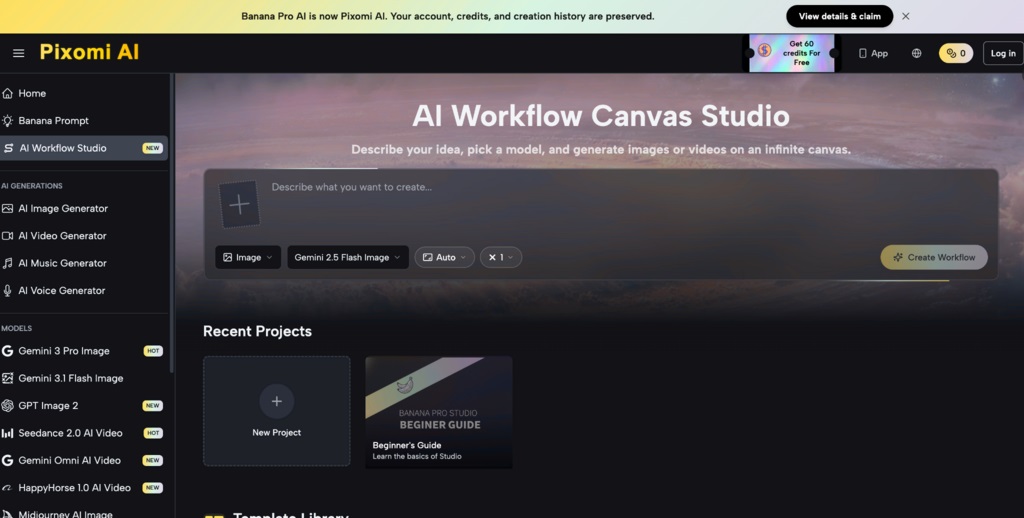
Pixomi AI Workflow Studio is a no-code visual workspace for creating connected AI image and video workflows.
The Studio currently supports four main node types:
-
Text prompt
-
Image generation
-
Video generation
-
Asset upload
Users place nodes on an infinite, zoomable canvas and create connections by dragging between input and output handles. A Text node can supply a prompt to an Image node, while an Image node can provide a reference or starting frame for another Image or Video node.
The platform validates connections and prevents incompatible node combinations. This allows users to organise multi-stage processes such as:
-
Text → Image
-
Image → Image
-
Text → Image → Video
-
Upload → Image
-
Upload → Video
Pixomi describes the Studio as a free visual canvas, although image and video generations remain subject to available credits and plan limits.
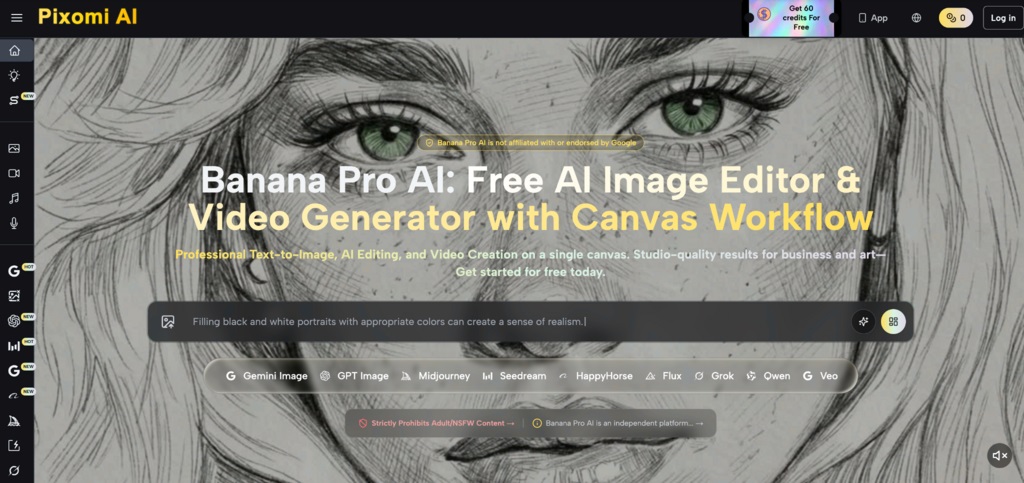
Table of Content
- Features of Pixomi AI Studio
- How Pixomi’s Other AI Tools Fit into the Process
- How to Build a Workflow
- Who benefits from Pixomi AI Studio?
- Limitations to Consider
- Conclusion
Features of Pixomi AI Studio
Node-Based Visual Workflow
The node system gives creators a visible representation of how each asset relates to the next.
Instead of working through a fixed series of screens, users can place several image or video nodes on the canvas, compare outputs and branch one result into different creative directions.
For example, one generated product image could be connected to separate Video nodes for landscape and vertical versions. Another branch could apply an alternative image style before video generation.
The canvas does not require programming, API configuration or workflow scripts.
Text-to-Image and Image-to-Video Connections
One of the Studio’s central uses is connecting an image-generation stage directly to a video-generation stage.
A user can:
-
Write a scene or product description in a Text node.
-
Connect the prompt to an Image node.
-
Generate one or more image options.
-
Select a preferred image.
-
Feed that image into a Video node.
-
Add a motion prompt and generate a video.
The current Studio page lists more than nine supported image models, including Gemini image models, GPT-4o Image, Flux Kontext, Qwen Image Edit, Grok Imagine, Seedream and Z-Image Turbo. Available models may change as Pixomi adds or removes integrations. o, the documented canvas options include Veo 3 and Veo 3.1 variants. Pixomi’s broader pricing page also lists other video models, but not every model should be assumed to be available in every Studio node or subscription tier. h Image Generation
Each Image node can generate up to four variations from the same prompt.
The variations appear together on the canvas, allowing users to compare composition, style and subject treatment before choosing an output. Individual variations can also be separated into new nodes for further development.
Because every generation consumes credits according to the selected model, batch generation should be used selectively rather than treated as unlimited output. ed on This” Iteration
The “Based on This” feature creates a derived Image node from an existing result.
This is useful when a creator wants to preserve a reference image while changing elements such as:
-
Background
-
Camera angle
-
Lighting
-
Colour treatment
-
Product placement
-
Character pose
-
Visual style
The feature can reduce repeated uploads because the selected output is carried into the new node as a reference. However, consistent characters, products or layouts are not guaranteed. Results still depend on the model, prompt and reference image.
Auto-Save and Project History
Projects are saved while users work.
According to Pixomi, the Studio uses local saving and cloud synchronisation. It also includes generation history, undo and redo functions, project thumbnails, timestamps and right-click context menus. atures make it possible to return to previous work without reconstructing the canvas from the beginning.
Reusable Projects and Templates
Pixomi provides a template library for common workflows such as e-commerce visuals, product listings and virtual try-on concepts.
Users can also retain completed projects and reuse an existing node structure as the starting point for similar work. A product campaign workflow, for example, could be adapted for another product by replacing the prompt or source image while preserving the overall sequence.
This does not eliminate the need to review each output. Prompts, references and generated assets may still require adjustment for individual products or campaigns.
How Pixomi’s Other AI Tools Fit into the Process
Pixomi also provides prompt, music and voice tools within the wider platform. These tools expand the available production functions, but the current Studio documentation does not identify Music or Voice as connectable canvas nodes.
They should therefore be presented as related tools rather than as confirmed stages in one fully automated canvas pipeline.
Banana Prompt
Banana Prompt is Pixomi’s prompt-development tool. It can help users develop or refine visual instructions before adding them to a Text node.
The final prompt should still be reviewed for factual accuracy, brand requirements, restricted content and unintended visual instructions.
AI Music Generator
Pixomi’s AI Music Generator creates two music options from one request. It supports prompt-based songs, user-supplied lyrics and instrumental generation.
Pixomi describes the music as royalty-free, but its music page advises users to review the current licence information associated with each generated track. This is particularly important for advertising, client work, monetised videos and commercial distribution. oice Generator
The AI Voice Generator converts scripts into voice audio and includes voice selection, language settings, stability controls, previews and an asset library.
Pixomi currently lists Seed Audio 1.0 among its voice-related tools. Generated voice files can be downloaded and used in video production, but the current Studio documentation does not confirm that voice generation operates as a connected canvas node. may therefore need a separate audio or video-editing stage to combine narration, music and generated video.
How to Build a Workflow
Step 1: Create a Project
Open Pixomi AI Studio and create a project from the dashboard.
The new project opens an infinite canvas. Users can pan, zoom and position nodes according to the structure of the intended workflow.
Step 2: Add the Required Nodes
Add nodes from the sidebar or the canvas context menu.
A basic text-to-video project may include:
-
One Text node
-
One or more Image nodes
-
One Video node
An existing product photo or illustration can be introduced through an Upload node.
Step 3: Configure Each Generation Node
Select the model and settings available for the node.
Image settings may include:
-
Model
-
Aspect ratio
-
Resolution
-
Number of variations
-
Reference image
-
Prompt
Video settings vary by model but may include:
-
Text or image input
-
First frame
-
Last frame
-
Aspect ratio
-
Duration
-
Motion prompt
-
Output quality
Resolution and model availability depend on the selected plan and the model used.
Step 4: Connect the Nodes
Drag from an output handle to a compatible input handle.
Connections establish which text prompt or image reference should be used by another node. The Studio checks compatibility and rejects unsupported connections. ons organise the workflow, but users should not assume that every downstream stage will run automatically from a single command. Pixomi’s instructions currently describe generating content from the relevant node and then reviewing or continuing to the next stage. 5: Generate and Compare Outputs
Generate the first required asset and inspect the result.
Check:
-
Subject accuracy
-
Product details
-
Text rendering
-
Hands and facial features
-
Brand consistency
-
Background elements
-
Aspect ratio
-
Reference-image fidelity
-
Copyright or trademark risks
Select the most suitable result before sending it to a downstream node. This avoids spending video credits on an image that already contains visible errors.
Step 6: Refine Individual Stages
One advantage of the node system is that a creator can revise one stage without rebuilding the entire project.
For example, an Image node can be regenerated with a corrected prompt while the remaining canvas structure stays in place.
However, changes to an upstream image may require the connected video to be generated again. Existing videos do not automatically become corrected when their source image changes.
Step 7: Export and Continue Production
Generated images and videos can be previewed and exported from the project.
Pixomi states that Studio exports are available without watermarks and that generated images and videos may be used commercially. Users remain responsible for ensuring that prompts, uploaded references and outputs do not infringe third-party copyright, trademark, privacy or publicity rights. i AI Pricing and Credits
Pixomi AI Studio can be accessed through a free account, but generation is credit-based.
As listed on the Pixomi pricing:
| Plan | Effective monthly price | Annual credits |
|---|---|---|
| Free | $0 | 10 login credits plus up to 60 weekly check-in credits |
| Starter | About $8.30 | 2,400 |
| Popular | $30 | 21,600 |
| Best Value | About $49.90 | 48,000 |
Prices, discounts, model costs and free-credit policies can change. Readers should confirm the current amount before subscribing. ublishes estimated maximum image, video, music and voice outputs for each plan. These figures are not cumulative production allowances. They represent different ways the same credit balance could be spent.
For example, a plan described as supporting “up to 2,400 images” and “up to 160 videos” does not normally provide both maximum totals together. Actual output depends on the selected models and their credit costs. ns currently list features including:
-
HD watermark-free downloads
-
Private generation
-
An advertising-free interface
-
Unlimited storage
Users should also note that unused subscription credits may be forfeited after cancellation, while separately purchased permanent credits are treated differently.
Who benefits from Pixomi AI Studio?
E-commerce Sellers
Sellers can organise product-image variations and product-animation experiments within one project.
The canvas can be useful for testing backgrounds, layouts, aspect ratios and motion concepts. Final product visuals must still represent the item accurately and should not mislead buyers about its appearance, features or performance.
Marketing Teams
Marketing teams can establish repeatable project structures for campaign images and short-form videos.
A saved canvas can reduce setup work, but each campaign still requires human review for brand accuracy, claims, legal compliance and audience suitability.
Content Creators
Creators producing repeated image and video formats can use connected nodes to retain prompts, references and variations in one workspace.
The main efficiency benefit comes from reducing repeated asset transfers between separate image and video platforms.
Designers and Creative Professionals
Designers can use the Studio for concept development, visual comparison, storyboards and early motion tests.
AI output should be treated as draft creative material rather than assumed to be client-ready. Professional review remains necessary for typography, composition, accessibility, technical specifications and intellectual-property concerns.
Limitations to Consider
Pixomi AI Studio can simplify selected parts of creative production, but it does not automate every stage of a professional content pipeline.
Current limitations include:
-
Music and voice are not documented as canvas nodes.
-
Generation consumes credits.
-
Model availability and pricing may change.
-
Outputs can contain visual or factual errors.
-
Connected nodes do not remove the need for human review.
-
Audio mixing and detailed timeline editing may require separate software.
-
Commercial-use statements do not override third-party intellectual-property rights.
-
Maximum output estimates depend on model-specific credit costs.
-
AI-generated video quality varies by source image, prompt and model.
A workflow is only as reliable as its prompts, reference materials, review process and final quality controls.
Conclusion
Pixomi AI Studio provides a practical visual workspace for connecting text, image, uploaded assets and AI video generation.
Its main value is not complete hands-free automation. The stronger benefit is that it keeps related prompts, images, variations and video stages inside one organised project, reducing repeated downloads and uploads between separate generation platforms.
The wider Pixomi platform also includes prompt, music and voice tools, although these should not currently be described as fully integrated Studio nodes without further confirmation.
For creators who repeatedly produce image and video assets, a reusable node structure may reduce setup time and make iterations easier to manage. The best results will still depend on careful prompting, model selection, credit management, legal review and human quality control.





Comments 0
No comments yet. Be the first to start the conversation.