



A presentation is easy to follow when the audience can understand its main message, recognize important information, and see how each idea connects to the next. Achieving this requires more than attractive slides. It involves careful planning, logical organization, readable design, and clear explanations.
Whether you are preparing a school project, college assignment, research presentation, classroom lesson, or workplace report, your slides should support what you are explaining rather than compete for attention.
A common difficulty is deciding how much information to include. Removing too much can leave the audience confused, while including excessive detail can make the main message difficult to identify. The appropriate balance depends on the subject, audience, and presentation format.
Research on multimedia learning and guidance from universities and accessibility organizations provide useful principles for making these decisions.
Answer Summary: To design a presentation that is easy to follow, identify the central message, organize supporting ideas logically, and give each slide one clear purpose. Use descriptive headings, readable fonts, consistent layouts, and visuals that explain information rather than decorate it. Consider accessibility from the beginning, including contrast, alternative text, and reading order. Before presenting, rehearse the transitions and check whether someone unfamiliar with the topic can understand the explanation.
Key Takeaways:
-
Decide what the audience should understand before designing slides.
-
Organize ideas so each slide connects logically to the next.
-
Use descriptive headings and remove unnecessary information.
-
Choose readable text, consistent layouts, and meaningful visuals.
-
Make charts and supporting materials accessible.
-
Rehearse and test audience understanding before presenting.
Why Some Presentations Are Difficult to Follow
Presentations become difficult to follow when important information is buried beneath unnecessary details, unclear organization, or competing visual elements.
A slide containing several paragraphs, unrelated images, small labels, and numerous bullet points forces the audience to determine what deserves attention while listening to the speaker.
This relates to cognitive load, the mental effort required to process information.
In their 2021 chapter on multimedia learning, Logan Fiorella and Richard E. Mayer explain how excluding irrelevant material and highlighting essential information can reduce unnecessary mental processing.
Their work supports an important distinction: simplifying a presentation does not mean removing information that the audience needs. It means reducing distractions that interfere with understanding.
Organization matters as much as individual slide design. Even readable slides can become confusing when ideas appear in an unexpected order or transitions are missing.
Typical problems include vague headings, crowded layouts, unexplained diagrams, inconsistent formatting, and conclusions that do not clearly follow from the material presented.
Effective presentation design addresses these problems by making both individual slides and the overall explanation easier to understand.
Start with the Audience and Main Message
A clear presentation begins by identifying what the audience needs to learn, understand, or evaluate.
Before opening PowerPoint, Google Slides, or another presentation tool, answer three questions:
-
Who is the audience, and what do they already know?
-
What is the main message they should understand?
-
Which information is necessary to explain that message?
Consider a hypothetical student presentation about water pollution.
The topic "Water Pollution" is broad. A more focused purpose would be to explain its major sources, environmental effects, and possible prevention measures.
This provides a practical basis for selecting material. Each section can answer a relevant question instead of presenting disconnected facts.
Match the Explanation to Audience Knowledge
Different audiences need different levels of detail.
Students who have studied a subject may understand its terminology, while a general audience may need brief definitions and examples.
For technical presentations, introduce essential concepts before discussing complex findings. Avoid assuming that everyone understands abbreviations, symbols, or specialized terms.
The same principle applies when presenting in English to an audience with varying levels of language proficiency. Clear terminology and short explanations can help make unfamiliar material easier to follow.
Readers preparing technical talks can find related advice in Collegenp's article on engineering presentations.
Write the Main Message Before Creating Slides
Try expressing the purpose of the entire presentation in one sentence.
For example:
"This presentation explains the main sources of water pollution, their effects, and measures that can help reduce contamination."
Use that sentence to evaluate what belongs in the presentation.
If a slide does not support the purpose, provide necessary context, or help the audience reach the conclusion, reconsider whether it is needed.
Organize Slides in a Logical Order
An easy-to-follow presentation arranges information so that each section prepares the audience for the next.
Create a Clear Beginning, Middle, and Conclusion
The introduction should identify the subject and explain what the presentation will cover.
The middle should develop the main ideas in an order appropriate to the topic.
The conclusion should bring those ideas together and explain their significance.
For the hypothetical water pollution presentation, the structure could be:
| Stage | Slide content |
|---|---|
| Introduction | Definition and purpose |
| Main section 1 | Major sources of pollution |
| Main section 2 | Effects on water quality and living organisms |
| Main section 3 | Prevention and management measures |
| Conclusion | Main findings and implications |
This structure moves from identifying the issue to explaining its causes, consequences, and possible responses.
Other subjects need different arrangements.
A historical presentation may follow chronological order. A research presentation may move from the research question to methods, results, and limitations. A comparison may introduce evaluation criteria before discussing different options.
Choose the sequence that makes the relationships between ideas easiest to understand.
Use Transitions to Explain Connections
A transition helps the audience understand why one slide follows another.
For example:
"After identifying the main sources of water pollution, we can examine how they affect water quality."
This connects the preceding section with the next one.
Transitions do not require elaborate animations. A clear sentence, an informative heading, or a short section-divider slide may be sufficient.
For longer explanations, techniques associated with storytelling skills can help organize information into a connected sequence without turning an academic presentation into an unrelated narrative.
Give Every Slide One Main Idea
Each content slide should communicate a central idea supported by relevant details.
In Ten Simple Rules for Effective Presentation Slides, published in PLOS Computational Biology in 2021, Kristen M. Naegle recommends designing individual slides around a clear message.
The Harvard T.H. Chan School of Public Health similarly recommends one takeaway per slide, supported by information that directly explains it.
Write Headings That Communicate Meaning
Compare these hypothetical headings:
-
"Survey Results"
-
"Most Survey Respondents Preferred Online Materials"
The first identifies a topic. The second communicates a finding.
An informative heading helps the audience recognize what the slide intends to explain.
However, a heading must accurately reflect the evidence. If the survey results are inconclusive, the heading should not claim a majority preference.
For slides introducing sections or defining concepts, a descriptive topic heading may be more appropriate than a conclusion.
Divide Complex Ideas into Manageable Parts
A slide discussing several causes, consequences, and solutions may contain too many competing messages.
Separate the information when different points require their own explanations.
For example, a presentation about an environmental problem may need separate slides for causes and effects.
Closely related information can remain together when it supports one main idea. The principle does not require every sentence, example, or data point to occupy a separate slide.
A useful editing question is:
"What should the audience understand from this slide before I move forward?"
If the answer contains several unrelated messages, reconsider the content or layout.
Make Slides Easy to Read
Readable slides use suitable typography, sufficient spacing, clear alignment, and consistent visual organization.
Choose Readable Fonts and Sizes
Fonts such as Arial, Calibri, and Verdana are practical choices for screen-based presentations.
Microsoft's PowerPoint accessibility guidance recommends sans-serif fonts and text sizes of at least 18 points.
The University of California, Santa Barbara, recommends approximately 24 points or larger for improved readability.
These recommendations are useful starting points, not universal requirements. Readability also depends on the typeface, screen size, viewing distance, and presentation environment.
Use prominent headings and body text that remains comfortable to read under the intended viewing conditions.
If you repeatedly reduce the font size to fit additional content, consider shortening the material or dividing it across slides.
Use Spacing and Alignment
Visual hierarchy is the arrangement of elements according to their importance.
A slide should make the main heading easy to locate, show which details belong together, and guide attention through the information.
Monash University's presentation guidance emphasizes descriptive headings, appropriate spacing, and clear visual organization.
Leave sufficient space between unrelated sections. Align related objects consistently and avoid placing text too close to slide edges.
Unused space is not wasted space. It can help separate ideas and make a crowded slide easier to interpret.
Maintain Consistent Layouts
Consistent formatting helps the audience recognize recurring elements.
Use predictable heading positions, font styles, spacing, and visual conventions throughout the presentation.
Different content may require different layouts. A comparison might need two columns, while a process might require a diagram.
The purpose of consistency is not to make every slide identical. It is to avoid requiring the audience to learn a new layout whenever the slide changes.
Use Visuals to Explain Information
Visuals should clarify information, demonstrate relationships, or help the audience interpret evidence.
A diagram can illustrate how a process works, while a chart can make numerical comparisons easier to recognize.
However, visual elements that do not contribute to understanding may distract from the explanation.
Choose the Right Visual for the Message
Different information calls for different visual formats:
-
Flowcharts show processes, sequences, or decisions.
-
Bar charts compare quantities across categories.
-
Line charts show changes across an ordered sequence, commonly time.
-
Labeled diagrams explain components and relationships.
-
Photographs show objects, environments, or observable conditions.
Choose the visual according to what the audience needs to understand.
For example, a student comparing responses across several survey categories may use a bar chart rather than a dense table.
If the audience needs individual numerical values, a table may remain more appropriate.
Readers interested in related educational visuals can refer to Collegenp's discussion of infographics in education.
Design Charts for Understanding
A chart should make the comparison and its meaning apparent.
Include necessary labels, units, and explanations. Use an appropriate scale and avoid decorative effects that distort differences between values.
Place labels near the relevant visual elements where practical. Highlight an important finding without obscuring other information necessary for accurate interpretation.
For example, a chart titled "Attendance by Month" identifies a subject. A heading such as "Attendance Increased Across the Recorded Period" communicates a finding, provided the data support that statement.
Do not rely on color alone to distinguish categories. Use labels, symbols, or patterns when appropriate.
For academic presentations, identify relevant data sources and explain important uncertainties or limitations.
Remove Visuals That Do Not Serve a Purpose
Before keeping an image, icon, or animation, ask what it helps explain.
If removing it would not change the audience's understanding, it may not be necessary.
This does not rule out visual variety. It means that design decisions should have a clear function rather than exist solely to fill empty space.
Design Slides for Accessibility
Accessible presentations allow people with different visual, hearing, reading, and technology needs to obtain important information.
Accessibility should be considered during slide creation, not left entirely to the final review.
Use Sufficient Contrast
Text must remain distinguishable from its background.
The World Wide Web Consortium's Web Content Accessibility Guidelines (WCAG) 2.2 specify minimum contrast ratios of 4.5:1 for ordinary text and 3:1 for large text under Success Criterion 1.4.3.
These web-content criteria are useful reference points for presentation design. They are not automatically legal requirements for every slide deck.
A contrast-checking tool can help assess color combinations. Also inspect the slides on the intended display, because projection conditions can affect readability.
Add Alternative Text and Check Reading Order
Alternative text, or alt text, describes meaningful images for people using screen readers.
For a chart, useful alt text communicates its important information or finding rather than merely naming the chart type.
Microsoft recommends descriptive slide titles, meaningful alternative text, and logical reading order.
Reading order determines how assistive technology encounters slide elements. A visually clear layout may still be confusing when text boxes, charts, and other objects are announced in the wrong sequence.
Use meaningful slide titles and review the reading order, especially when slides contain several independently positioned objects.
Make Spoken and Recorded Content Accessible
The W3C's Web Accessibility Initiative recommends describing relevant visual information aloud during presentations.
When displaying a chart, explain its main comparison and important values rather than relying on gestures such as pointing.
Videos containing speech should have appropriate captions. Where essential information is communicated visually, provide an accessible description or equivalent explanation.
Avoid unnecessary flashing or movement, which can create accessibility problems for some audience members.
Automated accessibility checkers can identify certain issues, but they cannot determine whether every explanation, image description, or visual relationship is understandable.
Adapt Slides to Their Intended Use
Slides used during a live presentation and slides intended for independent reading have different information requirements.
In a live presentation, the speaker supplies explanations, examples, and additional context. Slides can focus on the main points.
A presentation distributed without narration may need more definitions, supporting information, and references.
For example, a live research presentation might show a graph with a short takeaway heading. A self-study version may also require an explanation of the variables, methods, and limitations.
The goal is not to minimize text regardless of purpose. It is to provide enough information for the intended use without creating unnecessary complexity.
Speaker notes, accessible handouts, or a separate reference document can preserve essential detail while keeping projected slides readable.
Before-and-After Slide Design Example
The following hypothetical group-project example shows how a crowded slide can be reorganized around one clear message.
Before: Several Messages Compete for Attention
Slide Heading: Project Progress
The slide contains a long paragraph discussing completed activities, unfinished tasks, team responsibilities, background information, and the submission schedule.
Below the paragraph are several bullet points:
-
Various project updates
-
Additional background details
-
Remaining activities
-
Team responsibilities
-
Upcoming work
The heading provides little guidance about the slide's main message.
The paragraph and bullet points overlap, and the audience must work out which details require attention.
After: One Message Supported by Three Actions
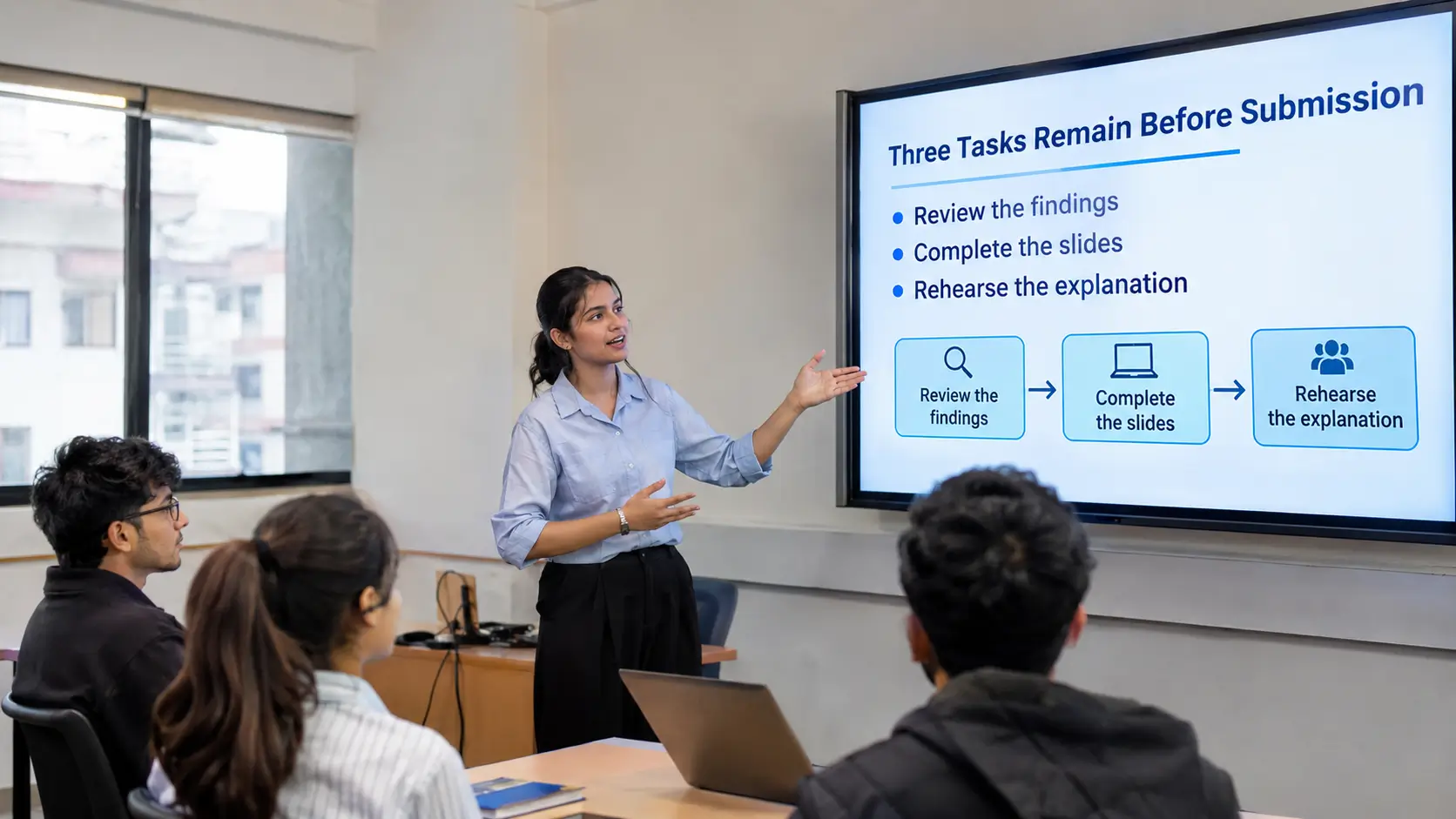
Slide Heading: Three Tasks Remain Before Submission
The revised slide contains three clearly separated actions:
-
Review the findings.
-
Complete the slides.
-
Rehearse the explanation.
The presenter can explain who is responsible for each task and discuss any remaining scheduling details.
If the audience needs that information for decision-making, it can appear in speaker notes, an additional slide, or a project document.
What the Redesign Improves
| Before | After |
|---|---|
| General heading | Heading communicates the main message |
| Several competing topics | One central takeaway |
| Long paragraph | Three specific actions |
| Unclear information hierarchy | Clear sequence of remaining work |
| Supporting details occupy slide space | Details can be explained separately |
The revised slide is not necessarily better for every purpose.
If the presentation is intended to serve as a complete written project report, additional information may be necessary.
The lesson is to separate the information required for immediate understanding from details that can be presented elsewhere.
Review Your Presentation Before Presenting
A presentation should be reviewed for comprehension, accessibility, and practical usability rather than appearance alone.
Test Audience Understanding
Ask someone unfamiliar with the subject to review the slides.
Questions that can reveal problems include:
-
What is the presentation's central message?
-
Can you identify the purpose of each important slide?
-
Does the order of information make sense?
-
Which terms, figures, or explanations are unclear?
-
What information is missing?
Their responses can help identify gaps that are difficult for the presenter to recognize after working with the material.
This is an informal comprehension check, not a guarantee that every audience member will understand the presentation.
Rehearse the Complete Sequence
Practice moving through the slides while explaining the content aloud.
Check whether each slide supports the main message and whether the transition to the next slide feels logical.
Naegle's presentation guidance emphasizes rehearsal as a way to identify poor slide order, unnecessary detail, and weak connections.
If explaining why one slide follows another is difficult, the sequence may need revision.
Readers seeking additional delivery advice can refer to Collegenp's article on public speaking skills for students.
Check Viewing Conditions and Technical Reliability
Review slides on the intended screen or projector where possible.
Look for unreadable labels, cropped diagrams, insufficient contrast, and unexpected formatting changes.
Confirm that charts, videos, and essential media display correctly. Keep a backup copy in a suitable format, while ensuring that any shared version remains accessible.
For online presentations, consider smaller screens and the limitations of screen sharing.
Complete the review by checking accessibility features and confirming that any supporting materials are available in usable formats.
Final Presentation Design Checklist
Use this checklist before submitting or delivering a presentation.
Structure and Content
-
The central message is clear.
-
The introduction establishes the topic and purpose.
-
Slides follow a logical sequence.
-
Each content slide communicates one main idea.
-
Headings accurately describe the information.
-
Unnecessary material has been removed.
Readability and Visual Design
-
Text is readable at the intended viewing size.
-
Fonts, spacing, and layouts are consistent.
-
Visuals contribute to the explanation.
-
Charts have clear labels, units, and suitable scales.
-
Sources are identified where necessary.
Accessibility and Final Review
-
Text and backgrounds have sufficient contrast.
-
Meaningful images have appropriate alternative text.
-
Slide elements follow a logical reading order.
-
Important visual information can be understood without relying on color alone.
-
Relevant captions and accessible supporting materials are available.
-
Slides have been checked under realistic viewing conditions.
-
The complete presentation has been rehearsed and reviewed for understanding.
Conclusion
Designing an easy-to-follow presentation involves making deliberate choices about what to include, how to organize information, and how to communicate it visually.
Begin with the audience and central message. Arrange ideas logically, use readable slides, and select visuals that support understanding. Consider accessibility throughout the design process rather than adding it after the content is complete.
The final measure of clarity is whether the audience can identify the main points, understand the supporting explanation, and follow the connections between ideas.
References
-
Naegle, Kristen M. (2021). Ten Simple Rules for Effective Presentation Slides. PLOS Computational Biology, 17(12), e1009554.
-
Fiorella, Logan, and Mayer, Richard E. (2021). Principles for Reducing Extraneous Processing in Multimedia Learning. Chapter 14 in The Cambridge Handbook of Multimedia Learning. Cambridge University Press.
-
Harvard T.H. Chan School of Public Health, Center for Health Communication. Transform Your Health Presentations: Strategies for Clear, Engaging Slides. Prepared by Samuel R. Mendez.
-
Monash University. Create Presentation Slides for Teaching. Learning and Teaching: Teach HQ.
-
University of California, Santa Barbara Library. Designing Slides. Delivering Engaging Research Presentations.
-
Microsoft Support. Make Your PowerPoint Presentations Accessible to People with Disabilities.
-
World Wide Web Consortium (W3C), Web Accessibility Initiative. Making Events Accessible: Checklist for Meetings, Conferences, Training, and Presentations.
-
World Wide Web Consortium (W3C). Understanding Success Criterion 1.4.3: Contrast (Minimum). Web Content Accessibility Guidelines 2.2.




Comments 0
No comments yet. Be the first to start the conversation.