



A document can look clear and professionally organized while remaining difficult for someone else to use. Headings may appear prominent but offer no navigation for a screen reader. A scanned PDF may resemble ordinary text while containing no selectable words. A chart may communicate an important finding visually without providing the same information in text.
Making documents accessible means addressing these barriers so that more people can find, navigate, understand, and use the information.
This matters when preparing school materials, university assignments, workplace instructions, reports, application forms, and information published online. Readers may use screen readers, magnification software, keyboard navigation, text-to-speech tools, or different screen sizes.
Document accessibility involves more than selecting a readable font. It requires meaningful structure, clear language, appropriate descriptions of visual content, usable formatting, and a suitable file format.
It also requires checking the version that readers will receive. A properly structured Word document does not automatically produce an accessible PDF after conversion.
Answer Summary: To make documents accessible to more readers, choose an appropriate format, apply built-in heading styles and lists, write descriptive links, provide text alternatives for informative images, and use readable contrast and layouts. For PDFs, preserve structural tags and verify reading order. Run an accessibility checker, inspect the finished document manually, and provide an alternative format when necessary. No single format or automated check establishes accessibility for every reader.
Key Takeaways:
-
Visual formatting and accessible document structure are different.
-
Built-in headings, lists, and table features support navigation.
-
Images and charts need appropriate text alternatives when they convey information.
-
An accessible source document is the starting point for PDF creation.
-
Optical character recognition does not automatically make scanned PDFs accessible.
-
Automated accessibility checks require manual verification.
-
Readers may need different formats depending on their tasks and access requirements.
What Makes a Document Accessible?
An accessible document presents information in ways that readers can interpret and use through different devices and assistive technologies.
Accessibility includes several connected requirements.
-
Structure: Headings, paragraphs, lists, tables, and links have identifiable purposes.
-
Navigation: Readers can locate sections and move through information in a logical sequence.
-
Readability: Text, contrast, spacing, and organization support reading and comprehension.
-
Alternative access: Important information is available without depending entirely on images, colors, or visual positioning.
-
Usability: Readers can interact with links, forms, and other document features using appropriate tools.
The difference between visual appearance and underlying structure is particularly important.
Consider a section heading created by enlarging ordinary paragraph text. A sighted reader may recognize it immediately. However, assistive software may not identify it as a heading.
Using a proper heading style gives the element a defined structural role. This can help compatible assistive technologies identify and navigate the document.
The World Wide Web Consortium (W3C) addresses these principles through the Web Content Accessibility Guidelines (WCAG) 2.2. Its requirements concerning information relationships and meaningful sequence explain why structure and reading order matter.
Accessible documents can support readers using different forms of assistive technology. However, accessibility is not limited to assistive software. Clear organization and flexible presentation can also help people reading on smaller screens or working with unfamiliar material.
Choose the Right Document Format
The appropriate document format depends on how readers will access and use the information.
Before creating a file, determine whether it will primarily be read online, edited collaboratively, printed, completed as a form, or retained as a fixed-layout document.
|
Format |
Suitable use |
Accessibility consideration |
|---|---|---|
|
Web page (HTML) |
Information primarily read online |
Requires accessible page structure and adaptable presentation |
|
Microsoft Word |
Editable documents and learning materials |
Needs genuine headings, lists, tables, and appropriate descriptions |
|
Google Docs |
Collaborative writing and sharing |
Requires accessible authoring practices and export checks |
|
|
Fixed-layout and printable documents |
Needs suitable tags, reading order, text, and document properties |
|
Scanned PDF |
Digitized paper records |
Requires text recognition and additional accessibility work |
For public information intended mainly for online reading, an accessible web page may be more practical than a mandatory download.
The UK Government Digital Service recommends publishing information in HTML wherever possible. Its guidance identifies limitations associated with PDF documents, particularly when readers need to adjust how content is displayed.
This is a UK government publishing recommendation, not a universal legal requirement.
PDF remains useful when consistent page layout or printing is necessary. A PDF can also be accessible when created and checked appropriately.
Similarly, Word and Google Docs files are not automatically accessible because they are editable.
The useful decision is whether the chosen format allows the intended readers to complete their tasks without avoidable barriers.
Build a Document Structure Readers Can Navigate
A document should communicate its organization through genuine structural elements rather than visual formatting alone.
Use Built-In Heading Styles
Headings identify topics and establish relationships between sections.
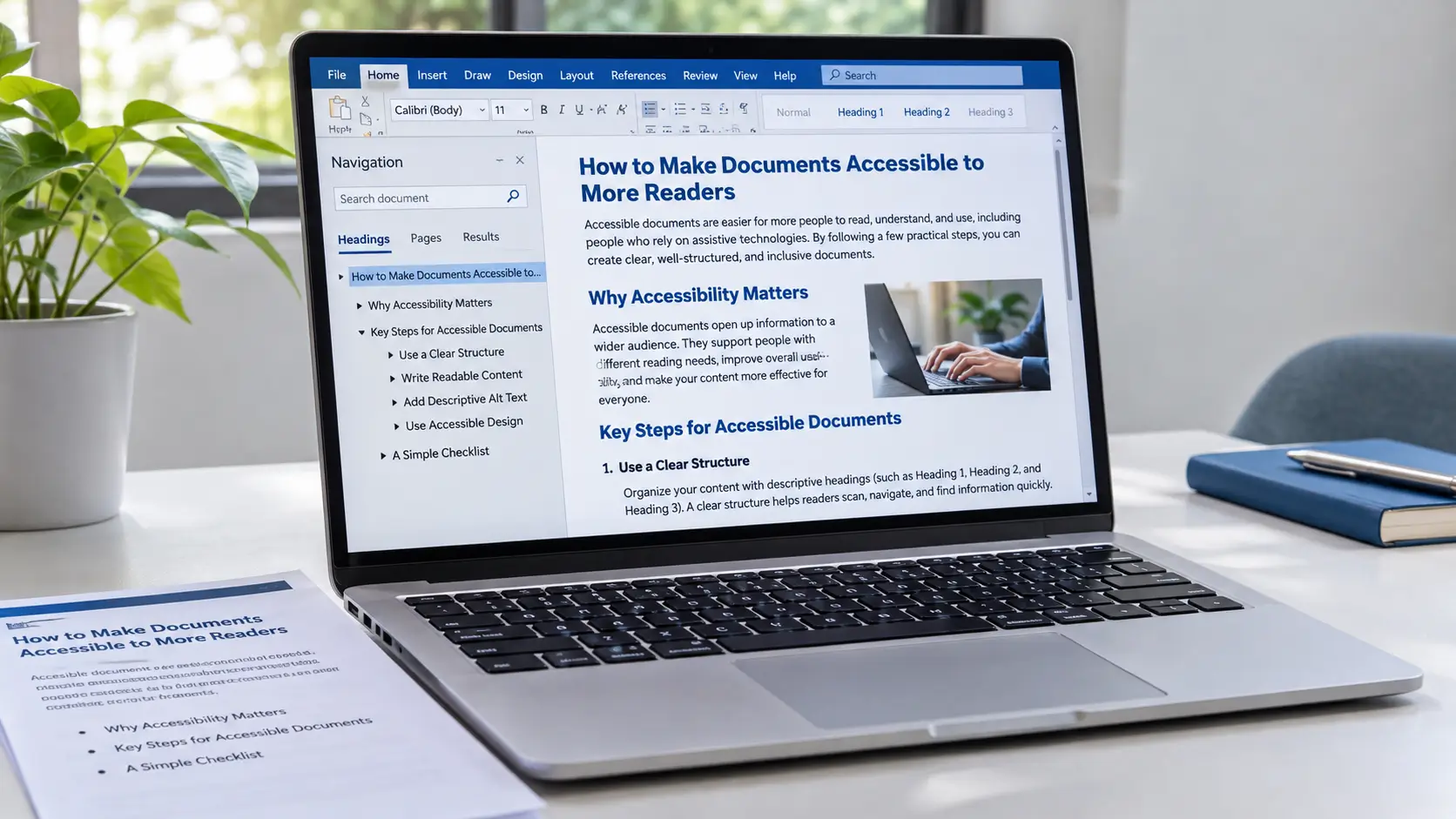
In Microsoft Word, apply the built-in heading styles rather than manually increasing font size or applying bold text.
Use a logical hierarchy. A major section should have a higher-level heading than its subsections.
For example, a document about application procedures may contain a main heading followed by sections for eligibility, required documents, submission instructions, and additional information.
Subsections should appear beneath the appropriate parent headings.
Avoid skipping heading levels merely to achieve a preferred visual appearance. Heading styles can usually be customized without changing their structural meaning.
Microsoft recommends built-in headings because they help readers understand and navigate document organization.
Create Real Numbered and Bulleted Lists
Use the application's list-formatting tools rather than typing symbols and spaces to imitate lists.
Numbered lists are appropriate when sequence matters, such as completing an application.
Bulleted lists are suitable for related information without a required order, such as a list of document requirements.
A genuine list allows compatible assistive software to identify list items and their relationships.
Write Descriptive Links
Link text should explain where the link leads or what it allows readers to do.
For example:
-
Less informative: "Click here."
-
More informative: "Read the scholarship application instructions."
Descriptive links remain easier to interpret when readers review hyperlinks separately from surrounding paragraphs.
Avoid using long, unexplained URLs as the sole link text when a meaningful description is available.
Make Data Tables Understandable
Use tables for information that genuinely belongs in rows and columns.
Where the application supports the feature, identify header rows so that assistive technologies can associate data with its headings.
Keep the structure straightforward. Unnecessary merged cells, nested tables, and irregular arrangements can complicate navigation.
For example, a table showing course names, durations, and entry requirements should have clearly identified column headings.
Avoid using tables solely to position unrelated content on the page. Spacing and layout controls are generally more appropriate for that purpose.
Microsoft and Google both provide guidance on using tables for data and supplying meaningful header information.
Make Text and Visual Content Understandable
Accessible document design must communicate meaning without assuming that every reader will perceive the same visual presentation.
Use Plain Language and Clear Instructions
Write sentences that identify the relevant action, information, or requirement directly.
For example, "Submit the completed form through the application portal" is clearer than "Complete the necessary submission formalities."
Explain technical terms and unfamiliar abbreviations when they first appear.
Use descriptive headings to separate subjects and avoid placing several unrelated instructions in one dense paragraph.
Instructions should remain understandable when the visual arrangement changes.
Avoid statements such as "Read the instructions in the red box on the right" unless the same information is identifiable through text and structure.
For multilingual documents, set the primary language correctly where the software supports it. Identify passages in another language when appropriate.
Language information can help compatible screen readers apply suitable pronunciation rules. It does not translate the document.
Write Useful Alternative Text for Images
Alternative text, commonly called alt text, provides a textual equivalent for an image's relevant meaning or function.
The appropriate description depends on why the image appears in the document.
The W3C Web Accessibility Initiative distinguishes several categories of images:
-
Informative images communicate information or concepts.
-
Functional images perform actions, such as an icon linked to another page.
-
Decorative images contribute visual appearance without adding necessary information.
-
Complex images communicate relationships or information requiring more detailed explanation.
For an informative image, describe what readers need to understand.
A functional icon should identify the action rather than merely describing its appearance.
Decorative images generally do not require an announced description. Use the application's decorative-image setting when available.
The W3C Images Accessibility Tutorial provides further guidance on these distinctions.
Alt text should not repeat an adjacent explanation unnecessarily.
Automatically generated descriptions also require review. Google explicitly advises checking automatically supplied alt text for accuracy.
Explain Charts and Diagrams
Charts often contain information that a short image description cannot communicate adequately.
Provide the subject of the chart and explain the important relationships or findings.
When exact values are necessary for understanding, make those values available through an accessible table or textual explanation.
A process diagram may require a written description of the stages and their relationships.
For example, a flowchart explaining an application procedure should communicate the sequence and any decision points in text.
Do not assume that identifying the graphic as a "flowchart" or "bar chart" communicates its content.
Complex mathematical expressions, technical diagrams, and scientific illustrations may require additional specialist treatment.
Check Contrast, Color, and Layout
Readable documents need sufficient visual contrast between text and its background.
WCAG 2.2 specifies these Level AA minimum contrast ratios for web content:
-
Normal text: 4.5:1
-
Large text: 3:1
These thresholds have defined exceptions. They are useful reference targets for document design but do not independently establish document accessibility or legal compliance.
Do not rely on color alone to communicate meaning.
If a document identifies unsuccessful applications using red text, include a written status label rather than depending entirely on the color.
Use consistent spacing and alignment, and check whether content remains readable when enlarged.
There is no single font family or fixed text size established by the cited guidance as suitable for every reader.
Create Accessible Microsoft Word and Google Docs Files
Microsoft Word and Google Docs provide authoring features that support document accessibility when used appropriately.
Microsoft Word Accessibility
In Word, start with built-in heading styles, properly formatted lists, descriptive links, understandable tables, and suitable image alternatives.
Avoid placing essential information exclusively in headers, footers, or visually positioned elements that may not be interpreted as intended.
Microsoft Word provides an Accessibility Checker that identifies certain problems and suggests corrections.
In supported versions, select Review > Check Accessibility to open the checker.
Review the findings and address relevant problems before distributing the document.
Microsoft also recommends checking the document's navigation and reading experience rather than relying entirely on automated findings.
Google Docs Accessibility
Google Docs supports heading styles, lists, text alternatives, descriptive hyperlinks, and data tables.
Its official accessibility guidance recommends using headings for navigation and providing descriptions for relevant images and graphics.
Use tables for data instead of page layout, and check whether important visual formatting is also communicated through text.
When exporting a Google Docs file to another format, examine the resulting document separately.
Accessibility features supported in the source environment should not be assumed to transfer identically into every exported format.
Create or Repair an Accessible PDF
An accessible PDF requires more than visible or selectable text. Its structure, reading order, document properties, and interactive elements must also support meaningful access.
Export PDFs With Structural Information
If an editable source document exists, correct its structure before converting it to PDF.
In Microsoft Word, the supported desktop PDF export options include "Document structure tags for accessibility."
These tags help identify structural relationships in the PDF.
Microsoft's PDF export guidance explains this option.
PDF tags can identify paragraphs, headings, lists, and other content elements.
The reading order should follow the intended sequence of information, particularly in documents containing columns, tables, sidebars, or complex layouts.
Adobe Acrobat provides tools for reviewing tags, language information, reading order, and other accessibility properties.
However, Adobe also identifies accessibility checks that require manual examination.
A tagged PDF is not automatically compliant with PDF/UA or every applicable WCAG requirement.
Repair Scanned PDFs With OCR
Scanned PDFs may contain page images rather than machine-readable text.
Optical character recognition (OCR) identifies text within scanned images and can make recognized content searchable and selectable.
However, OCR is only one part of PDF accessibility work.
Recognized text may contain errors, particularly in complex layouts, poor-quality scans, mathematical notation, or documents using unusual characters.
OCR does not independently establish correct heading levels, table structure, or reading order.
When repairing a scanned document:
-
Apply OCR using an appropriate tool.
-
Check the recognized text against the original document.
-
Correct recognition errors.
-
Add or repair structural information where necessary.
-
Verify reading order and relevant document properties.
-
Test the repaired PDF before distribution.
Adobe's PDF accessibility guidance covers image-only documents, OCR, tagging, and structural verification.
If the original editable document remains available, correcting and exporting that source may be more manageable than repairing a complicated scan.
Test Document Accessibility Before Sharing
Document accessibility testing should combine automated checks with manual inspection of the finished file.
Automated tools are useful for identifying specific technical problems, but they cannot determine whether every description, instruction, or information sequence is meaningful to readers.
Microsoft documents the rules and limitations of its Accessibility Checker.
A practical review can follow this sequence.
Check the Source Document
Run the accessibility checker available in the authoring application.
Review errors, warnings, and suggested corrections.
Check whether headings form a meaningful hierarchy, lists are properly formatted, and image descriptions communicate relevant information.
Review the Document in Reading Order
Read the content in its intended sequence.
Pay particular attention to multi-column layouts, tables, text boxes, diagrams, and footnotes.
A visually attractive arrangement may become confusing when its elements are interpreted in a different order.
Test Navigation and Interaction
Where suitable tools are available, try navigating the document with a keyboard or screen reader.
Check whether headings, links, relevant images, and interactive elements can be located and understood.
If the document contains a form, verify that fields have appropriate labels and that the interaction sequence makes sense.
Testing with one application or assistive technology configuration does not establish compatibility with every reader's setup.
Inspect the Exported PDF
For PDFs, confirm whether text can be selected and copied.
Inspect structural tags, language settings, and reading order using suitable tools.
A successful text-selection test can help identify image-only scans, but it does not prove structural accessibility.
Also examine the file at different magnification levels or screen sizes. Fixed layouts may present additional reading difficulties.
Where possible, feedback from readers using different access methods can reveal problems missed by technical checks.
Share Documents and Address Remaining Accessibility Barriers
Accessibility also depends on how readers obtain and open the document.
Use descriptive filenames and meaningful download links. Identify the document format where readers are choosing between alternatives.
Confirm that sharing permissions allow intended recipients to access the file.
For information that is primarily read online, consider an accessible web version alongside a downloadable document when appropriate.
If an existing PDF remains difficult to use, correct the editable source when possible and produce a new version.
Documents containing complex forms, mathematical notation, technical diagrams, or irregular tables may require additional accessibility expertise.
Printed copies have separate considerations involving contrast, typography, and physical presentation. Digital document tags cannot change the accessibility of paper already printed.
Accessibility obligations also differ among jurisdictions. WCAG, PDF/UA, and national accessibility requirements should not be presented as interchangeable certifications.
Final Document Accessibility Checklist
Before distributing a document, review these essential points:
This checklist supports practical review. It does not constitute an accessibility certification.
Conclusion
Making documents accessible is a process of preserving information and meaning across different ways of reading and interacting.
The most useful starting point is a properly structured source document. Meaningful headings, clear instructions, suitable image alternatives, readable presentation, and an appropriate file format reduce avoidable barriers.
The finished document still needs verification, especially after PDF conversion.
For existing files, identify the barriers, correct the source where possible, and examine the revised version before sharing it.
Accessibility is better evaluated through whether readers can locate, understand, and use the information than through visual appearance or an automated checker result alone.
References
-
World Wide Web Consortium (W3C). Web Content Accessibility Guidelines (WCAG) 2.2. W3C Recommendation, 2024.
-
W3C Web Accessibility Initiative. Images Accessibility Tutorial.
-
Microsoft Support. Make Your Word Documents Accessible to People With Disabilities.
-
Microsoft Support. Rules for the Accessibility Checker.
-
Microsoft Support. Save or Convert to PDF or XPS in Office Desktop Apps.
-
Google Docs Editors Help. Make Your Document, Presentation, Sheets and Videos More Accessible.
-
Adobe Acrobat. Create and Verify PDF Accessibility. Updated February 2026.
-
UK Government Digital Service. Publishing Accessible Documents. Updated October 2025.



Comments 0
No comments yet. Be the first to start the conversation.