



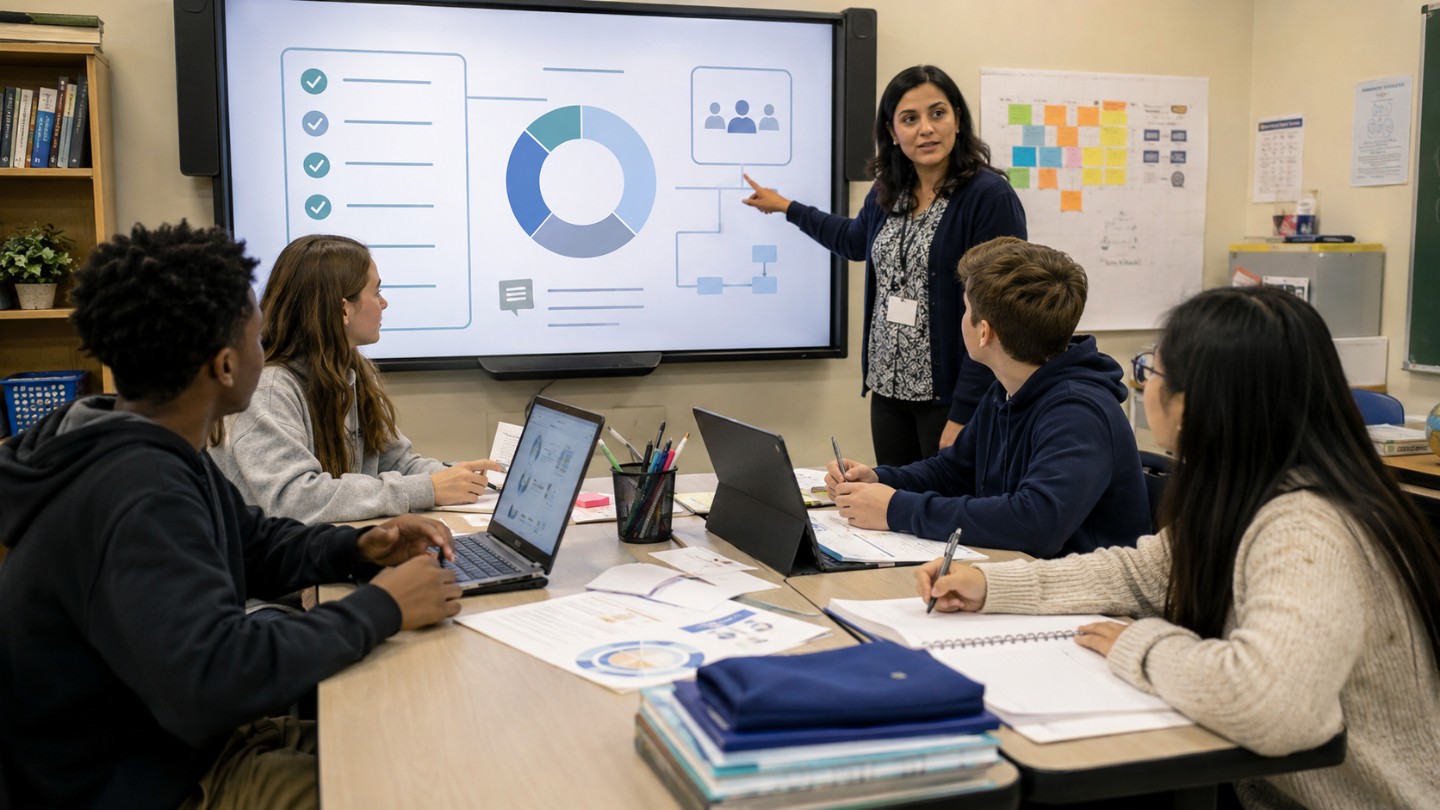
Technology works best in the classroom when it helps students create, collaborate, practice, reflect, and receive feedback. It works poorly when it adds screen time without a clear learning purpose.
Classroom technology includes learning platforms, shared documents, online quizzes, short videos, simulations, accessibility tools, digital portfolios, and artificial intelligence tools used under school policy. The central question for teachers is not “Which tool looks new?” It is “What learning task does this tool help students do?”
The U.S. Department of Education’s 2024 National Educational Technology Plan warns that some educational technology tools claim improved assessment results without independent, research-based evidence. The plan also identifies digital access, design, and use divides as major barriers schools need to address.
Answer Summary:
Effective ways to use technology in the classroom include quick feedback tools, short instructional videos, shared documents, digital portfolios, simulations, accessibility supports, responsible AI use, and digital citizenship lessons. These methods work when teachers begin with the learning goal, choose the smallest useful tool, set clear routines, protect student data, and check evidence of learning.
Table of Content
- What Effective Classroom Technology Use Means
- Quick Checklist Before Using Any Classroom Technology
- 15 Effective Ways to Use Technology in the Classroom
- Grade-Level and Subject Examples
- Benefits of Using Technology in the Classroom
- Challenges and How to Manage Them
- Common Tool Categories for Teachers
- A Simple 5-Step Classroom Plan
- Classroom Technology Decision Checklist
- Conclusion
Key Takeaways:
-
Start with the lesson goal, not the tool.
-
Use technology for feedback, access, creation, collaboration, and reflection.
-
Set routines before devices open.
-
Teach privacy, source checking, and digital citizenship.
-
Balance screen work with discussion, writing, reading, and hands-on tasks.
-
Use AI only within school rules and with human review.
-
Judge success by student learning evidence, not device use.
What Effective Classroom Technology Use Means
Effective classroom technology use means a tool helps students learn, practice, explain, create, collaborate, or reflect. A device is not the goal; evidence of learning is the goal.
The ISTE Standards for Educators include technology-supported assessment, timely feedback, student data protection, collaboration, accessibility, and student reflection. These standards support a teacher-first view of classroom technology: tools should fit the learning task, not replace instructional judgment.
Technology should support learning goals, not replace teaching
Begin with one sentence: “Students will be able to…” Then decide whether technology helps students reach that goal.
Examples:
-
For vocabulary review, a short quiz can help.
-
For peer feedback, a shared document can help.
-
For a science process that is hard to observe, a simulation can help.
-
For argument writing, a source-checking routine can help.
-
For discussion, a non-digital conversation may work better.
Technology is not needed when it makes the lesson slower, less clear, or less fair.
Active use beats passive screen time
Active use asks students to create, compare, revise, explain, solve, discuss, or reflect. Passive use asks students to watch, click, or copy with limited thinking.
Edutopia’s article on using technology to support student engagement says digital tools are more useful when they help students construct ideas, collaborate with peers, and create work. It also cautions teachers not to assume that technology automatically engages students.
Quick Checklist Before Using Any Classroom Technology
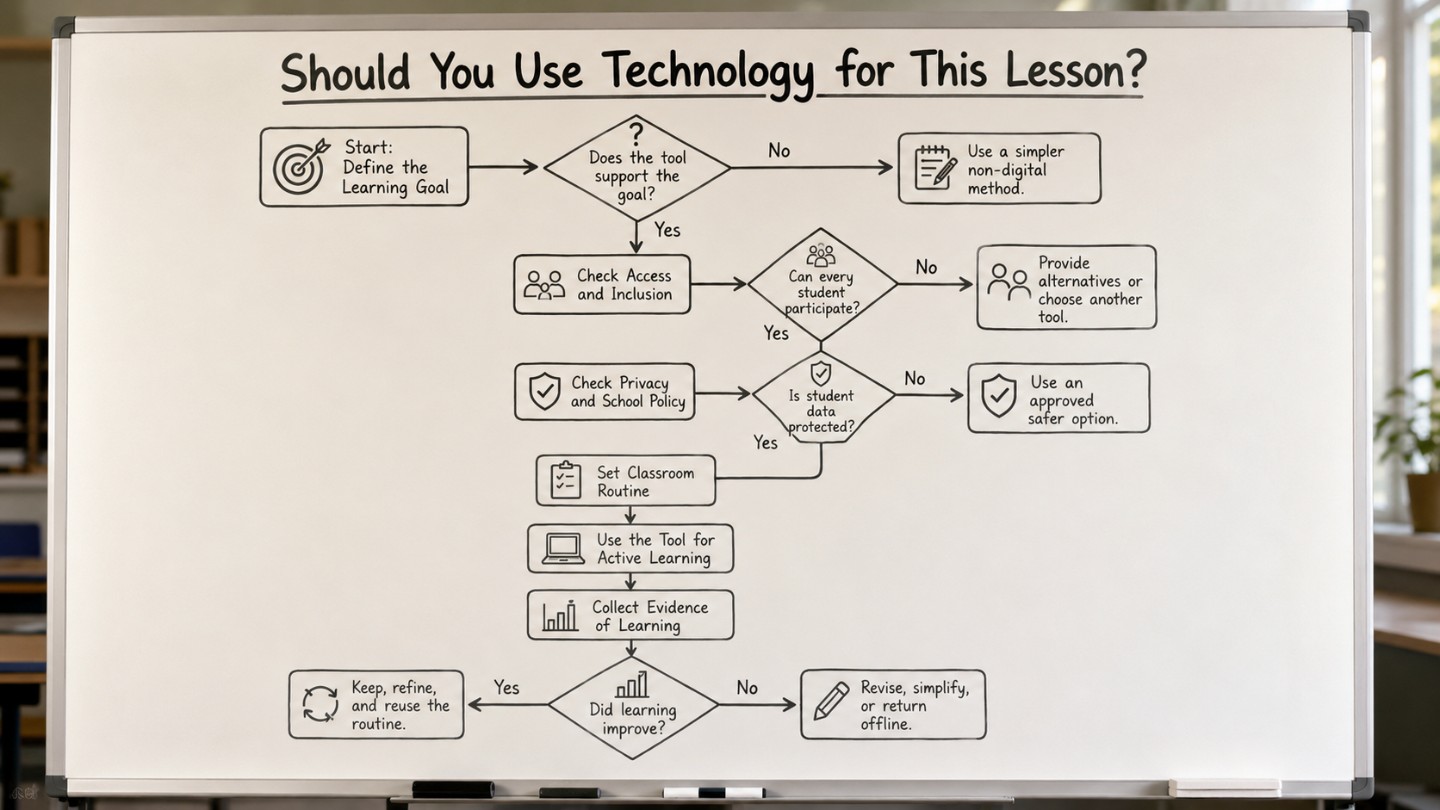
A short checklist prevents technology from becoming the lesson. Use a digital tool only when it passes five checks: objective, access, privacy, routine, and evidence.
1. Learning objective
Ask: What should students know, do, explain, or produce?
A tool is useful when it helps students reach that goal. A tool is weak when the activity looks busy but produces little evidence of thinking.
2. Access and inclusion
Ask: Can every student participate?
Check device access, internet access, language needs, reading level, disability access, and alternative response options. The CAST Universal Design for Learning Guidelines offer suggestions for designing learning environments where students can access and participate in meaningful learning opportunities.
Teachers can connect accessibility planning with broader assistive technology support when students need tools such as text-to-speech, captions, screen readers, or alternative response formats.
3. Privacy and safety
Ask: What student data does the tool collect?
Teachers should use school-approved tools when possible and avoid entering unnecessary student information into public or unapproved platforms. In the United States, the U.S. Department of Education explains in What is FERPA? that FERPA gives parents rights related to children’s education records, and those rights transfer to the student when the student turns 18 or attends a postsecondary institution. Privacy rules differ by country and school system, so local policy must guide tool choice.
4. Classroom routine
Ask: What exactly will students do when devices open?
Set the page, task, time limit, help routine, finished-work routine, and device-close signal before students begin. Clear routines also support broader classroom management, especially when students move between online and offline work.
5. Evidence of learning
Ask: What will prove that students learned?
Evidence may be an exit ticket, revised paragraph, recorded explanation, solved problem, portfolio reflection, group product, quiz result, or teacher observation.
15 Effective Ways to Use Technology in the Classroom
The strongest classroom technology strategies connect digital tools with student thinking. The following methods can work across subjects when teachers adjust them to age, access, and lesson goals.
1. Use short videos or screencasts for instructions and review
Short teacher-made videos or screencasts help students replay instructions, review a process, or catch up after absence. Edutopia’s article on effective uses of technology in elementary school includes examples such as short instructional clips, student reflection, and creative documentation of learning.
Useful examples include:
-
solving a math problem,
-
explaining a lab procedure,
-
modeling a writing revision,
-
showing how to submit an assignment,
-
reviewing vocabulary pronunciation.
Keep the task active. Ask students to pause, answer a prompt, complete guided notes, or apply the method to a new problem.
2. Use polls, quizzes, and exit tickets for quick feedback
Digital checks help teachers see what students understand during the lesson. They are useful for warm-ups, vocabulary practice, misconception checks, and end-of-class exit tickets.
The purpose is not only collecting scores. The purpose is deciding what to do next: reteach, regroup, extend the task, or ask students to explain their reasoning.
Example: After a fractions lesson, students answer three short questions. If many students miss the same item, the teacher can pause and reteach before assigning independent practice.
3. Use collaborative documents and boards for group work
Shared documents, slides, and digital boards allow students to co-write, comment, sort evidence, and review one another’s work.
Examples:
-
In English, students comment on thesis statements.
-
In science, groups add observations to a shared table.
-
In social studies, students sort source evidence by reliability.
-
In math, students explain two solution paths and compare them.
Set roles so one student does not complete all the work. Roles may include writer, evidence checker, questioner, reviewer, and presenter.
4. Build digital portfolios for reflection and progress tracking
A digital portfolio collects student work over time. It may include drafts, photos, videos, audio recordings, feedback, and short reflections.
Portfolios are strongest when students explain their own growth. Useful prompts include:
-
What changed from my first draft?
-
What feedback did I use?
-
What do I understand now?
-
What should I practice next?
A portfolio is not only a storage folder. It should help students see progress and plan the next step.
5. Use simulations and virtual labs for difficult concepts
Simulations can help students explore processes that are too small, fast, slow, distant, costly, or risky to observe directly.
Useful examples include:
-
circuits,
-
ecosystems,
-
chemical reactions,
-
weather systems,
-
planetary motion,
-
population change,
-
geometry transformations.
Ask students to predict, test, explain, and discuss limits. A simulation should not replace reasoning; it should give students a clearer object to reason about.
6. Organize lessons with a learning management system
A learning management system or school platform can organize assignments, deadlines, resources, feedback, and class messages.
Keep the structure simple:
-
today’s task,
-
required materials,
-
due date,
-
feedback location,
-
help option.
A platform becomes less useful when students must search through too many folders, links, or announcements. Schools comparing platform options may also review how to choose a digital learning platform.
7. Differentiate practice with adaptive tools
Adaptive practice tools can give students practice at different levels. They are often used for math facts, vocabulary, spelling, grammar, typing, reading checks, and retrieval practice.
Use these tools with care. Adaptive practice should not replace teacher explanation, discussion, writing, hands-on work, or problem solving. Review the data and check student reasoning before deciding what the student needs next.
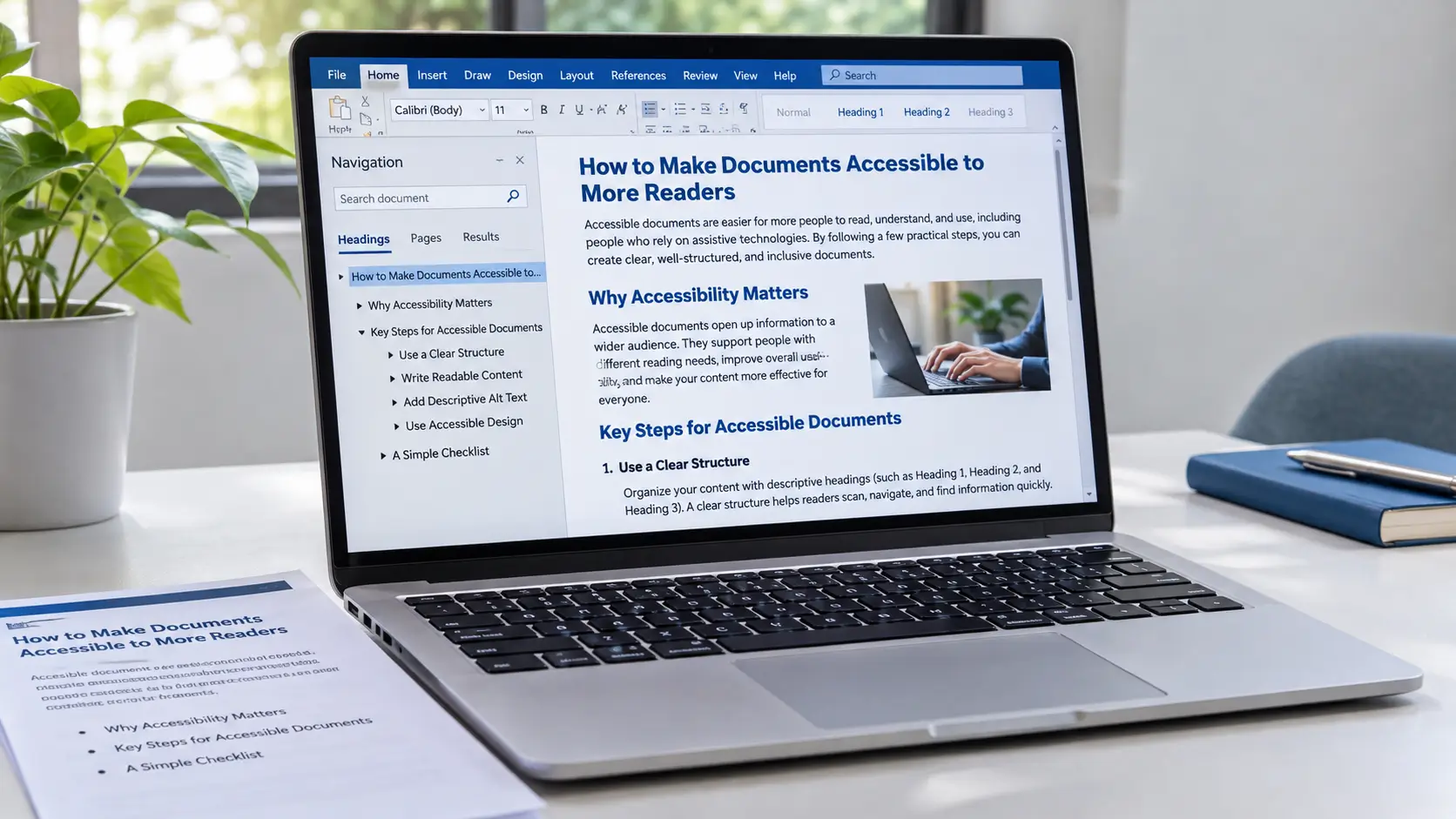
8. Improve accessibility with captions, audio, translation, and readable formats
Accessibility should be part of lesson planning, not a late fix.
Useful supports include:
-
captions,
-
audio instructions,
-
text-to-speech,
-
adjustable font size,
-
readable document layouts,
-
translation support when policy allows,
-
alternative response formats.
Captions can support students who are deaf or hard of hearing, students learning the language of instruction, and students reviewing complex content. Text-to-speech can support reading access. Clean formatting can reduce unnecessary reading barriers.
9. Use game-based learning for targeted practice
Game-based activities can support practice when they are tied to a clear learning goal. They work best for retrieval practice, vocabulary review, math facts, spelling checks, and concept review.
Do not make speed the only measure. Some students need more processing time. Use game-based learning to check understanding, then ask students to explain how they chose an answer.
10. Teach digital citizenship and source evaluation
Students need direct teaching on online behavior, privacy, source checking, misinformation, respectful communication, and healthy digital habits.
Common Sense Media’s Digital Literacy and Citizenship page describes its K–12 curriculum as teaching students to make smart choices online, think critically, and practice healthy habits.
A simple source-checking routine can ask:
-
Who created this source?
-
What evidence does it provide?
-
What is missing?
-
Is the date relevant?
-
Can another reliable source confirm it?
Teachers can connect this routine with deeper digital citizenship lessons so students practice responsible behavior during real class tasks.
11. Let students create multimedia projects
Students can show understanding through podcasts, short videos, infographics, timelines, maps, slides, or recorded explanations.
The task should require subject knowledge, not only design. For example:
-
A biology student explains how a body system works.
-
A history student builds a timeline using primary sources.
-
A language student records a short speaking reflection.
-
A math student explains why two methods produce the same answer.
Use a rubric that values accuracy, explanation, evidence, and revision.
12. Use AI responsibly for planning, feedback drafts, and critical thinking
AI tools can support teacher planning, example generation, reading-level drafts, practice questions, and feedback drafts. Students can also critique AI output for errors, missing evidence, weak reasoning, or bias.
Use caution. UNESCO’s Guidance for Generative AI in Education and Research calls for data privacy protection, age-appropriate use, human-centered validation, and policy planning for generative AI in education.
Classroom rules should be clear:
-
Follow school policy.
-
Do not enter sensitive student data into unapproved tools.
-
Check AI output against reliable sources.
-
Require students to disclose AI use when school policy asks for it.
-
Keep teacher judgment central.
For broader context, readers can compare benefits and risks in Collegenp’s article on the positive and negative impact of AI in education.
13. Use learning data to plan support
Digital tools can show patterns in class understanding: which question students missed, which concept needs review, or which group needs more practice.
Use data as a signal, not a label. Combine platform data with student work, discussion, observation, and teacher judgment. A dashboard may show that a student missed a question, but it may not explain whether the cause was misunderstanding, reading difficulty, distraction, or lack of time.
14. Communicate learning evidence with families
Technology can help teachers share assignments, rubrics, portfolio work, progress notes, and class updates with families.
Keep communication short and clear. Use school-approved channels. Follow school policy on student information, photos, public sharing, and translation. Family communication should help adults understand learning progress without exposing private student data.
15. Blend online and offline learning deliberately
Technology does not need to appear in every lesson. A strong lesson may include a short video, paper notes, group discussion, hands-on practice, and a digital exit ticket.
Use offline work when students need discussion, drawing, handwriting, reading stamina, physical models, outdoor observation, or face-to-face collaboration. Use online work when it improves feedback, access, organization, creation, or revision.
Grade-Level and Subject Examples
Technology use should match student age, independence, reading level, classroom routines, and access.
Elementary school examples
Younger students benefit from simple routines and short tasks.
Examples:
-
A Grade 2 class listens to a teacher-recorded reading and draws the main idea.
-
A Grade 3 student photographs a science model and records a short explanation.
-
A Grade 4 class uses a two-question quiz after a math mini-lesson.
-
A Grade 5 group uses a shared slide to explain one cause of a historical event.
Keep instructions visible and limit the number of clicks. Young learners need clear routines before devices open.
Middle school examples
Middle school students can handle more collaboration, source checking, and reflection, but they still need device limits.
Examples:
-
Students compare two articles and identify stronger evidence.
-
Science groups use a simulation, then write a claim-evidence-reasoning response.
-
Students keep a digital portfolio of writing revisions.
-
Groups use a shared board to sort vocabulary, examples, and non-examples.
This age group also needs explicit teaching on source credibility, online tone, and off-task browsing.
High school examples
High school students can use technology for research, data analysis, peer review, portfolio building, multimedia projects, and AI critique.
Examples:
-
Biology students test variables in a simulation and discuss model limits.
-
English students compare peer feedback with an AI-generated feedback draft.
-
Economics students analyze a public dataset and write a short interpretation.
-
History students evaluate primary and secondary sources in a shared research document.
High school tasks should ask students to explain methods, cite sources, and defend conclusions.
Benefits of Using Technology in the Classroom
Technology can support learning when it makes feedback faster, access wider, collaboration easier, and student thinking more visible. These benefits depend on lesson design and teacher judgment.
Faster feedback
Polls, quizzes, forms, and comment tools help teachers identify confusion during the lesson. This allows reteaching before students practice the wrong idea repeatedly.
More visible learning
Digital portfolios, shared documents, and recordings help students and teachers see growth over time. Students can compare earlier and later work and explain what changed.
Better access
Captions, audio support, readable layouts, and alternative response formats can reduce barriers. These supports are more useful when they are built into the lesson from the start.
More collaboration
Shared workspaces allow students to co-write, review, comment, and present together. Collaboration works best with roles, time limits, and clear criteria.
Challenges and How to Manage Them
Classroom technology carries real risks. A useful technology plan should name those risks before the lesson starts.
Distraction
Open tabs, notifications, games, and off-task browsing can reduce focus. Reduce distraction by giving one clear task, using short digital work periods, asking for a visible product, and closing devices during discussion.
Screen fatigue
Long screen sessions can reduce attention and classroom energy. Mix digital work with reading, writing, speaking, drawing, movement, outdoor observation, and hands-on practice.
Unequal access
Students may not have the same device quality, internet connection, assistive support, or home study environment. The 2024 National Educational Technology Plan identifies digital access, design, and use divides as barriers schools need to address.
Schools and policymakers working on access issues may also connect this topic to the broader digital divide.
Privacy risk
Digital tools may collect names, emails, work samples, usage data, photos, or assessment results. Teachers should follow school policy and use approved platforms. When unsure, ask a school administrator, ICT lead, or data-protection lead before using the tool with students.
Tool overload
Too many platforms can confuse students and increase teacher workload. Use a small set of approved tools well. Reuse routines and templates where possible.
Common Tool Categories for Teachers
Tool categories are more useful than brand lists because features, pricing, and availability change. Teachers should choose approved tools that fit the learning task and local policy.
Assessment and feedback tools
These include polls, quizzes, forms, exit tickets, learning platform quizzes, rubrics, and feedback tools. Use them to check understanding, not only to assign marks.
Collaboration and creation tools
These include shared documents, whiteboards, slides, video editors, audio recorders, digital maps, and portfolio platforms. Use them when students need to explain, build, revise, or present.
Accessibility and organization tools
These include captions, screen readers, text-to-speech, translation supports, calendars, assignment pages, and readable document formats. Use them to reduce access barriers and help students manage learning tasks.
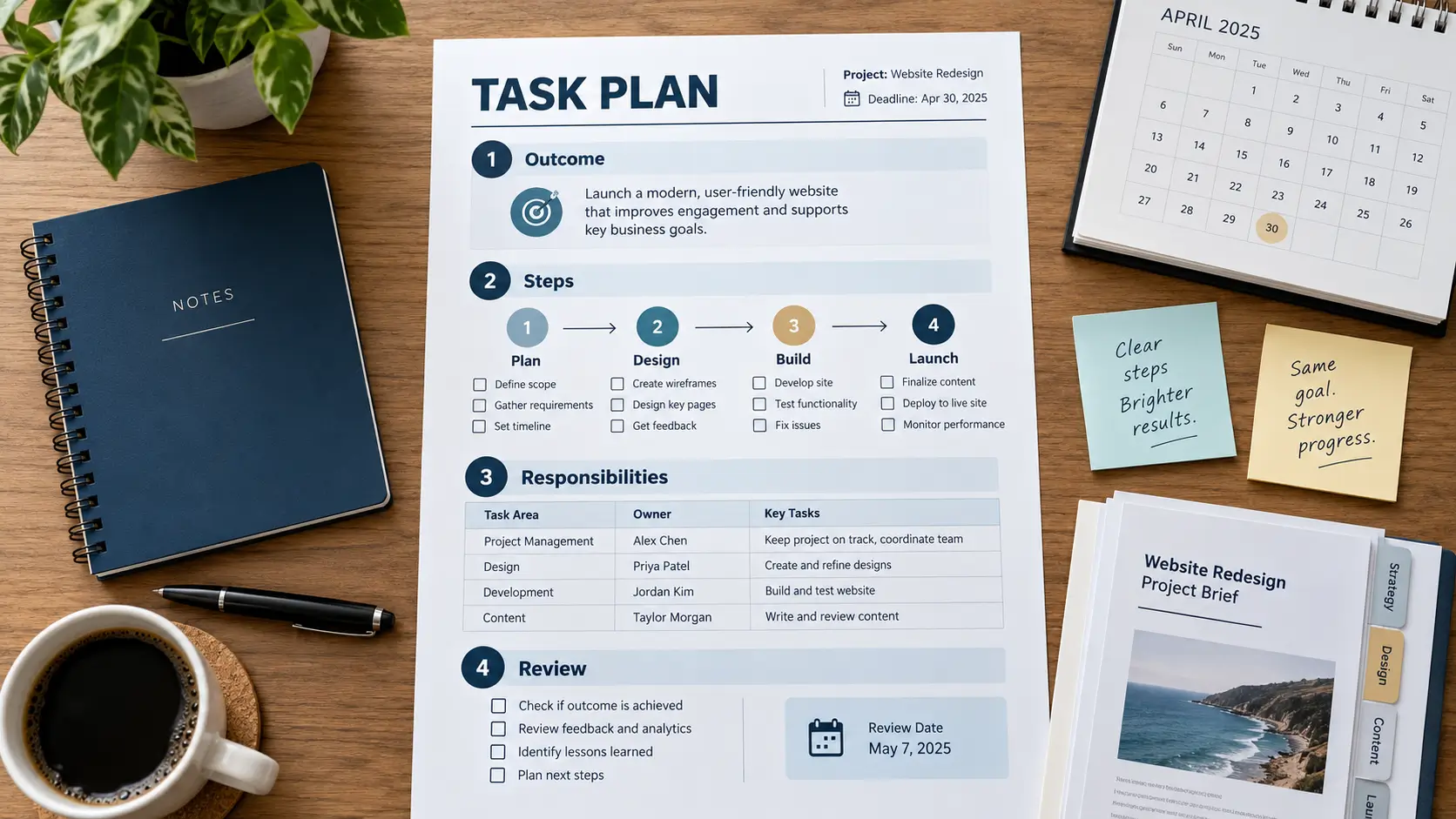
A Simple 5-Step Classroom Plan
A small plan is safer than adding many tools at once. Test one routine, review the evidence, and adjust before expanding.
Step 1: Start with the learning goal
Write one sentence: “Students will be able to…” Then decide whether technology helps students reach that goal.
Step 2: Choose the smallest useful tool
Choose the simplest approved tool that supports the task. A two-question exit ticket may be better than a complex platform.
Step 3: Set routines before devices open
Explain where students go, what they do first, how they ask for help, how much time they have, and what evidence they will submit.
Step 4: Collect evidence of learning
Use an exit ticket, student explanation, draft, portfolio note, quiz result, project, or discussion response.
Step 5: Review and adjust
Ask what worked, what distracted students, what took too long, and what needs to change next time.
A practical teacher question is: “Did this tool help students do something meaningful better than another method?” If the answer is no, choose a simpler approach next time.
Classroom Technology Decision Checklist
Use this checklist before adding a digital tool to a lesson.
| Question | Why it matters |
|---|---|
| What is the learning goal? | Prevents tool-first teaching |
| What will students produce or explain? | Keeps the task focused on learning evidence |
| Can every student access the task? | Reduces barriers linked to devices, language, disability, and internet access |
| Does the tool meet school privacy rules? | Protects student information |
| What routine will students follow? | Reduces confusion and distraction |
| What is the offline backup plan? | Keeps the lesson moving if technology fails |
| How will the teacher use the results? | Connects technology use to feedback and support |
Conclusion
Effective classroom technology use starts with a learning goal and ends with evidence of learning. The most useful tool is the one that helps students practice, explain, create, collaborate, reflect, or access content more clearly.
Teachers can begin with one lesson, one approved tool, one routine, and one evidence check. If the tool improves learning, keep refining it. If it adds distraction or confusion, simplify the lesson and choose another method.


Comments 0
No comments yet. Be the first to start the conversation.